You can change a review’s star rating from the Edit Review panel in Feedbox. The rating editor shows the review on its own scale, so a 10-star review from Booking.com opens with 10 stars to pick from, and a 5-star review from your form shows 5 stars.
Correcting a star rating is helpful when an imported review came in with the wrong rating, or when you want to adjust a manually added review to match what the customer actually said. The change saves to your Feedbox and updates anywhere the review is shown in your widgets or Wall of Love.
Steps to edit a star rating
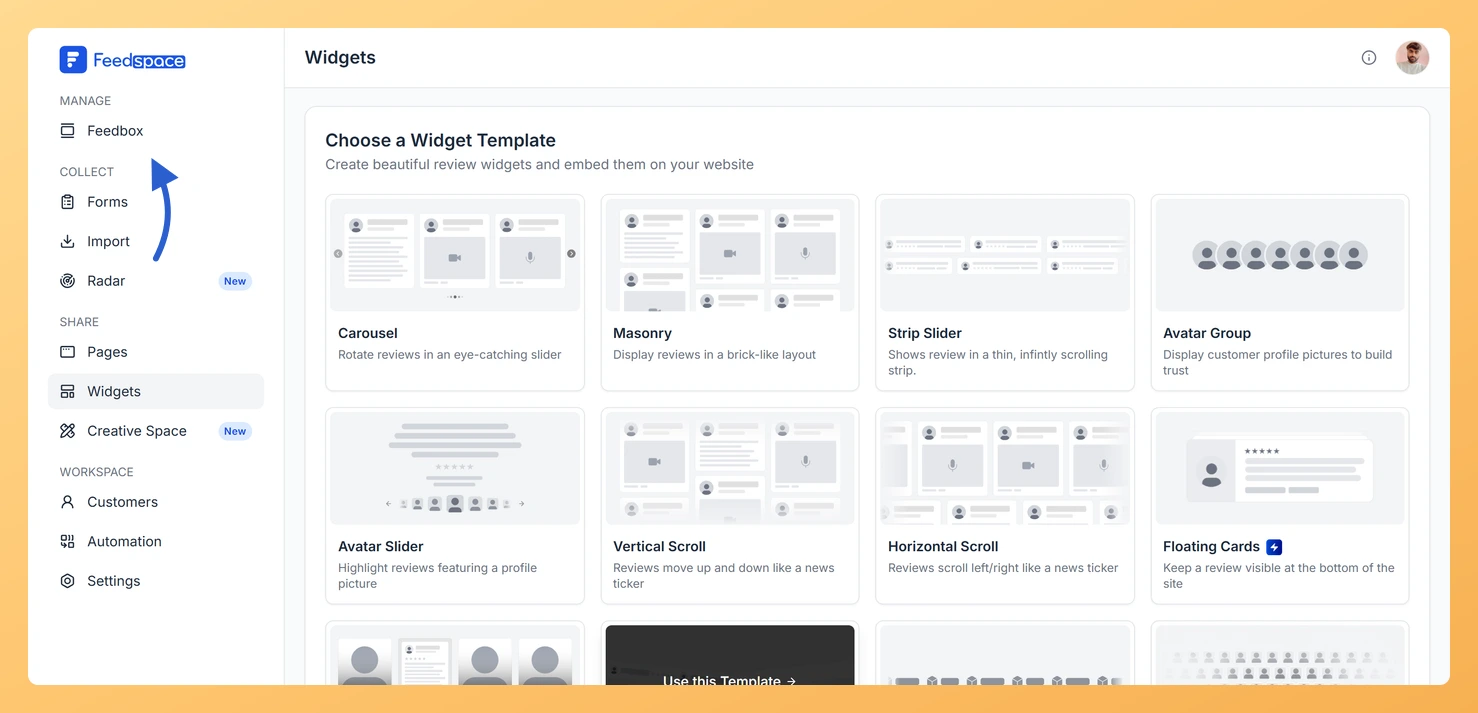
Step 1: Open Feedbox
Log in to your Feedspace dashboard and click Feedbox in the left sidebar.
Step 2: Find the review you want to change
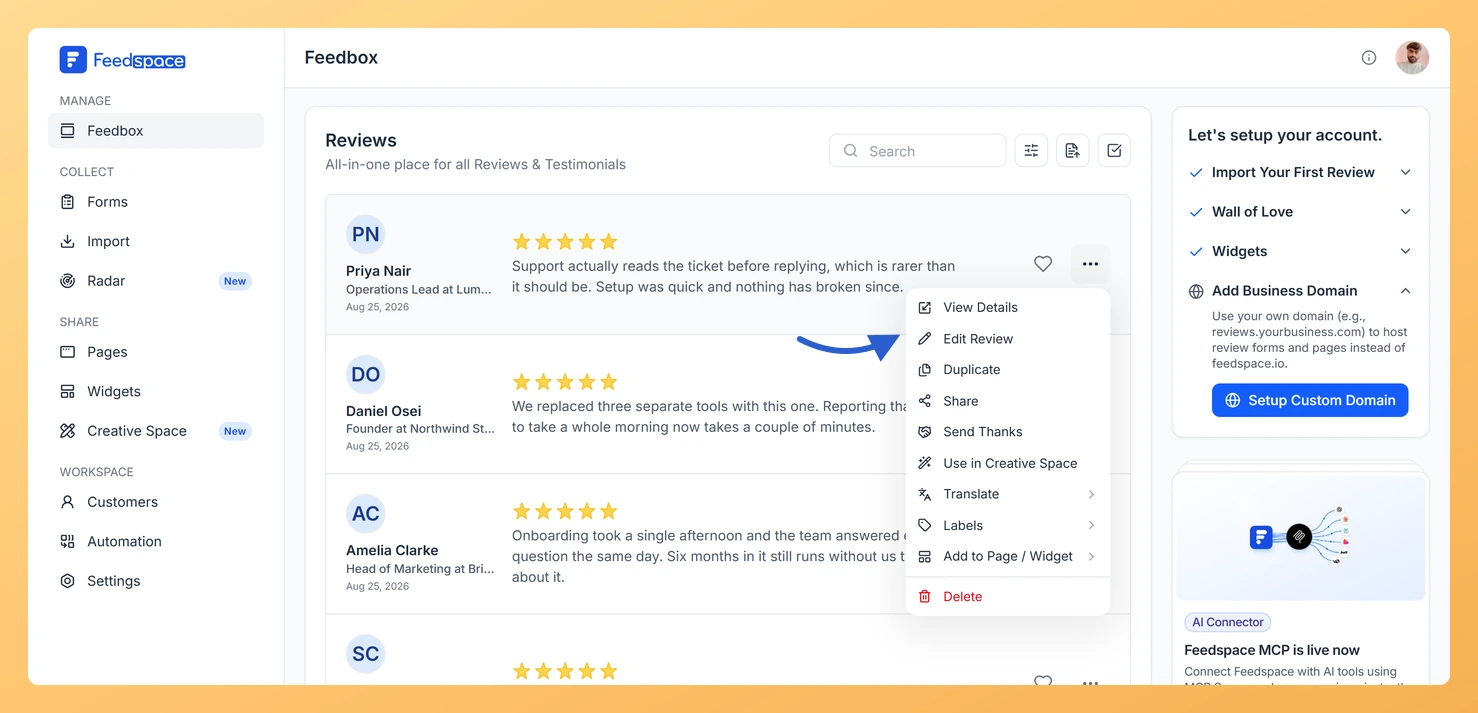
Find the review you want to update in the review list.
Step 3: Choose Edit Review
Click the three-dot menu on the review card and choose Edit Review. You can also open the review first and choose Edit Review from the dropdown in the detail panel.
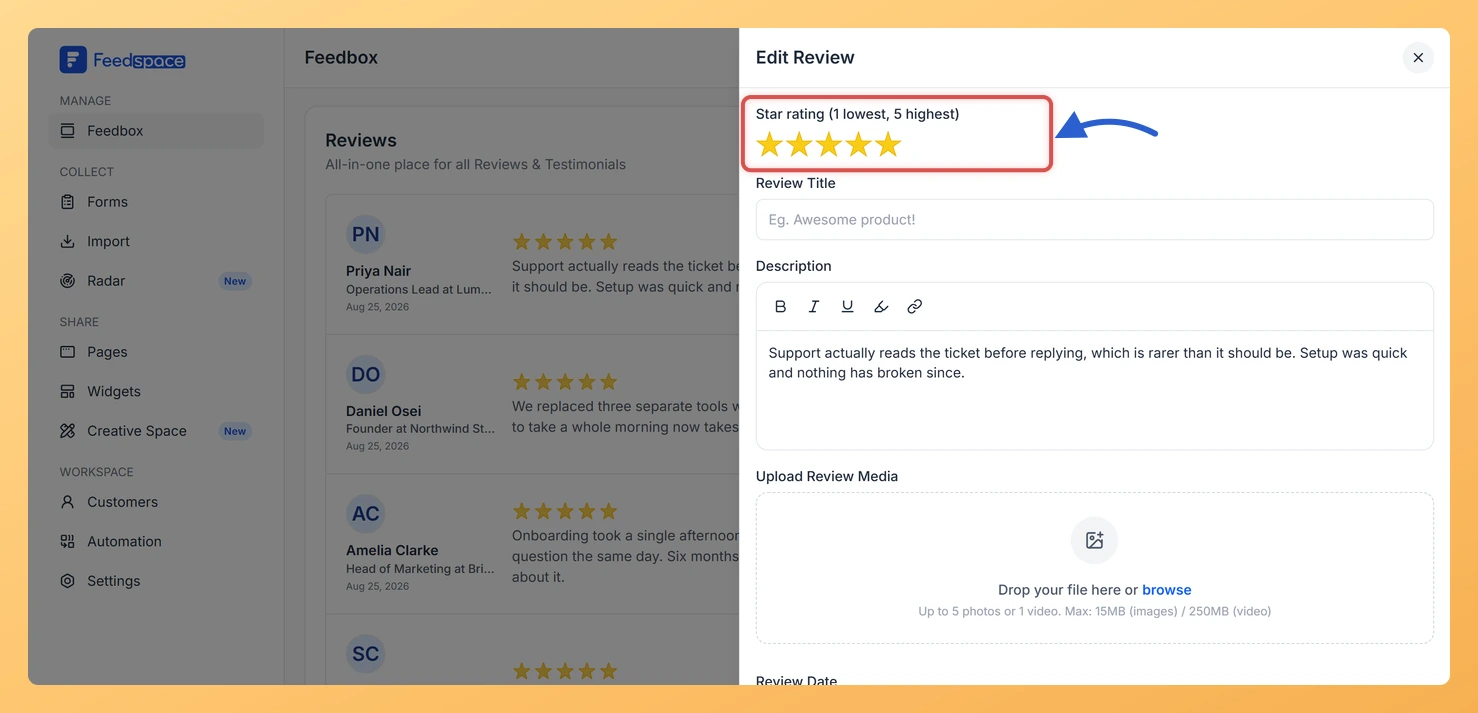
Step 4: Find the rating field
The Edit Review panel slides in from the right. The rating field sits at the top, labelled Star rating with the scale in brackets, for example (1 lowest, 5 highest).
Step 5: Set the new rating
Click the stars to set your new rating. The number of stars shown matches the review’s original scale.
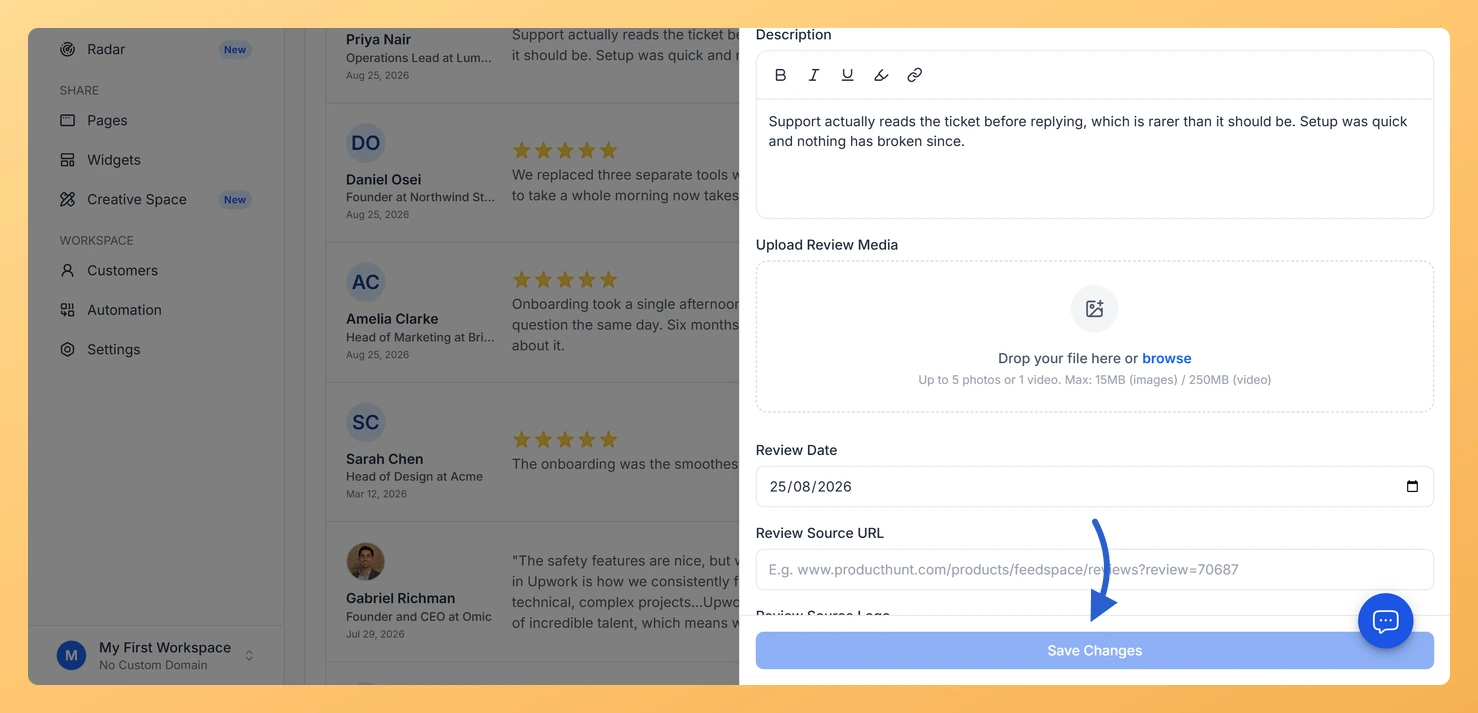
Step 6: Save your change
Click Save Changes at the bottom of the panel. It stays greyed out until you actually change something, so it only becomes clickable once you have picked a different rating.
What’s next
After saving, the review’s updated rating appears in Feedbox and everywhere the review is displayed on your widgets or Wall of Love. You can filter reviews by star rating to quickly find all your 5-star reviews or any other rating range.
Common questions
Can I edit star ratings on imported reviews?
Yes. Reviews imported from platforms like Google, Trustpilot, Product Hunt, and others can all have their star ratings edited in Feedbox. The rating you set in Feedspace does not change the rating on the original platform.
Why do some reviews show a different number of stars?
The editor always uses the review’s own scale rather than converting it. Most reviews, including the ones from your own forms and from Google, are out of 5. A number of travel and software platforms are out of 10, among them Booking.com, Agoda, Trip.com, VRBO, IMDb, Capterra and TrustRadius, so those open with 10 stars to pick from. A few reviews are out of 4. Whatever the scale, the bracket in the field label tells you what it is, and the value saves on that same scale, so a 9 out of 10 stays a 9.
What about thumbs up or thumbs down reviews?
Reviews that only have a thumbs up or thumbs down rating, such as those from some social platforms, do not show a star rating editor. Those reviews keep their thumbs rating and cannot be changed to stars.
You might also find helpful
How to Edit a Review in Feedspace
Overview Feedspace lets you edit the details of imported or collected reviews. This is helpful when you want to update reviewer info, correct details, or add missing fields like company name, designation, or email before you showcase the review. Step 1: Go to Feedbox Step 2: Open review options Step...
How to Show Only 4 and 5 Star Reviews in Feedspace
Overview Your 4 and 5 star reviews are your strongest social proof. The 4, 5 Stars filter in Feedbox lets you see only your highest-rated reviews so you can quickly pick the best ones for showcasing on your website or marketing materials. Steps Tips
How to Use Filters in Feedspace
Overview Feedspace provides advanced filtering options so you can quickly find and manage the reviews that matter most. Step 1: Go to Feedbox Step 2 Apply Filters You can filter reviews using the following categories: Filters Review Based On Type Of Content