
Feedspace Home Dashboard

How to Use Filters in Feedspace

Last updated on June 17, 2026

Overview

Feedspace provides advanced filtering options so you can quickly find and manage the reviews that matter most.

Steps 1 Go to Feedbox

  1. Navigate to the Feedbox section in your Feedspace dashboard.
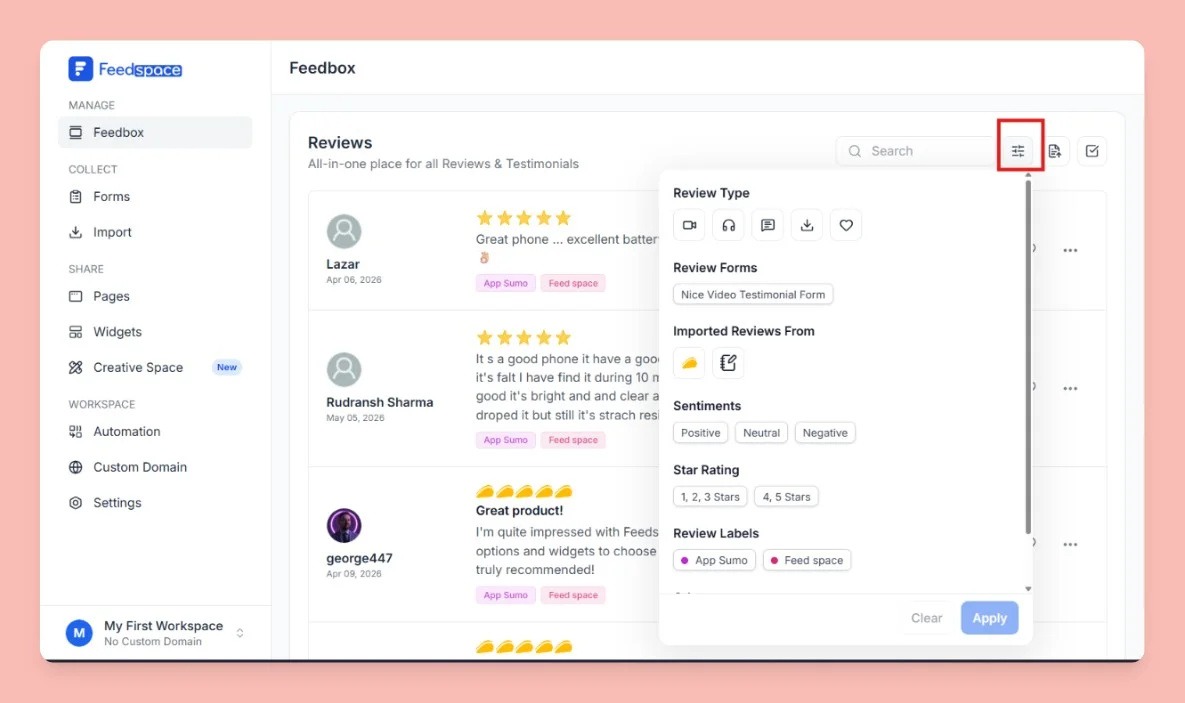
  2. Click on Filters: On the top-right corner, click the Filters button to open filtering options.

Top Right Corner Click on Filters

Step 2 Apply Filters

You can filter reviews using the following categories:

  • Review Type: Filter by text, video, audio, screenshot, or favorite reviews.
  • Review Forms: View reviews submitted through specific Feedspace forms.
  • Imported Reviews From: Separate reviews based on their source (e.g., Google, LinkedIn, etc.).
  • Sentiment Filter: Choose between Positive, Neutral, or Negative reviews.
  • Star Filter: Focus on reviews with specific ratings (e.g., 1-3 stars or 4-5 stars).
  • Other Filter: Show only reviews that include a comment.

  1. Click Apply
    Once you select your filters, click Apply to update your Feedbox view.
  2. Clear Filters (Optional)
    To reset the view, simply click Clear.

Filters Review Based On Type Of Content

  1. Review Type

    • Video Shows only video testimonials.
    • Audio Displays audio feedback from users.
    • Text Lists text-based reviews.
    • File Upload Includes reviews that came with an attachment (like documents or images).
    • Favorite Displays only reviews marked as favorite

  2. Review Form

    • If you’ve created multiple feedback forms, you can filter reviews by the specific form they were submitted through. Example: Product Experience Form or Customer Support Feedback Form.

  3. Imported Reviews From

    • Google Reviews imported from Google.
    • LinkedIn Recommendations or reviews imported from LinkedIn.

  4. Sentiments Filter

    • Positive Happy, favorable feedback.
    • Neutral Balanced or mixed reviews.
    • Negative Critical or unhappy reviews.

  5. Star Filter

    • 1, 2, 3 stars Lower-rated feedback.
    • 4, 5 stars Higher-rated feedback.

  6. Other Filter

    • Displays only reviews that include written feedback.

You might also find helpful

Easily Find Your Favorite Testimonials in Feedspace

Feedspace allows you to mark testimonials as favorites so you can quickly find and highlight the ones that matter most. How to Mark a Testimonial as Favorite: Log in to your Feedspace account. Go to the Feedbox section. You’ll see a heart icon on every review. Click the heart to...

How to Perform Bulk Operations in Feedspace

Overview Managing multiple reviews one by one can be time-consuming. Feedspace makes it easy to take actions on several reviews at once with the Bulk Operation feature. Step 1 Go to Feedbox Open the Feedbox from the left sidebar to view all your reviews. Step 2 Select Reviews To take...

How to Edit a Review in Feedspace

Overview Feedspace allows you to easily edit the details of imported or collected reviews. This is helpful if you want to update user info, correct details, or add missing fields like company name, designation, or email. Step 1 Go to Feedbox Navigate to your Feedbox from the left sidebar. Here,...