
Feedspace Home Dashboard

How to Add a Company Logo and URL to a Review in Feedspace

Last updated on June 5, 2026

Overview

Adding a company logo and URL to a review in Feedspace gives your testimonials a more professional and credible appearance. When a review is displayed in a widget or Wall of Love page, the reviewer’s company branding appears alongside their feedback building instant trust with your audience.

Steps to Add a Company Logo and URL

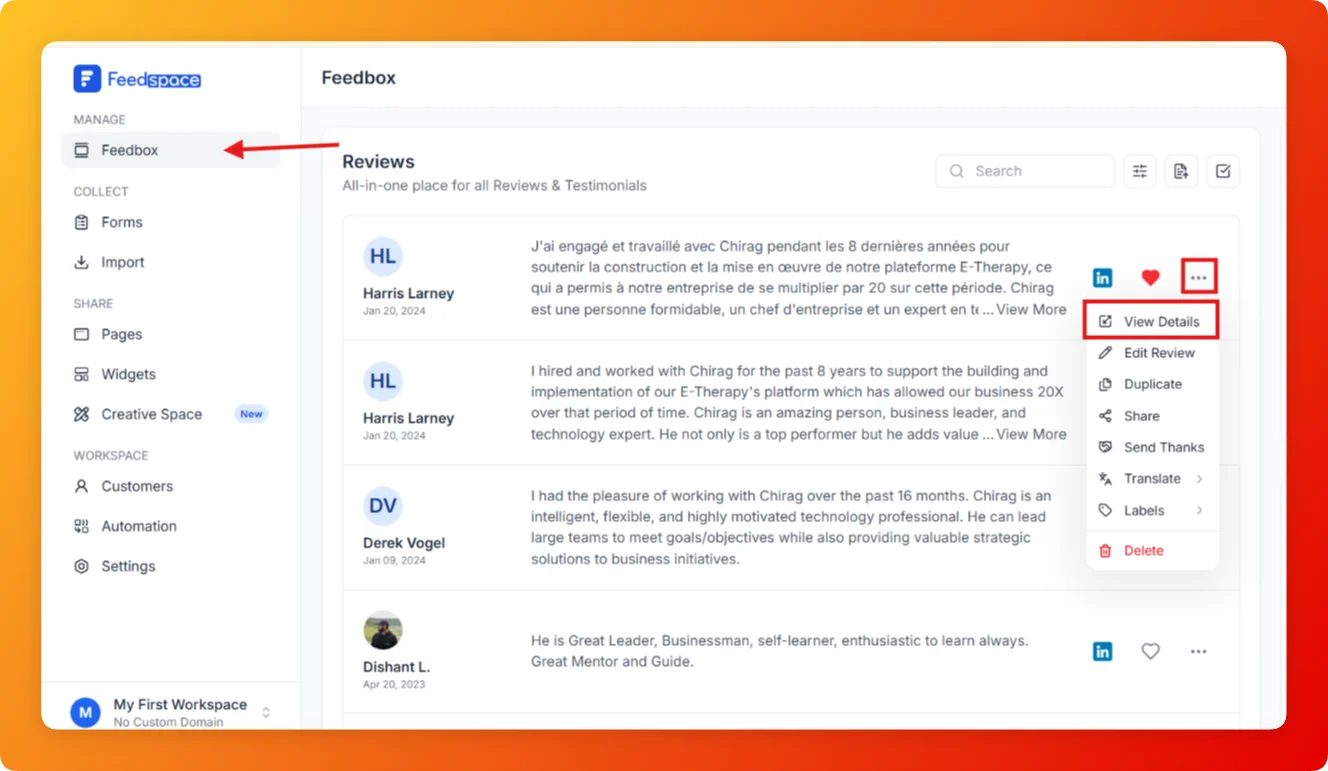
  1. Open Feedbox from the left sidebar under Manage.
  2. Click on the review you want to update to open its Review Details panel.

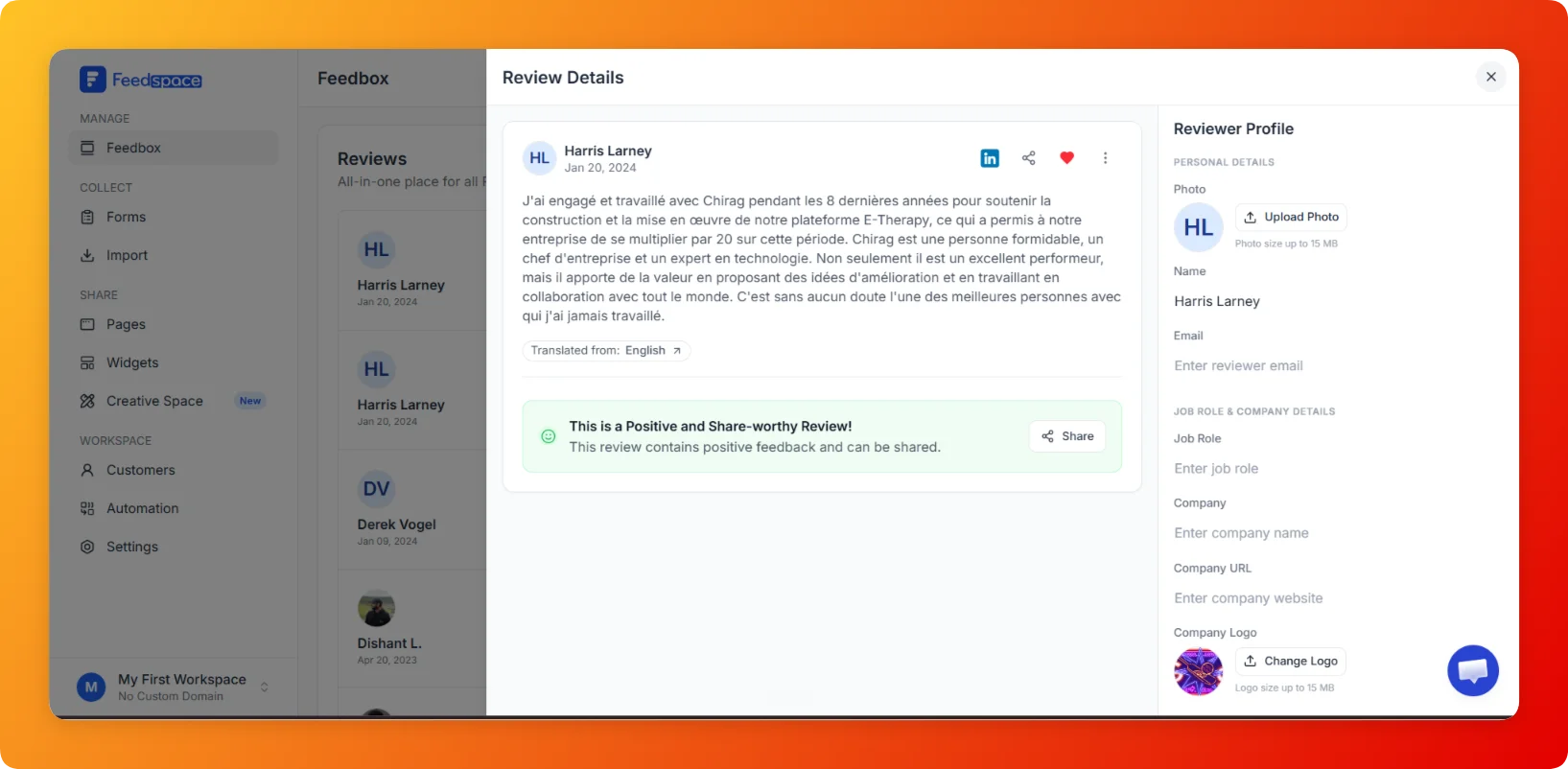
  1. On the right side of the panel, scroll down to the Job Role & Company Details section.
  2. In the Company URL field, enter the reviewer’s company website address.
  3. Under Company Logo, click Change Logo and upload the company’s logo image (up to 15 MB).

  1. Click Save to apply the changes.

Benefits of Adding Company Details to a Review

  • Stronger social proof: A recognizable company logo next to a testimonial immediately signals credibility. Visitors trust reviews more when they can see the reviewer’s organization.
  • Professional presentation: Branded reviews look polished in widgets and Wall of Love pages, giving your testimonial section a finished, enterprise-quality appearance.
  • Better context for B2B buyers: For B2B businesses, showing which companies your clients come from is powerful. A CFO’s testimonial carries more weight when their company logo is visible.
  • Clickable company links: When a company URL is added, visitors on your showcase pages can click through to verify the reviewer’s company, which increases trust.
  • Consistency across channels: Company details you add here appear automatically wherever you embed that review in widgets, pages, or exported files so you only need to update it once.

Tips

  • Use a transparent PNG logo for the best visual result it blends cleanly with any widget background color.
  • You can also add the reviewer’s Job Role in the same section to give further context alongside the logo.
  • Company details are especially impactful when combined with 4 or 5 star reviews pair the Company Logo with a top-rated review for maximum testimonial impact.
  • Logo file size can be up to 15 MB use a high-resolution image so it looks sharp on retina displays.

You might also find helpful

Where Are All My Reviews? Getting Started with Feedbox in Feedspace

Overview Feedbox is your central hub inside Feedspace where every review you have ever collected whether from forms, imported from platforms, or added manually appears together in one list. If you are wondering where your reviews went or how to access them all, Feedbox is the answer. How to Open...

How to Show Only Positive Reviews in Feedspace

Overview If you want to see only your positive reviews for example, to pick testimonials for marketing the Positive sentiment filter in Feedbox shows you only reviews that have been tagged as positive. Steps Tips

How to Show Only 4 and 5 Star Reviews in Feedspace

Overview Your 4 and 5 star reviews are your strongest social proof. The 4, 5 Stars filter in Feedbox lets you see only your highest-rated reviews so you can quickly pick the best ones for showcasing on your website or marketing materials. Steps Tips