Feedbox is the hub inside Feedspace where every review you have collected sits together in one list, whether it arrived through a form, came in from an import, or you added it by hand. If you are wondering where your reviews went, Feedbox is the answer.
This is the screen you work in day to day. A customer sends a glowing testimonial on Monday, and from Feedbox you can find it, tidy up the wording, and put it on your Wall of Love before lunch, without leaving the page.
How to open Feedbox
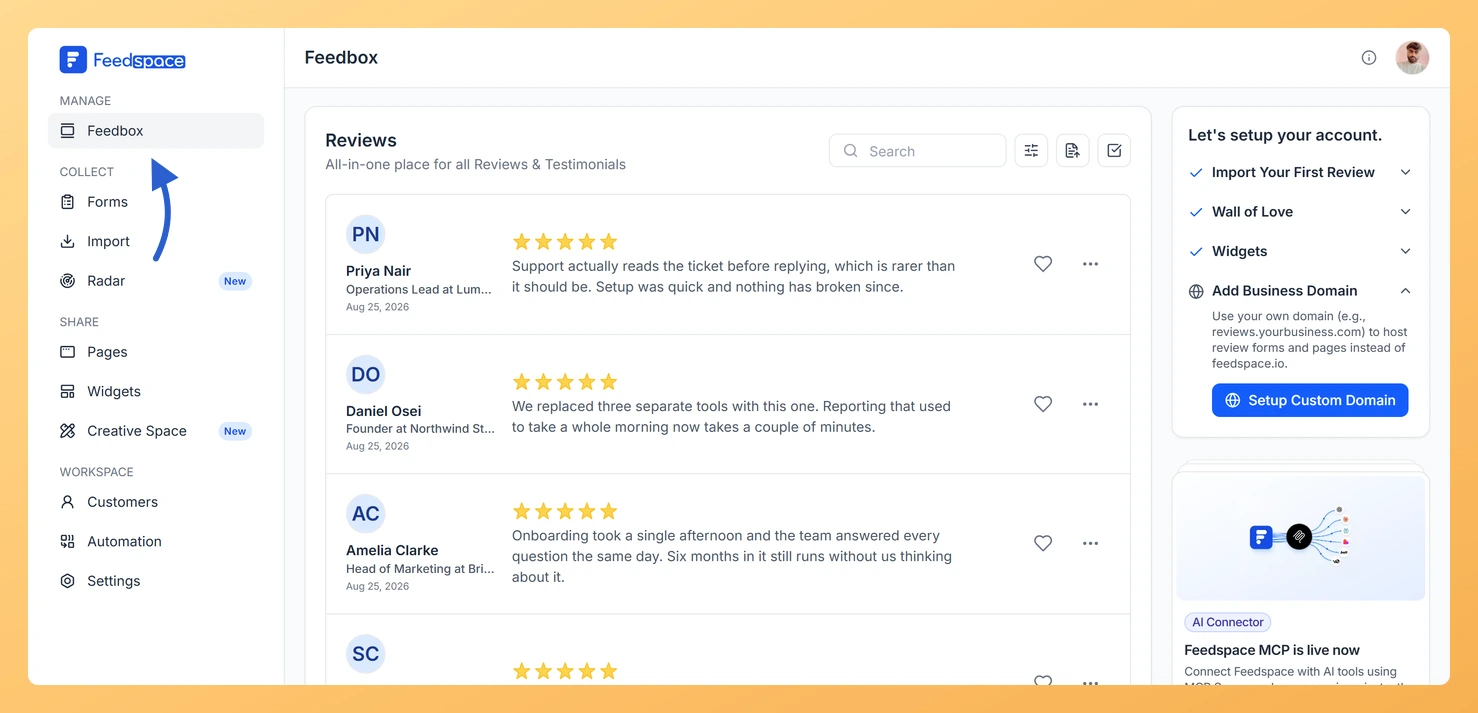
Step 1: Click Feedbox in the sidebar
Log in to your Feedspace dashboard and click Feedbox, the first item under Manage in the left sidebar.
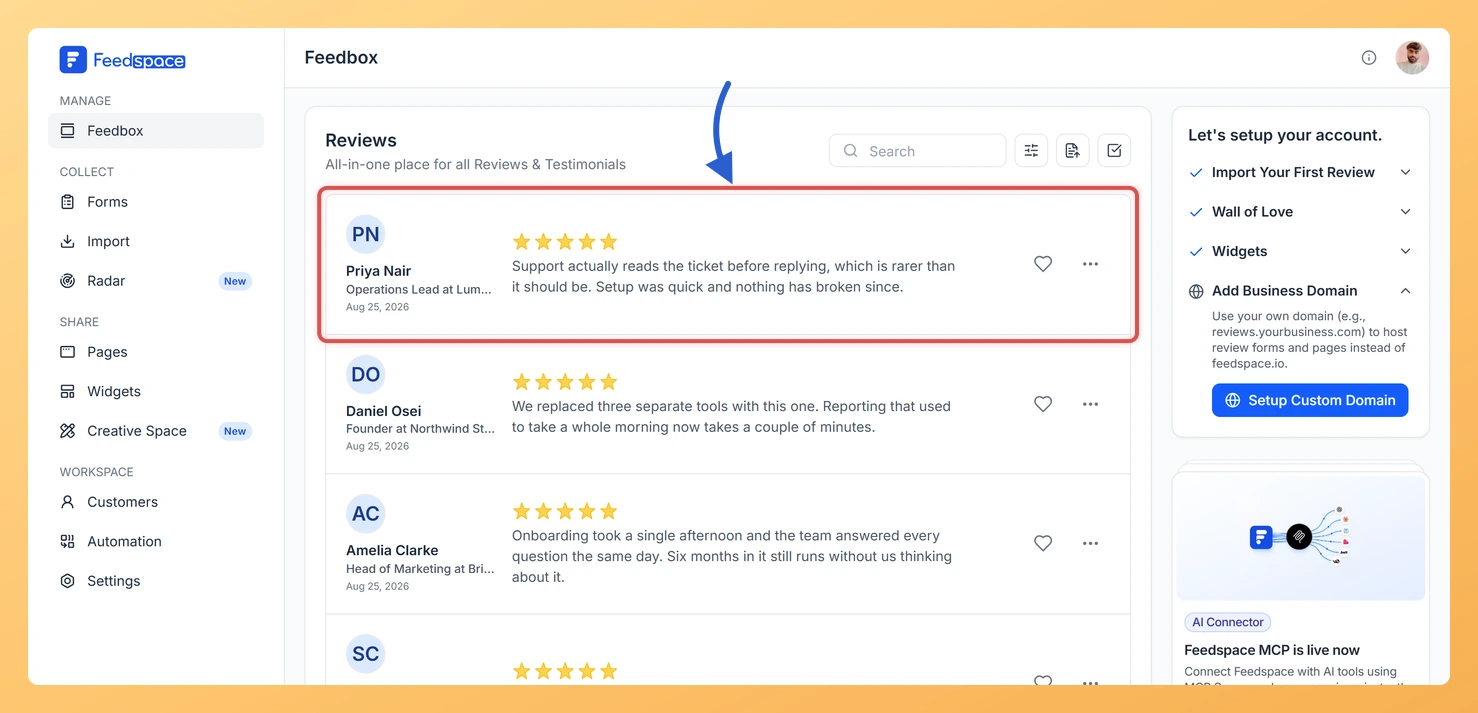
Step 2: Read through the list
Each card shows the reviewer’s name, their role and company, the date, the rating, and the review itself, whether that is text, a video, an audio clip, or a post from a social platform. Click a card and the Review Details window opens over the list, with the full review on the left and the reviewer’s profile on the right. A Load More button brings in the next set as you work down the list.
What you can do inside Feedbox
Filter the list down by review type, the platform it came from, sentiment, star rating, label, or the form a review came through.
Export your reviews as an Excel file, either the ones collected through your forms or the ones you imported.
Select several reviews at once to label, favourite, or delete them together.
Click the heart icon on a review to mark it a favourite so you can pull it up again quickly.
Open the three-dot menu on a review to view its details, edit it, duplicate it, share it, send thanks, use it in Creative Space, translate it, apply labels, add it straight to a Wall of Love page or widget, or delete it. Video and audio reviews carry two extra options in the same menu: trim the clip, and download the file.
Tips
Open a review and look at the icons above it in the Review Details window. A review collected through one of your forms carries a source icon that opens that form, and a review from a social platform carries that platform’s icon, which opens the original post.
Combine filters to land on an exact set, such as five star video reviews from one form.
If a filtered list comes back empty, use Reset Filters to get the full list back rather than clearing each one.
Click the review to open the Review Details window. If it arrived through one of your forms, a source icon sits in the row of icons above the review. Click it and that form opens in a new tab.
You might also find helpful
How Do I Find a Specific Review in Feedspace?
Overview If you have many reviews and need to locate one quickly, the Search bar in Feedbox lets you find any review by typing the reviewer’s name or a keyword from the review text no scrolling required. Steps Tips
How to Use Filters in Feedspace
Overview Feedspace provides advanced filtering options so you can quickly find and manage the reviews that matter most. Step 1: Go to Feedbox Step 2 Apply Filters You can filter reviews using the following categories: Filters Review Based On Type Of Content
How to Export Reviews from Feedspace
Overview Feedspace lets you export your reviews, both form-submitted and imported, directly from Feedbox. You can download them as an Excel file to share, analyse, or back up your testimonials. The export gives you a spreadsheet of your review data, including the reviewer name, rating, review text, source, and dates....