
Feedspace Home Dashboard

How to Download Your Form Reviews as an Excel File in Feedspace

Last updated on June 5, 2026

Overview

If you collected reviews through Feedspace forms and want to download them as a spreadsheet, the Export Reviews by Form option in Feedbox lets you export all form-based reviews as an Excel file.

Steps

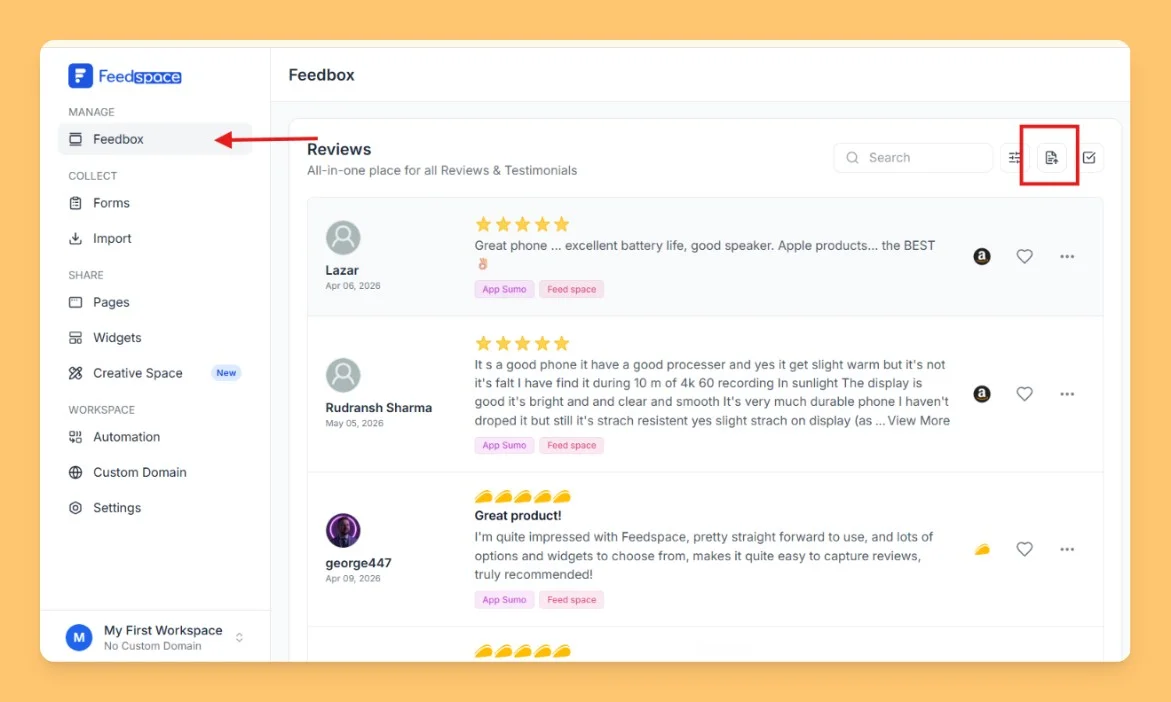
  1. Open Feedbox from the sidebar under Manage.
  2. Click the Export icon at the top right of the Reviews list (document with arrow icon).
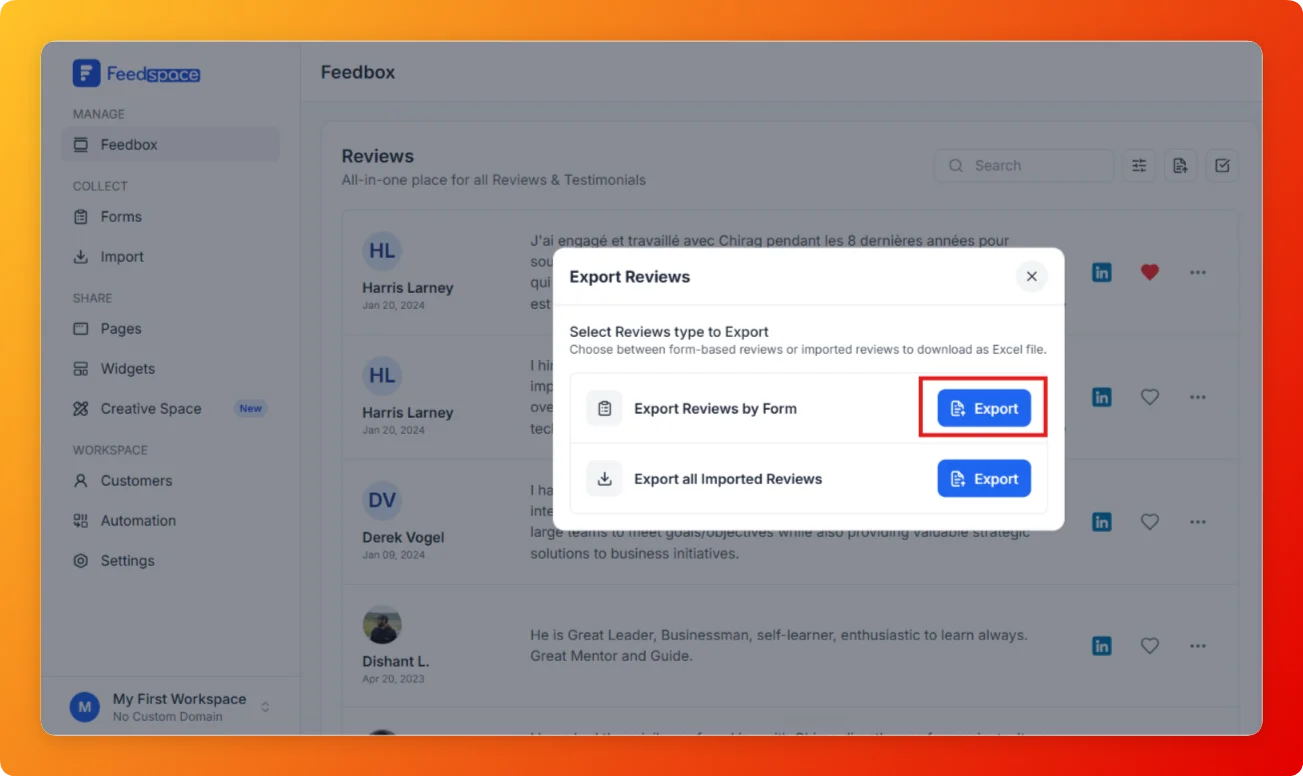
  1. The Export Reviews dialog opens.
  2. Under Export Reviews by Form, click the Export button.
  1. An Excel file containing all your form-based reviews will download to your device.

Tips

  • The Excel file includes all reviews submitted through your Feedspace forms, which is useful for sharing with your team or keeping records.
  • If you want to export reviews imported from platforms like Google or LinkedIn instead, use the Export all Imported Reviews option in the same dialog.
  • There is no limit on the number of reviews you can export.

You might also find helpful

How to Download All Your Imported Reviews as an Excel File in Feedspace

Overview If you have imported reviews from external platforms like Google, LinkedIn, Instagram, or others and want to download them all as a spreadsheet, the Export all Imported Reviews option in Feedbox handles that with one click. Steps Tips

How to Export Reviews from Feedspace

Overview Feedspace allows you to export all your reviews both form-submitted and imported ones directly from the Feedbox.You can easily download them as an Excel file to share, analyze, or back up your testimonials. Step 1 Go to Feedbox Log in to your Feedspace account. From the left sidebar, click...