Feedspace lets you send a personal thank-you message directly to a reviewer right from the Feedbox. You can send a simple email or attach a short personalized video message to make your appreciation feel more genuine and memorable.
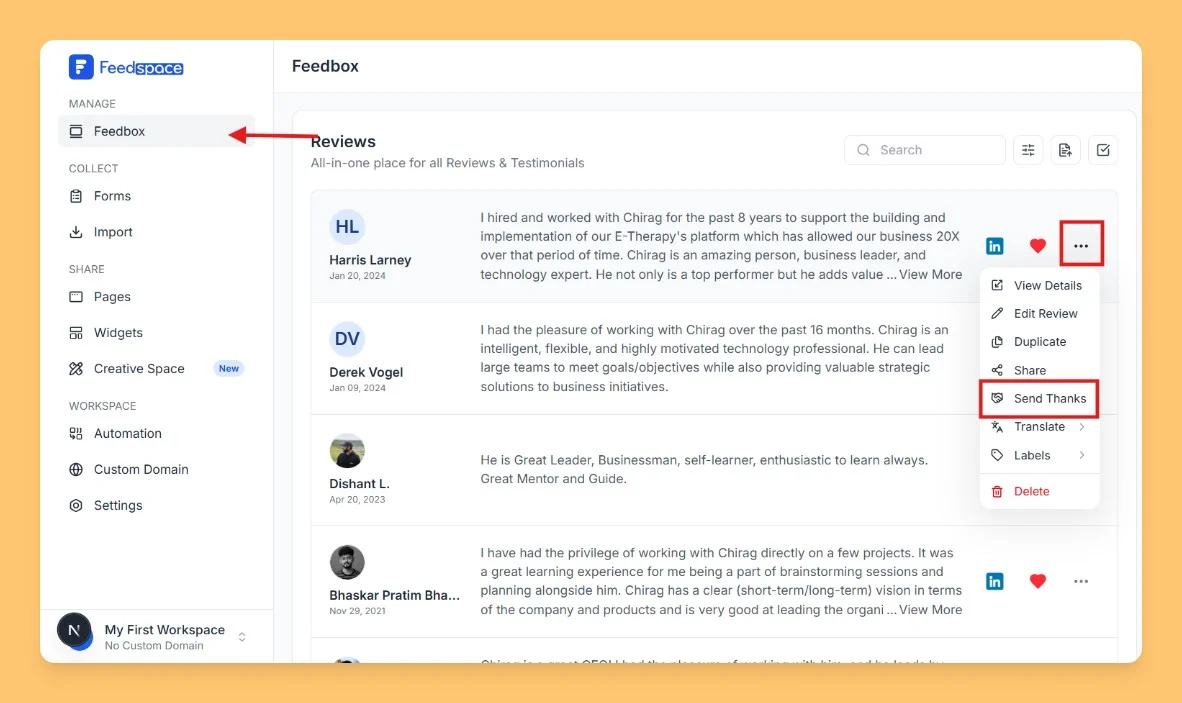
Here, you’ll see the list of all reviews collected or imported into your Feedspace account.
Step 2 Open Review Options
Find the review whose author you want to thank.
Click on the three dots (⋮) menu on the right-hand side of the review.
Step 3 Select Send Thanks
From the dropdown, click Send Thanks.
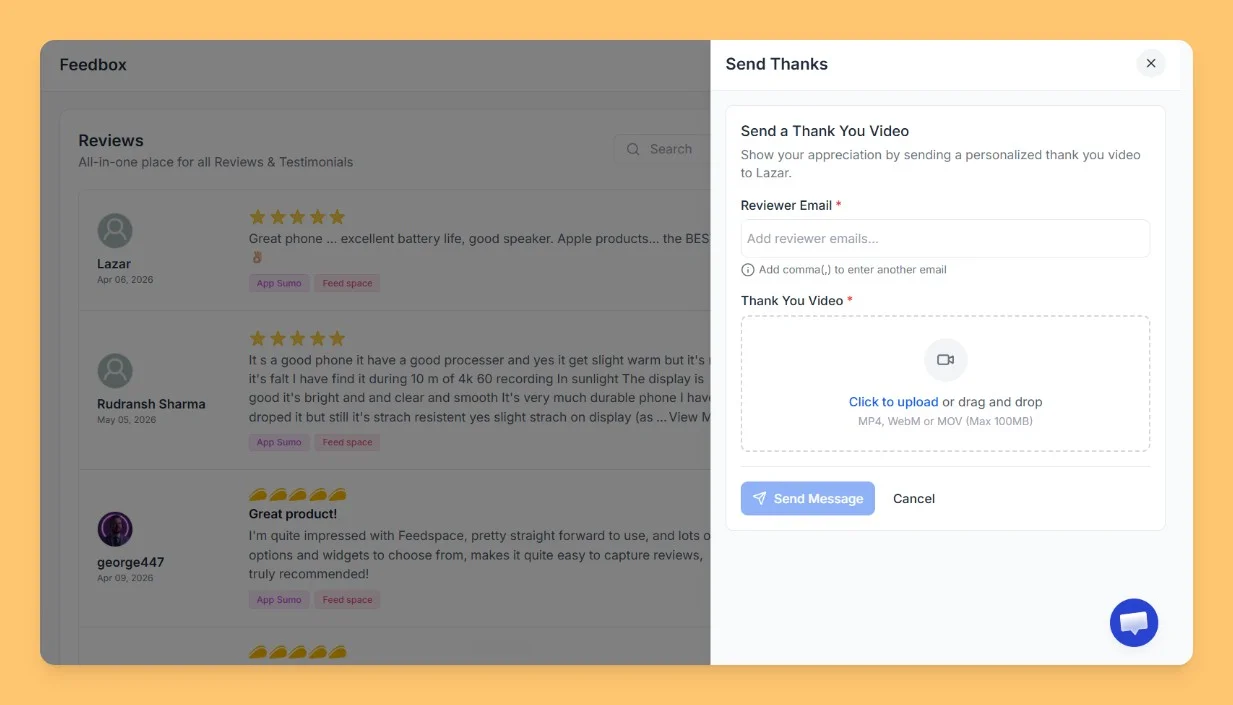
This will open the Send Thanks panel on the right side of your screen.
Step 4 Add Recipient Emails
If the reviewer’s email is available, it will be added automatically.
You can add up to 5 recipient emails by typing an email and pressing Enter.
Remove any unwanted recipient by clicking the cross (×) next to the email.
Step 5 Attach a Video Message
Click Upload Video to attach a short personalized video.
Supported formats: MP4, WebM, MOV.
Maximum file size: 100 MB.
You can preview the video before sending and remove it if needed.
Step 6 Preview and Send
Use the preview section to check how your email will appear to the reviewer.
Once you’re happy with the message, click Send.
You’ll see a confirmation toast as soon as your thank-you message is delivered.
Why Send Thanks to Reviewers?
Build Stronger Relationships: A small thank-you goes a long way in turning happy customers into loyal advocates.
Encourage More Reviews: Reviewers who feel appreciated are more likely to recommend you again.
Stand Out: A personalized video message creates a memorable customer experience.
That’s it! Your thank-you message is now on its way from Feedspace.
You might also find helpful
How Do I Use Sentiment in Feedspace?
Overview Feedspace reads each review as it arrives and tags it Positive, Neutral, or Negative based on what the reviewer wrote. You get a sense of the mood of your feedback without opening every review. The tag earns its keep when you are building a Wall of Love. Rather than...
How to Bulk Manage Review Labels in Feedspace
Overview The Bulk Review Label feature in Feedspace allows you to apply labels to multiple reviews at once, making it easier to organize and manage your reviews. Labels can also be used as filters to streamline review search and analysis. Step 1 Log in to Feedspace Start by logging into...
How to Export Reviews from Feedspace
Overview Feedspace lets you export your reviews, both form-submitted and imported, directly from Feedbox. You can download them as an Excel file to share, analyse, or back up your testimonials. The export gives you a spreadsheet of your review data, including the reviewer name, rating, review text, source, and dates....