
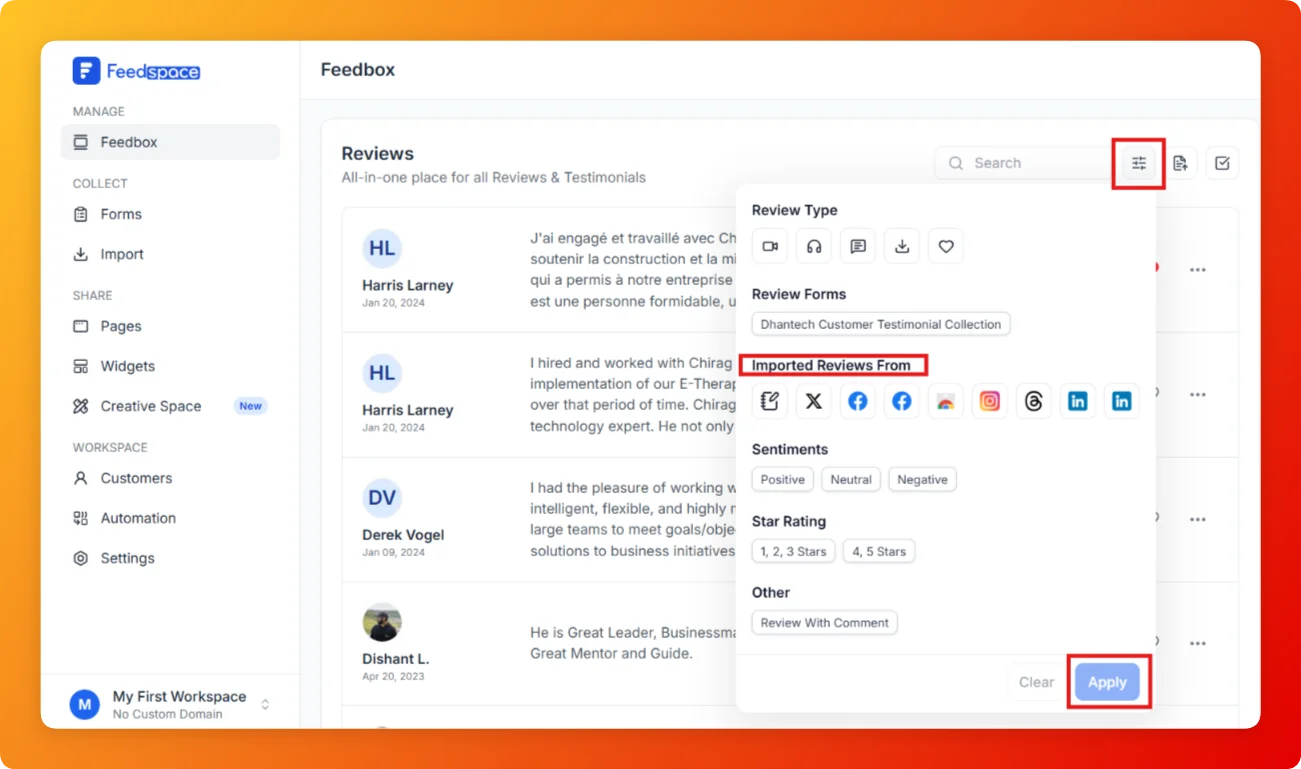
Feedspace Home Dashboard

How to Show Only Reviews Imported from Google in Feedspace

Last updated on June 5, 2026

Overview

Google reviews carry strong social proof. If you want to view only the reviews imported from Google in Feedbox, the Imported Reviews From filter lets you isolate them in seconds.

Steps

  1. Open Feedbox from the sidebar under Manage.
  2. Click the Filter icon (sliders icon) at the top right of the Reviews list.
  3. Under Imported Reviews From, click the Google icon.
  1. Click Apply.
  2. The list now shows only reviews imported from Google.
  3. To remove the filter, click Clear and then Apply.

Tips

  • Combine Google filter with the 4-5 Star Rating filter to quickly find your best Google reviews for your website.
  • You can select multiple platforms for example, Google and LinkedIn together.

You might also find helpful

How to Show Only 4 and 5 Star Reviews in Feedspace

Overview Your 4 and 5 star reviews are your strongest social proof. The 4, 5 Stars filter in Feedbox lets you see only your highest-rated reviews so you can quickly pick the best ones for showcasing on your website or marketing materials. Steps Tips

How to Show Only Positive Reviews in Feedspace

Overview If you want to see only your positive reviews for example, to pick testimonials for marketing the Positive sentiment filter in Feedbox shows you only reviews that have been tagged as positive. Steps Tips

How to Show Only Imported Reviews in Feedspace

Overview Reviews imported from external platforms like Google, LinkedIn, or Instagram are marked as imported reviews. If you want to see only those reviews, the Import filter in Feedbox lets you separate them from reviews collected via forms. Steps Tips