How to Show Only Reviews Imported from Facebook in Feedspace
Overview If you have connected Facebook as a review source and want to see only Facebook reviews in your list, the Imported Reviews From filter in Feedbox makes it simple. Steps Tips

If you have imported reviews from X (formerly Twitter) and want to view only those, the Imported Reviews From filter in Feedbox lets you isolate reviews by their source platform.
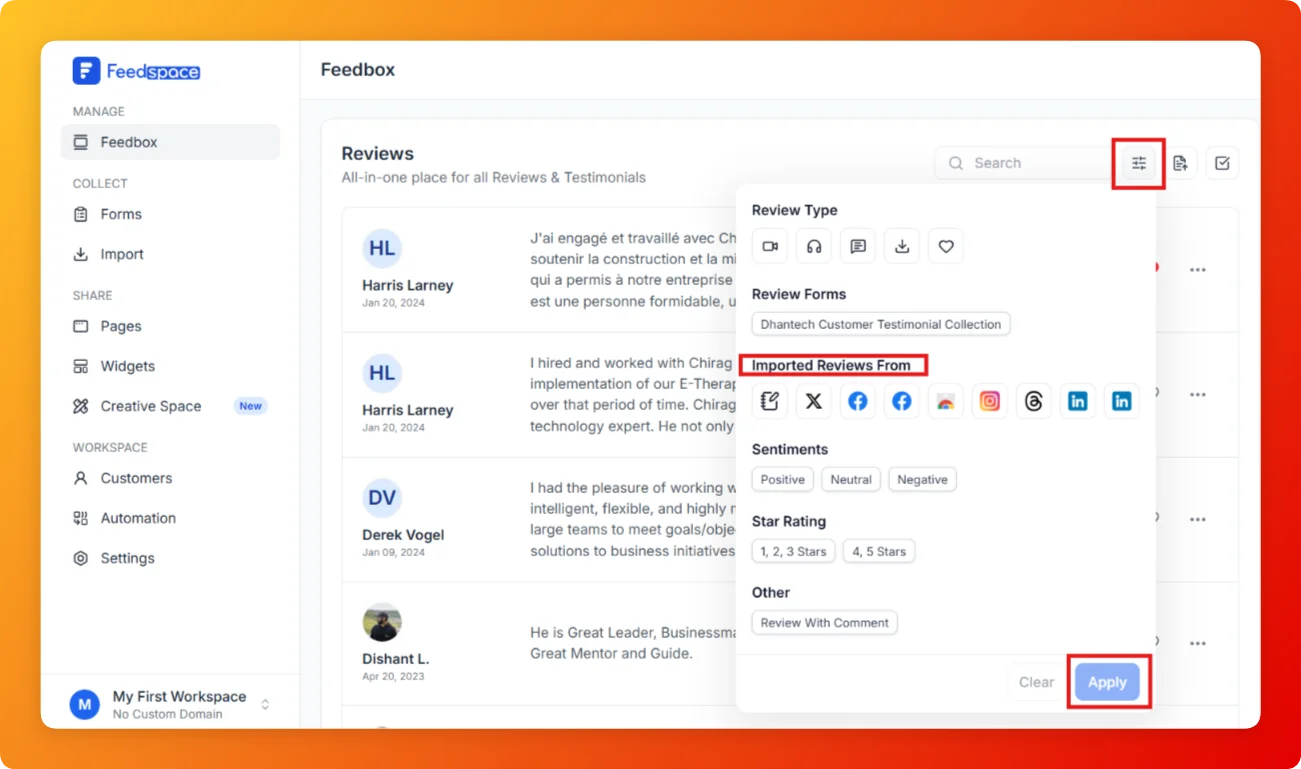
Overview If you have connected Facebook as a review source and want to see only Facebook reviews in your list, the Imported Reviews From filter in Feedbox makes it simple. Steps Tips
Overview Google reviews carry strong social proof. If you want to view only the reviews imported from Google in Feedbox, the Imported Reviews From filter lets you isolate them in seconds. Steps Tips
Overview Reviews imported from external platforms like Google, LinkedIn, or Instagram are marked as imported reviews. If you want to see only those reviews, the All Imported Reviews filter in Feedbox lets you separate them from reviews collected via forms. Steps Tips