How to Show Only Video Reviews in Feedspace
Overview If you want to focus only on video testimonials and hide all other review types, the Video filter in Feedbox lets you do that in a few clicks without deleting or moving anything. Steps Tips

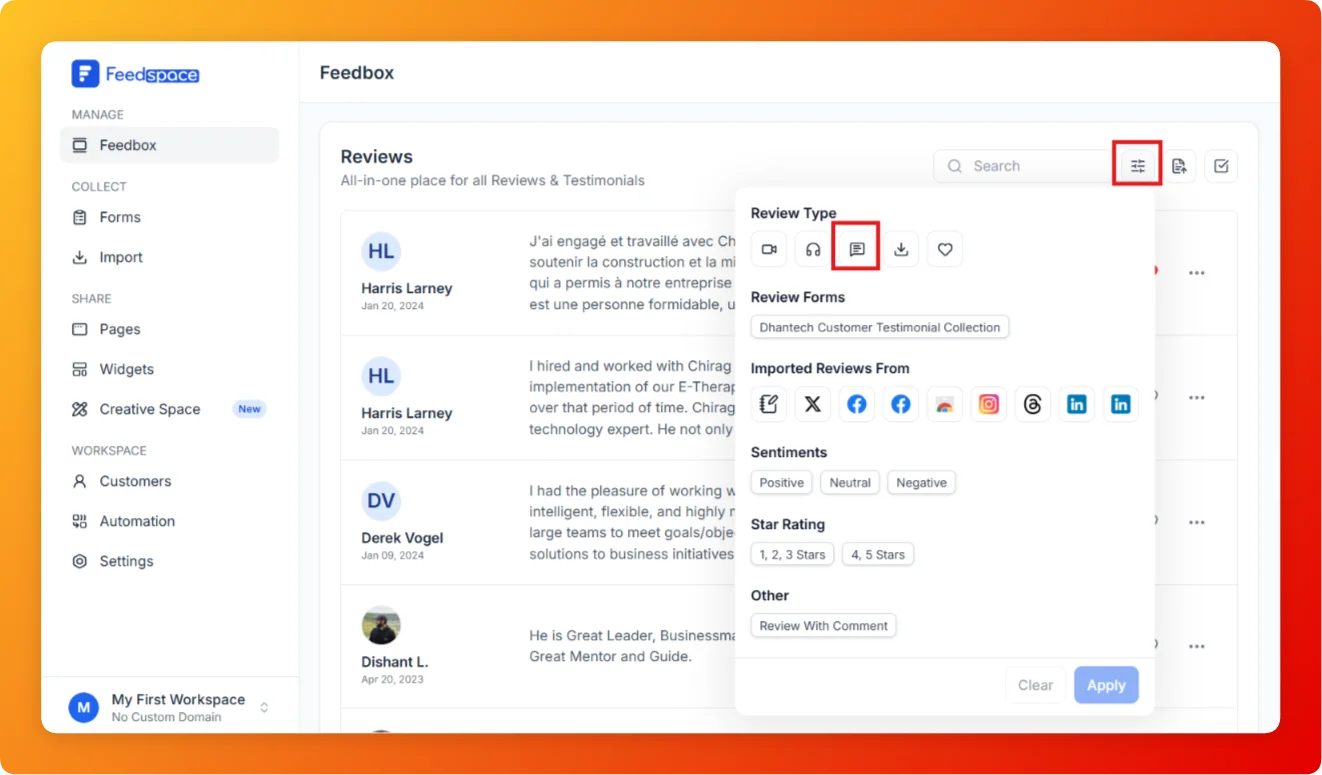
If you want to see only written text testimonials and hide video or audio reviews, the Text filter in Feedbox makes it easy to focus on just the written feedback.
Overview If you want to focus only on video testimonials and hide all other review types, the Video filter in Feedbox lets you do that in a few clicks without deleting or moving anything. Steps Tips
Overview If your team collects audio testimonials and you want to view only those, the Audio filter in Feedbox isolates them from your full review list instantly. Steps Tips
Overview Feedspace provides advanced filtering options so you can quickly find and manage the reviews that matter most. Step 1: Go to Feedbox Step 2 Apply Filters You can filter reviews using the following categories: Filters Review Based On Type Of Content