

Feedspace Home Dashboard

How to Customize the Background of Your Review Form

Last updated on May 25, 2026

Overview

Feedspace allows you to personalize the background of your Review Forms to match your brand identity. You can choose from a solid color, gradient, or custom background image, and further enhance the look with shadow and border effects.

Step 1 – Open Review Form Settings

  • Access your Feedspace account and navigate to the Forms section from the left sidebar.
  • Select the form you want to customize.
  • Click the Settings tab at the top of the form editor.

Step 2 – Enable Custom Background

  • Scroll down to the Form Design section in the right panel.
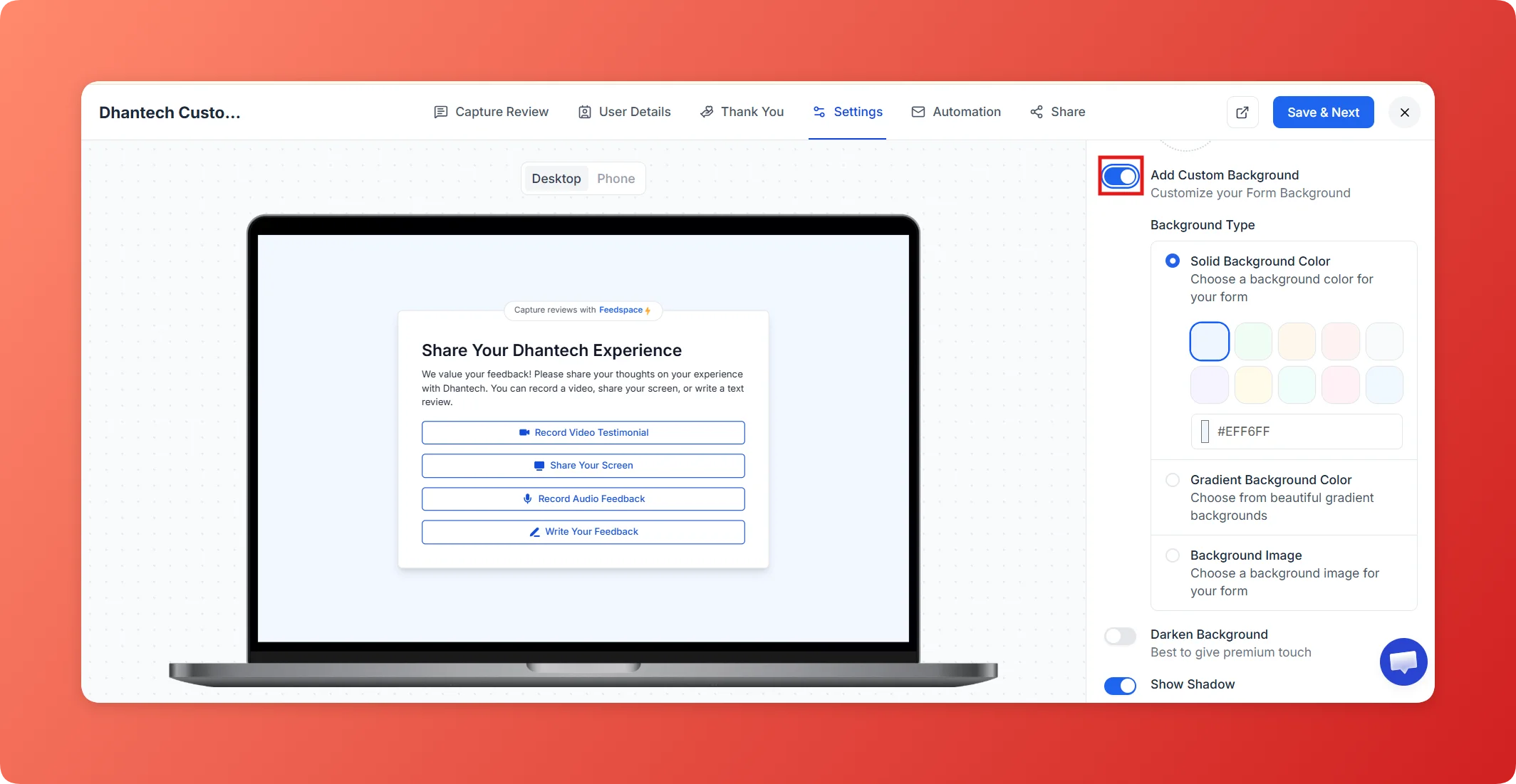
  • Toggle Add Custom Background to enable it.
  • Three background type options will appear: Solid Color, Gradient, and Image.

Step 3 – Choose Your Background Type

  • Solid Color: Pick from the color swatches or enter a hex code to set a flat background color.
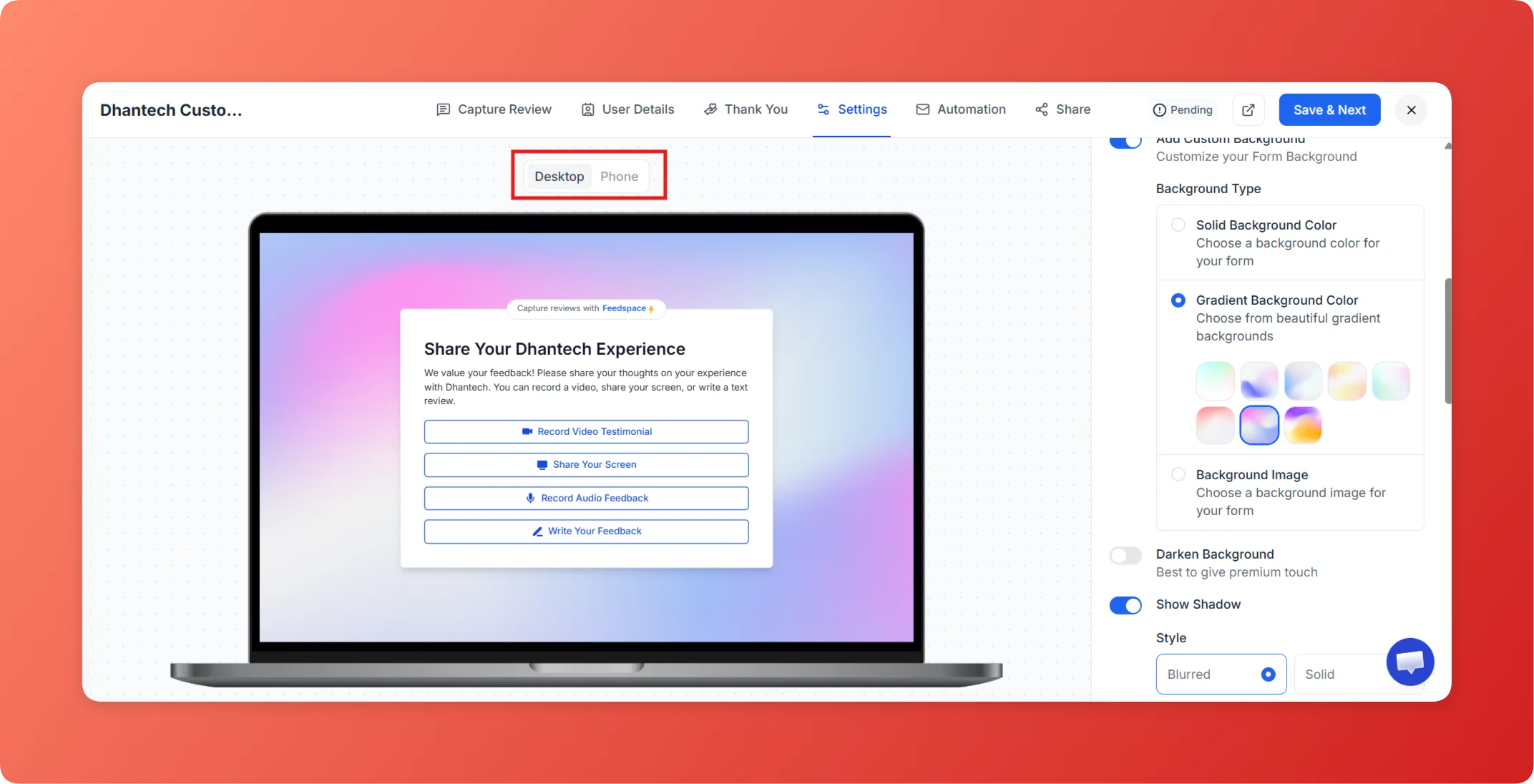
  • Gradient: Choose from 8 preset gradient options to add depth to your form background.
  • Image: Upload a custom background image (max 15 MB). Toggle Darken Background to improve text readability on light images.

Step 4 – Add Shadow and Border (Optional)

  • Toggle Show Shadow to add a drop shadow to the form card.
  • Adjust the shadow color, size (Small / Medium / Large / X-Large), and style (Blurred / Solid).
  • Toggle Show Border to add a border around the form card, then pick a border color.

Step 5 – Set Primary Color (Optional)

  • Locate the Primary Color option in the Form Design section.
  • Pick a color that will apply to buttons and key UI elements across the form.

Step 6 – Preview Your Form

  • Review all changes in the live preview panel on the left side of the editor.
  • Switch between Desktop and Phone views to check how the design looks across devices.

Step 7 – Save and Share

  • Click Save & Share in the top-right corner to publish your customized form.

Tips

  • Brand Matching: Combine a gradient background with your brand’s primary color for a cohesive look.
  • Image Readability: Use the “Darken Background” toggle when uploading a light image so the form text stays easy to read.
  • Standout Design: Border and shadow settings work well together to make the form card stand out on any page background.

That’s it! Your Feedspace review form now has a fully customized background that matches your brand.

You might also find helpful

How to Use Custom CSS in Feedspace Review Forms

Overview Feedspace gives you the flexibility to fully personalize your Review Forms using the Custom CSS feature.With this option, you can change the font style, colors, button design, and spacing to match your brand’s visual identity and enhance your form’s overall appearance. Step 1 – Open Review Form Settings Step...

How to Hide the Feedspace Branding

Overview By default, every Feedspace form includes a small “Powered by Feedspace” badge.If you want to display your form with a white-label appearance, you can easily remove the Feedspace branding directly from the Settings panel. Step 1 – Open the Form Settings Step 2 – Find the Branding Section On...

How to Change the Language of Forms

Overview Feedspace allows you to automatically translate your Review Forms into multiple languages.This feature helps you reach a global audience by displaying the form in the user’s preferred language — such as English, French, German, Hindi, Dutch, and more. Step 1 – Open the Form Settings Step 2 – Find...