
Feedspace Home Dashboard

How to Change the Language of Forms

Last updated on June 29, 2026

Overview

Feedspace allows you to automatically translate your review forms into multiple languages. This feature helps you reach a global audience by displaying the form in the reviewer’s preferred language, such as English, French, German, Hindi, and Dutch.

What the language setting changes

Choosing a form language translates the on-screen text and button labels that reviewers see on the form, including the record and submit buttons. It applies to the form your reviewers open, not to your own Feedspace dashboard.

Step 1: Open the form settings

  • Log in to your Feedspace account.
  • Go to the Forms section from the left sidebar.
  • Click the pencil (edit) icon on the form card to open the editor, then click the Settings tab.

Step 2: Find language customization

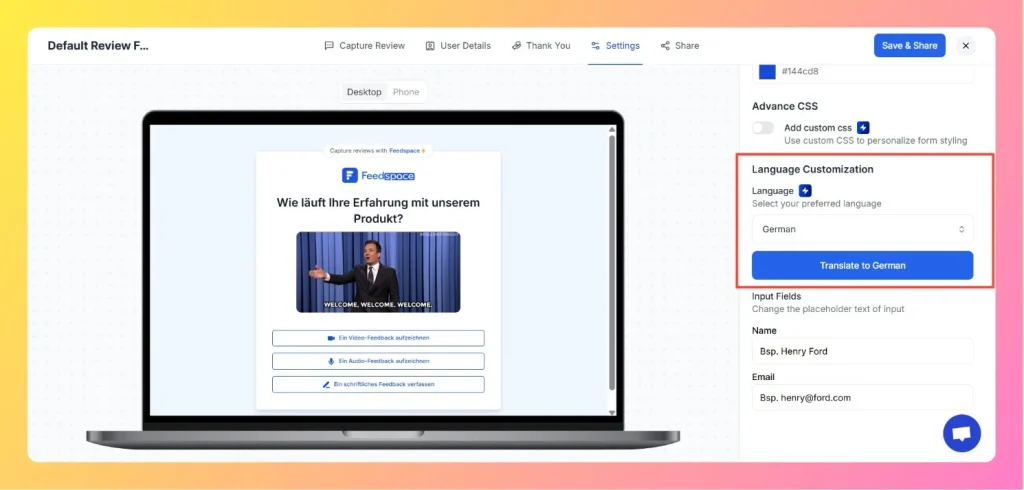
  • On the right-hand side, scroll down to the Language Customization section.
  • You’ll see a Language dropdown where you select your preferred language.
Select Language From Dropdown

Step 3: Select a language

Click the Language dropdown. You’ll see a list of available languages such as:

  • English
  • French
  • German
  • Hindi
  • Dutch
  • Indonesian
  • and more

Choose the language you want to apply to your form.

Step 4: Translate the form

  • After selecting your preferred language, click the Translate to [Language] button (for example, “Translate to French” or “Translate to German”).
  • A pop-up will appear saying “Hang tight! Translating form for you…”
  • Wait a few seconds while Feedspace automatically translates all form text, labels, and buttons.

Step 5: Save and preview

  • Once the translation is complete, click Save and Next at the top right.
  • Preview your form to verify that all text has been updated to the selected language.

Step 6: Publish the translated form

  • Copy the embed code or link for your translated form and share it with your users.
  • Your review form will now appear in the chosen language across devices.

Tips

  • You can change the language anytime by reopening the editor, going to the Settings tab, then the Language Customization section.
  • The translation applies automatically to the entire form, including all questions and labels.
  • For multilingual campaigns, you can duplicate your form and assign each version a different language.

Common questions

Does changing the language also translate the recording buttons?

Yes. The translation covers the form text and button labels your reviewers see, so the record and submit buttons appear in the language you select.

Does this translate my widget labels too?

No. The language setting applies to your review collection form only. Widgets display review content exactly as reviewers submitted it and do not automatically translate any widget-generated labels. You can manually type text in any language in widget text fields such as the CTA button label, found in the Design tab of the widget editor.

The translation did not apply to my form. What should I do?

If the form still shows English after clicking Translate to [Language], reselect the same language from the Language dropdown and click the translate button again. This refreshes all form strings, including any that did not update the first time.

You might also find helpful

How to Export Reviews from Feedspace

Overview Feedspace lets you export your reviews, both form-submitted and imported, directly from Feedbox. You can download them as an Excel file to share, analyse, or back up your testimonials. The export gives you a spreadsheet of your review data, including the reviewer name, rating, review text, source, and dates....

How to Set Text Alignment Right-to-Left for Review Form

Overview If your review form needs to support right-to-left (RTL) languages such as Arabic or Hebrew, you can easily adjust the text alignment using Custom CSS in Feedspace.This ensures that all form elements: including labels, placeholders, and input fields: align properly for RTL reading flow. Step 1: Open Review Form...

How to Duplicate Reviews

Overview Duplicating reviews in Feedspace allows you to quickly create a copy of an existing review.This feature is useful when you want to reuse or modify a testimonial for different widgets or pages without rewriting it manually. Step 1 Go to Feedbox Step 2 Open Review Options Step 3 Select...