The Avatar Blocks widget displays reviewer testimonials in a structured block grid, pairing each reviewer’s avatar with their review text side by side in a clean, symmetrical layout. Because each review occupies its own distinct block in the grid, adding a visible border to those blocks helps define the boundary between cards, making the layout feel more organized and polished on any page.
The Show Review Card Border toggle in the Widget Color Customization section lets you frame each block in the grid with a customizable border. Once it is on, a Border Color picker appears underneath so you can match the frame to your brand. On this widget type that colour is the whole of the choice, which keeps every block in the grid looking consistent.
How to add a border to review cards on your Avatar Blocks widget
Step 1: Open your Widgets
Log in to your Feedspace account. In the left sidebar, click Widgets to open the Widgets section. You will see a list of all widgets you have created.
Step 2: Edit your Avatar Blocks widget
Find your Avatar Blocks widget in the list and click the Edit (pencil) icon on its card. The editor opens on the Select Reviews tab.
Step 3: Go to the Design tab
Inside the widget editor, click the Design tab at the top of the settings panel. This tab contains all visual customization options for the widget, including color, typography, and card styling controls.
Step 4: Find the Widget Color Customization section
Scroll down within the Design tab until you reach the Widget Color Customization section. This section groups all color and border-related controls for the widget’s card appearance.
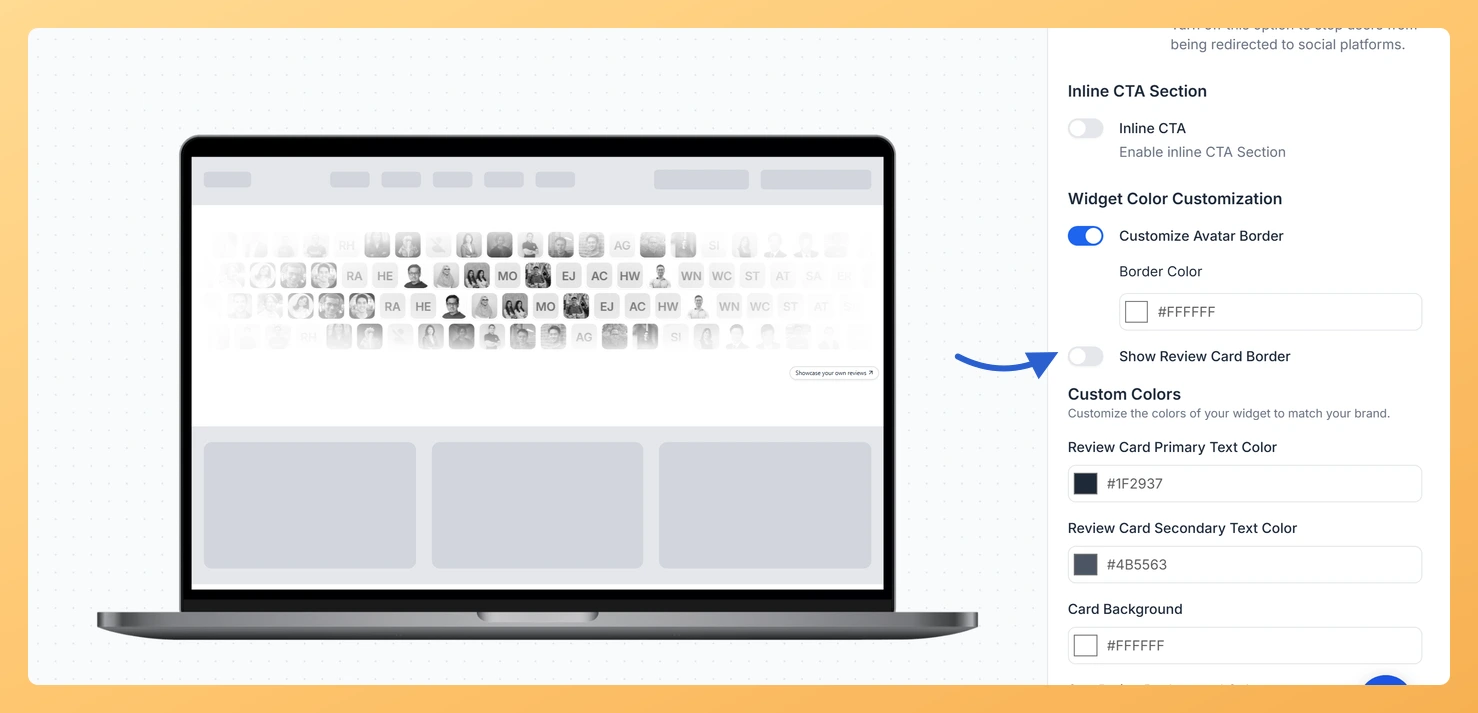
Step 5: Enable the Show Review Card Border toggle
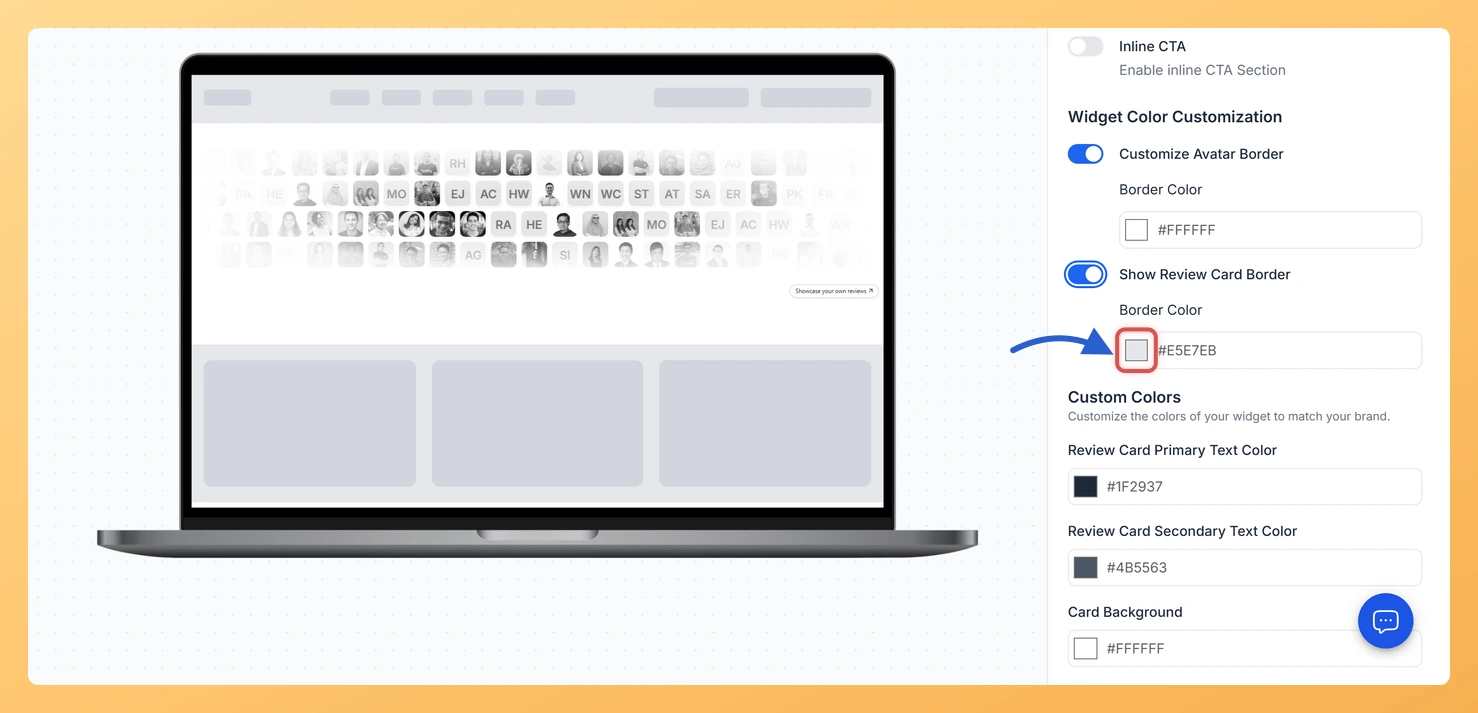
Locate the Show Review Card Border toggle and switch it on. The toggle draws a border around every review card block in your Avatar Blocks grid. A single Border Color picker appears beneath it.
Step 6: Choose the Border Color
Click the Border Color picker to open the color selector. Choose a color that either matches your brand palette or complements the card background color. A neutral tone such as light gray often works well for a clean, professional look on the Avatar Blocks grid.
Step 7: Save your changes
Once you are satisfied with the border settings, click Save & Next to apply the changes. Use the widget preview to confirm that each review card block in the Avatar Blocks grid displays the border in the color you chose.
What’s next
Add a shadow to your Avatar Blocks review cards to give the grid blocks extra depth alongside the border styling.
Adjust the card background color in the Widget Color Customization section so the border contrasts clearly against each block’s fill.
Embed the updated Avatar Blocks widget on your website or landing page to display the newly bordered review grid to visitors.
Explore other design controls on the Design tab, such as font style and avatar size, to further refine the appearance of your Avatar Blocks widget.
Common questions
Why is there no thickness or corner setting for the border?
On Avatar Blocks the border is a single colour decision. Turning Show Review Card Border on reveals a Border Color picker and nothing else, which keeps every block in the grid framed identically. Widget types such as Masonry add thickness and corner sliders; this one does not.
You might also find helpful
How Do I Show a Border Around Reviewer Avatars on My Avatar Blocks Widget in Feedspace?
Overview The Avatar Blocks widget displays your testimonials in a structured block grid, placing each reviewer’s profile photo side by side with their review text. Because the avatar is a central visual element in each block, drawing the eye to it immediately, the Show Avatar Border toggle lets you add...
How to Create an Avatar Blocks Widget in Feedspace
Overview Feedspace’s Avatar Blocks widget displays your reviews in bold, grid-based cards where the reviewer’s profile picture takes centre stage. It’s a strong, visually balanced layout that works well on testimonial pages, pricing pages, and anywhere you want reviews to feel authentic and human. Step 1: Log in to Feedspace...
How Do I Customize the Design of My Widget in Feedspace?
Overview Feedspace widgets come with a powerful Design tab that lets you tailor every visual aspect of your widget. From card colors and fonts to dark mode and call-to-action buttons, you can fully customize the look to match your website’s brand without writing any code. How to Customize the Widget...