The Avatar Blocks widget displays your testimonials in a structured block grid, placing each reviewer’s profile photo side by side with their review text. Because the avatar is a central visual element in each block, drawing the eye to it immediately, the Show Avatar Border toggle lets you add a colored circular border around every reviewer’s profile photo across the entire grid.
When the toggle is on, a colored ring frames each avatar, giving the grid a more polished and branded appearance. A companion Avatar Border Color picker appears so you can match the border to your brand palette or the color scheme of the page where the widget is embedded. When the toggle is off, avatars appear without any border, for a minimal look.
How to show a border around reviewer avatars for your Avatar Blocks widget
Step 1: Open the Widgets section
Log in to your Feedspace account and navigate to the Widgets section from the left-hand sidebar. You will see a list of all the widgets you have created.
Step 2: Edit your Avatar Blocks widget
Track down the Avatar Blocks widget whose avatars you want framed and click the Edit (pencil) icon on its card to open the editor.
Step 3: Go to the Design tab
Inside the widget editor, click the Design tab at the top of the panel. The Design tab contains all visual customization options for your Avatar Blocks widget, organized into sections.
Step 4: Find the Widget Color Customization section
Scroll down the Design tab until you reach Widget Color Customization. The avatar border setting sits here with the other colour controls, not up in the content section.
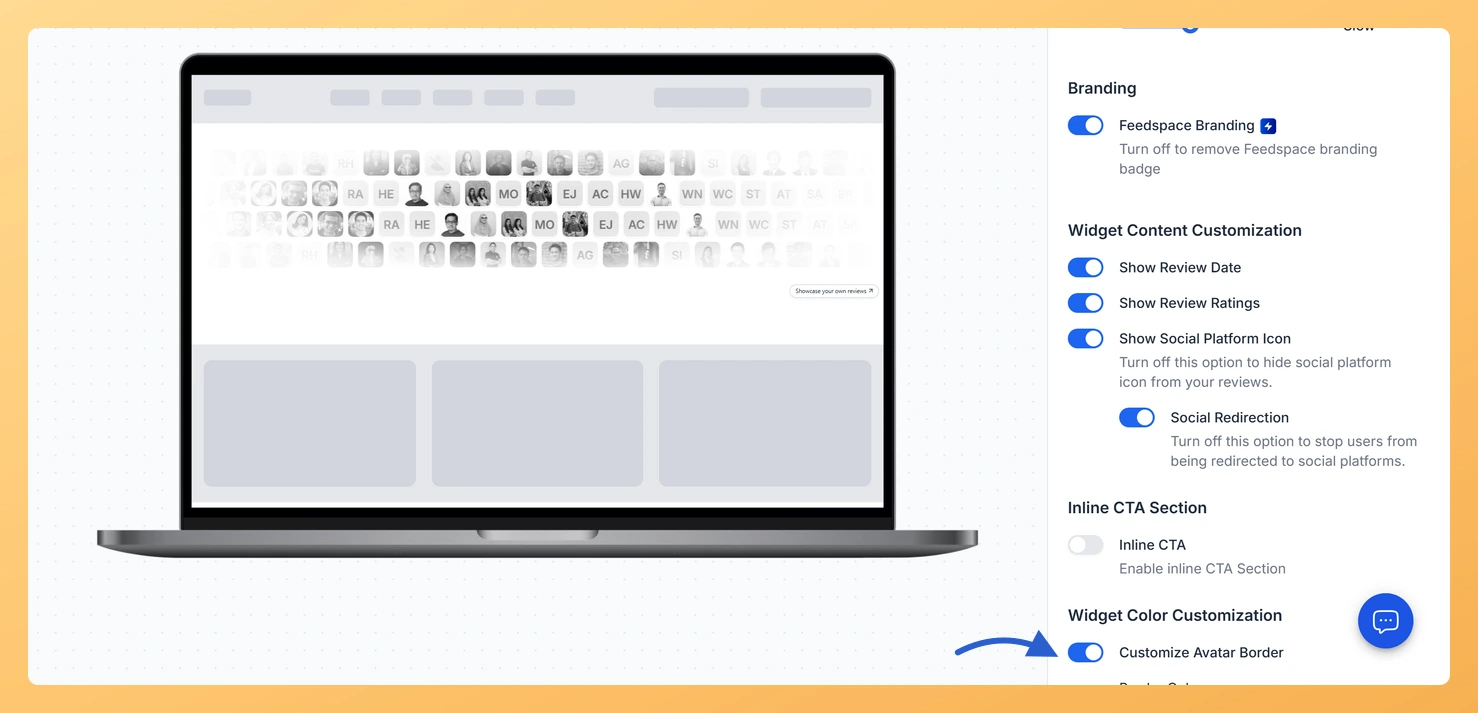
Step 5: Turn on Customize Avatar Border
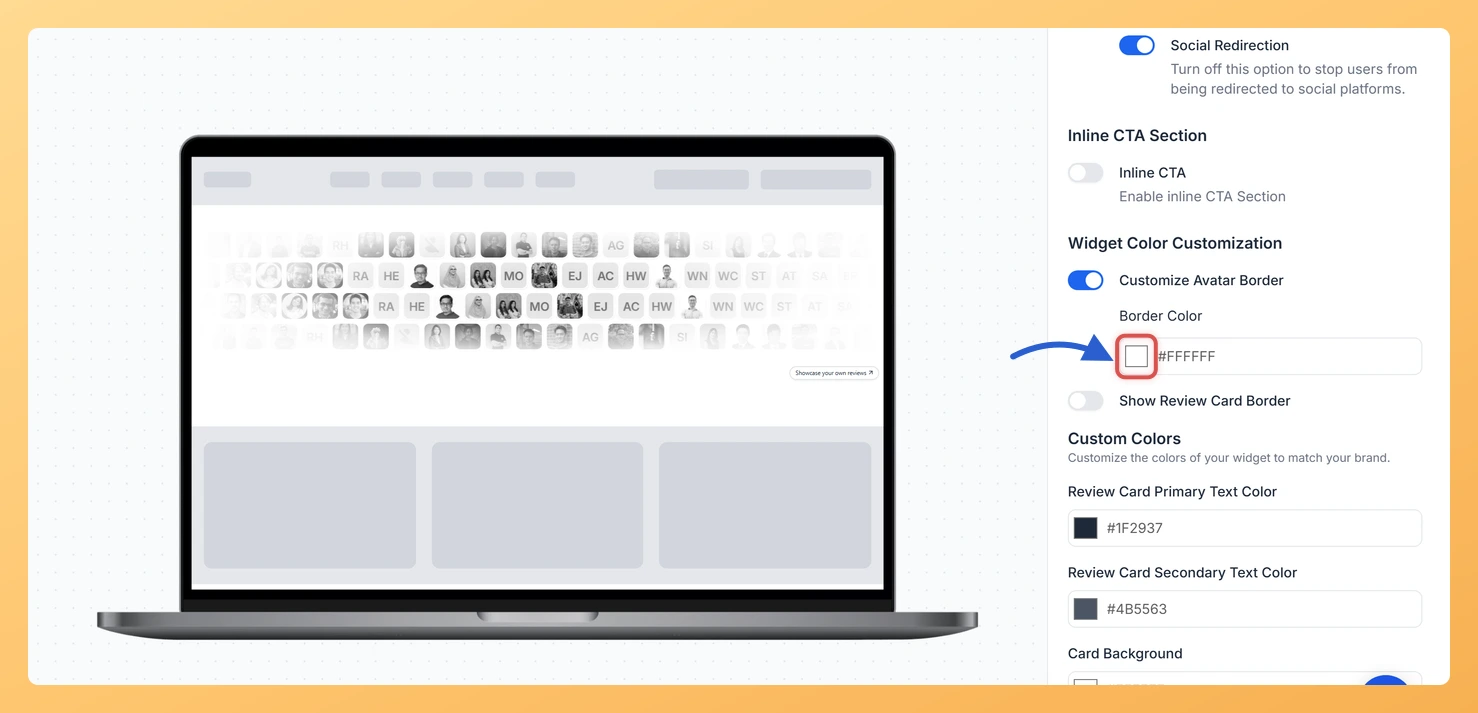
Locate the Customize Avatar Border toggle and switch it on. Once enabled, a colored border will appear around each reviewer’s profile photo in the Avatar Blocks grid. A Border Color picker appears directly below the toggle.
Step 6: Choose a Border Color and save
Click the Border Color picker and choose the colour you want around the avatars. You can enter a hex code directly or choose from the color palette. Once you are satisfied with the color, click Save & Next to apply your changes to the widget.
What’s next
Adjust the Avatar Border Color to match your brand colors and keep the Avatar Blocks widget visually consistent with your website design.
Show the review date on each block by enabling the review date option in the Widget Content Customization section to give visitors more context about each testimonial.
Explore other design settings on the Design tab, such as background color and font options, to further refine the appearance of your Avatar Blocks widget.
Your live site picks the change up on its own: the widget is loaded from Feedspace each time a visitor opens the page, so there is no embed code to replace.
Common questions
I cannot find a setting called Show Avatar Border.
On Avatar Blocks it is named Customize Avatar Border, and it lives in Widget Color Customization rather than in the content section, which is where most of the other show-or-hide switches sit.
You might also find helpful
How Do I Show the Review Date on My Avatar Blocks Widget in Feedspace?
Overview The Avatar Blocks widget presents your testimonials in a structured block grid, placing each reviewer’s avatar alongside their review text in a clean, side-by-side layout. Because each block is visually self-contained, visitors immediately focus on the individual reviewer and their words. Adding the review date to each block reinforces...
How to Create an Avatar Blocks Widget in Feedspace
Overview Feedspace’s Avatar Blocks widget displays your reviews in bold, grid-based cards where the reviewer’s profile picture takes centre stage. It’s a strong, visually balanced layout that works well on testimonial pages, pricing pages, and anywhere you want reviews to feel authentic and human. Step 1: Log in to Feedspace...
How Do I Customize the Design of My Widget in Feedspace?
Overview Feedspace widgets come with a powerful Design tab that lets you tailor every visual aspect of your widget. From card colors and fonts to dark mode and call-to-action buttons, you can fully customize the look to match your website’s brand without writing any code. How to Customize the Widget...