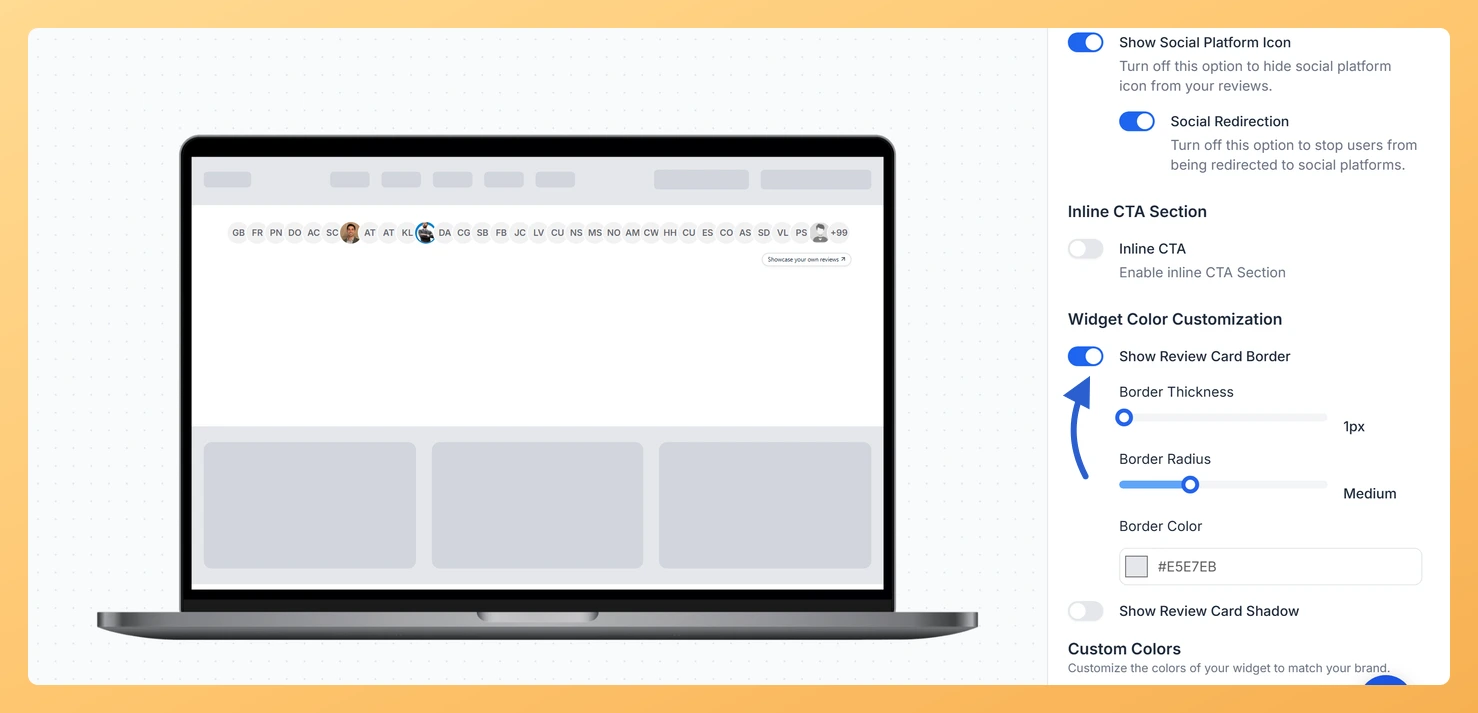
The Avatar Group widget in Feedspace shows a row of your reviewers’ avatars. When a visitor clicks an avatar, a review card opens with that person’s review. The Show Review Card Border toggle draws an outline around that card, and you choose its thickness, corners and color.
The card opens on top of whatever sits under the avatars, often a hero section or a sign-up form. A clear border keeps the review readable as its own box instead of blending into the content behind it.
Steps to add a border to the review card
Step 1: Open Widgets
Sign in to Feedspace and click Widgets in the left sidebar.
Step 2: Edit the Avatar Group and go to Design
Click the Edit (pencil) icon on your Avatar Group widget’s card, then the Design tab at the top of the editor.
Step 3: Turn on Show Review Card Border
Scroll to Widget Color Customization and turn on Show Review Card Border. Border Thickness, Border Radius and Border Color appear under it.
Step 4: Set the thickness, corners and color
Border Thickness: drag the slider from 1px to 12px.
Border Radius: choose Small, Medium, Large or X-Large.
Border Color: click the swatch or type a hex code into the box beside it.
Click an avatar in the preview to open a card and check the result.
Is this the same as the border around the avatars?
No. Show Review Card Border outlines the review card that opens from an avatar. The ring around each avatar in the row is a separate setting, Show Avatar Border, in Widget Content Customization.
Can I use rounder corners than X-Large?
Not on the Avatar Group. Its Border Radius goes from Small to X-Large.
You might also find helpful
How Do I Add a Shadow to Review Cards on My Avatar Group Widget in Feedspace?
Overview Clicking an avatar in an Avatar Group widget from Feedspace opens that reviewer’s review on a small card. The Show Review Card Shadow toggle puts a shadow behind the card, with a style, size and color you pick. A shadow makes the card read as a pop-up floating above...
How to Create an Avatar Group Widget in Feedspace
Overview The Avatar Group widget in Feedspace displays the profile pictures (avatars) of your reviewers in a sleek and minimal circular layout. It’s ideal for showing social proof in a subtle, space-saving format on your homepage, footer, or testimonial sections. How to Access Step 1 – Log in to Feedspace...
How Do I Customize the Design of My Widget in Feedspace?
Overview Feedspace widgets come with a powerful Design tab that lets you tailor every visual aspect of your widget. From card colors and fonts to dark mode and call-to-action buttons, you can fully customize the look to match your website’s brand without writing any code. How to Customize the Widget...