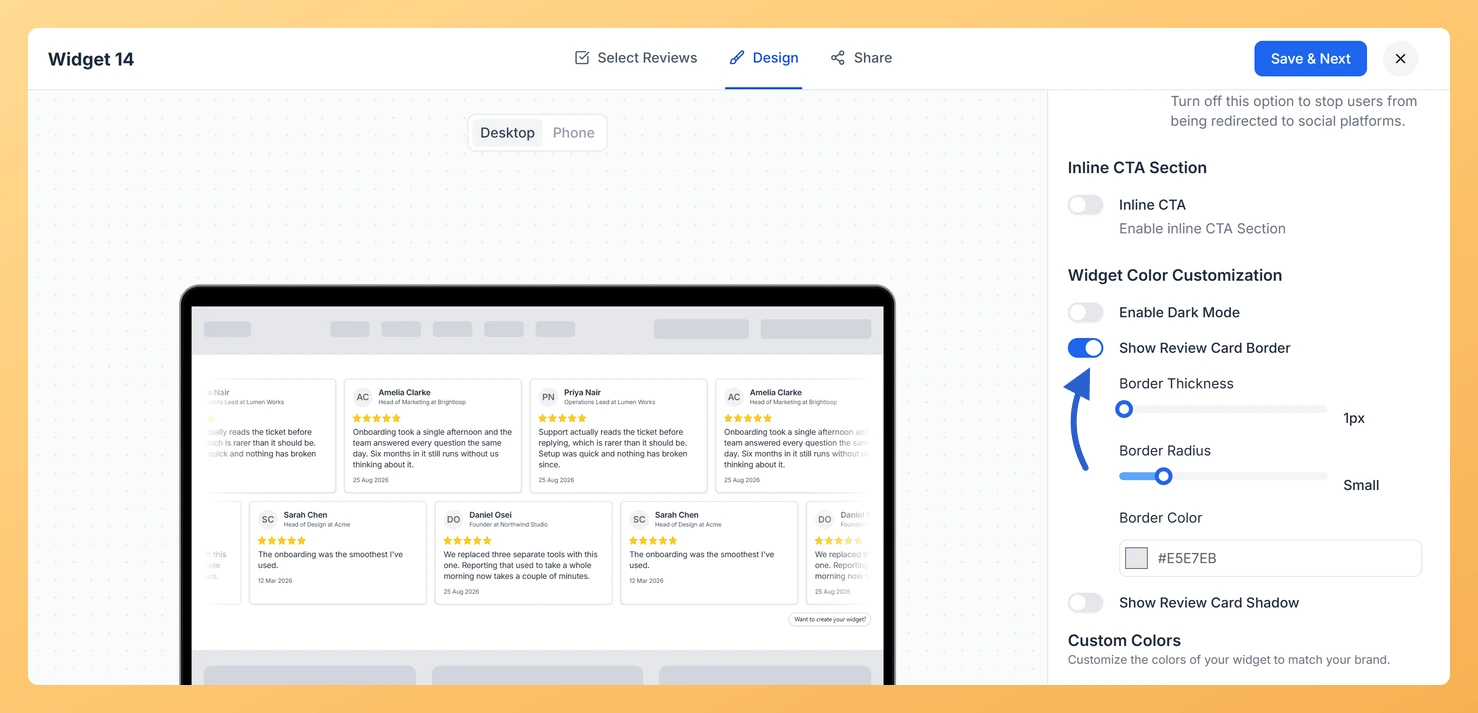
The Horizontal Scroll widget moves rows of review cards sideways across your page like a news ticker. With several cards in view at once, a border makes it easy to see where one review stops and the next starts.
Switching on Show Review Card Border in Widget Color Customization gives you three controls: Border Thickness from 1px to 12px, Border Radius from none up to XX-Large, and Border Color. A 1px border with small rounded corners suits most landing pages, while a thicker colored outline works for a bold, branded section.
How to add a border to review cards on your Horizontal Scroll widget
Step 1: Head to Widgets
After signing in to Feedspace, click Widgets in the left-hand sidebar.
Step 2: Edit your Horizontal Scroll widget
Click the Edit (pencil) icon on the Horizontal Scroll widget card to open it in the editor.
Step 3: Click the Design tab
Select Design from the tabs along the top of the editor.
Step 4: Locate Widget Color Customization
Scroll down the right panel to the Widget Color Customization section.
Step 5: Turn on Show Review Card Border
Switch on Show Review Card Border. Border Thickness, Border Radius and Border Color appear below it.
Step 6: Set the border thickness
Drag the Border Thickness slider. The value next to it shows the width, from 1px to 12px.
Step 7: Set the border radius
Drag the Border Radius slider to round the card corners. It runs from none, for square corners, through Small, Medium, Large and X-Large to XX-Large.
Step 8: Choose the border color
Click the Border Color swatch to pick a color, or type a hex code into the field.
Step 9: Save your widget
Click Save & Next. The widget already on your site updates by itself, so you do not need to paste the embed code again.
Slow the ticker down with Scroll Speed under Marquee Settings if visitors need longer to read each card.
Common questions
Why can’t I find the border settings?
They are hidden while Enable Dark Mode is switched on. Turn dark mode off to bring back Show Review Card Border and the rest of the color controls.
Will the border apply to my other widgets?
No. Border settings belong to this widget only, so your other widgets keep their own look.
You might also find helpful
How Do I Add a Shadow to Review Cards on My Horizontal Scroll Widget in Feedspace?
Overview In a Horizontal Scroll widget, review cards glide sideways across the page in rows. Adding a shadow gives each card a little lift, which helps the moving cards stand out against a plain background. Turn on Show Review Card Shadow under Widget Color Customization to reach three settings: Shadow...
How to Create a Horizontal Scroll Widget in Feedspace
Overview The Horizontal Scroll widget in Feedspace showcases your reviews in a smooth side-by-side scrolling motion. It is perfect for sections where you want continuous movement and visual engagement, such as website headers, testimonial rows, or landing pages. How to Access Step 1 – Log in to Feedspace Go to...
How Do I Customize the Design of My Widget in Feedspace?
Overview Every Feedspace widget has a Design tab where you decide how it looks on your site: colors, font, card borders and shadows, what each review card shows, and an optional call-to-action card. Each change appears in the live preview as you make it. A common case: you embed a...