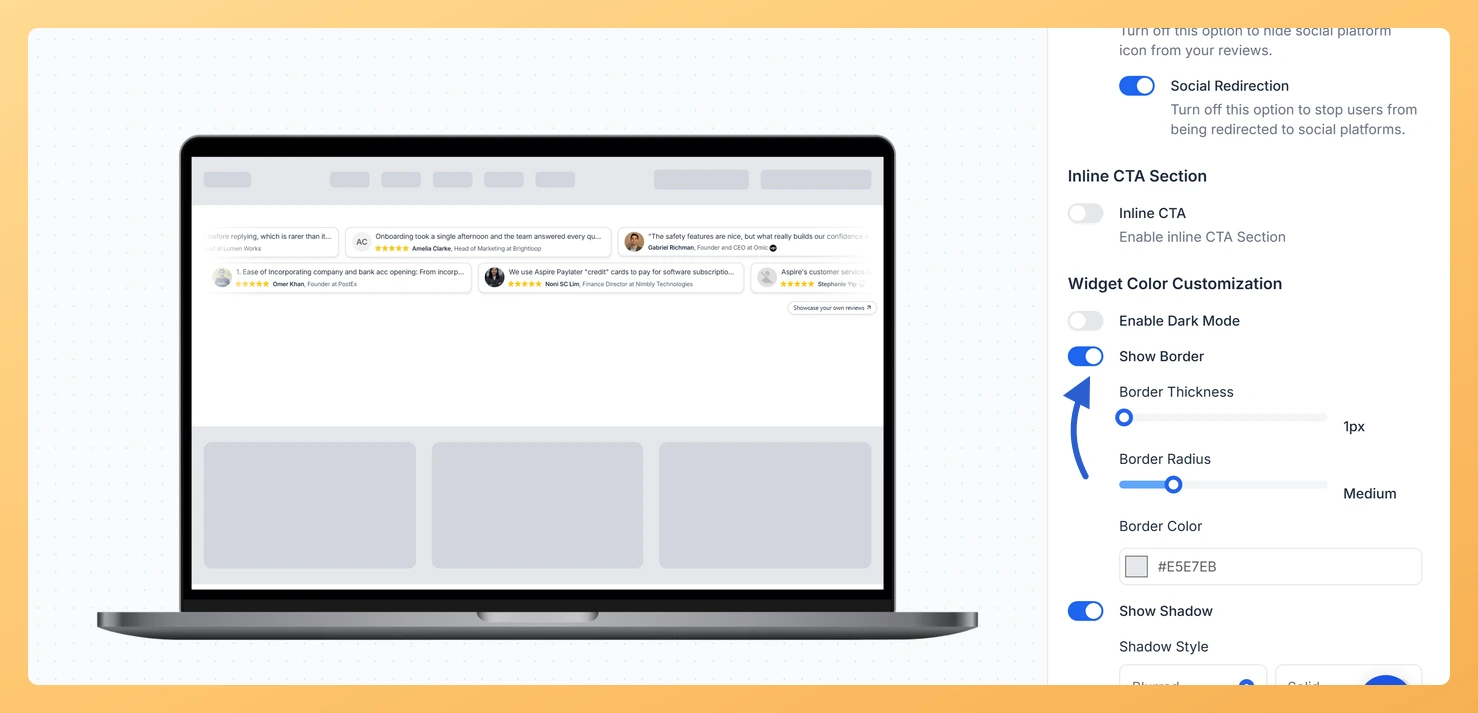
The Strip Slider widget in Feedspace shows your reviews as small cards in a thin, endlessly scrolling strip. The Show Border toggle in the Design tab draws an outline around each of those cards, and three controls under it let you set how thick the outline is, how rounded the corners are, and what color it uses.
Cards in the strip sit close together and keep moving, so on a white or pale page they can blur into one long band. A thin border in a shade of your brand color gives every card its own edge, which makes each review easier to pick out as it passes.
Steps to add a border to review cards
Step 1: Go to your widgets
Sign in to Feedspace and click Widgets in the left sidebar. Every widget in your workspace is listed there as a card.
Step 2: Open the Strip Slider in the editor
On the card for your Strip Slider widget, click the Edit (pencil) icon. The editor opens full screen on the Select Reviews tab.
Step 3: Switch to the Design tab
Click Design in the row of tabs at the top of the editor. The live preview moves to the left and the settings panel opens on the right.
Step 4: Turn on Show Border
Scroll the settings panel down to Widget Color Customization and turn on the Show Border toggle. Border Thickness, Border Radius and Border Color appear underneath it.
Step 5: Set the thickness, corners and color
Border Thickness: drag the slider anywhere from 1px to 12px. 1px or 2px gives a quiet outline, while higher values give a heavier frame.
Border Radius: choose Small, Medium, Large, X-Large or Round. Round turns each card into a pill shape.
Border Color: click the swatch to pick a color, or type a hex code into the box beside it.
The preview updates as you change each one, so you can judge the result before saving.
Step 6: Save your changes
Click Save & Next in the top right corner. Your border settings are saved and the editor moves on to the Share tab.
Why did the border settings disappear from the Design tab?
Enable Dark Mode is turned on. Dark mode uses its own fixed colors, so it hides the border, shadow and custom color controls below it. Turn it off and Show Border comes back.
Do I need to update the embed code on my website?
No. An embedded widget is loaded from Feedspace every time the page is viewed, so the new border shows up on your site once you save.
You might also find helpful
How Do I Add a Shadow to Review Cards on My Strip Slider Widget in Feedspace?
Overview The Show Shadow toggle on a Strip Slider widget in Feedspace places a shadow behind every review card in the scrolling strip. Once it is on, you choose the shadow style, its size and its color. A shadow makes the cards look raised above the page instead of printed...
How to Create a Strip Slider Widget in Feedspace
Overview The Strip Slider widget in Feedspace allows you to showcase your reviews in a single, horizontally scrolling line: perfect for website headers, footers, or testimonial sections that need a minimalist design. You can adjust autoplay speed, borders, and colors to match your brand style. How to Access Step 1...
How Do I Customize the Design of My Widget in Feedspace?
Overview Feedspace widgets come with a powerful Design tab that lets you tailor every visual aspect of your widget. From card colors and fonts to dark mode and call-to-action buttons, you can fully customize the look to match your website’s brand without writing any code. How to Customize the Widget...