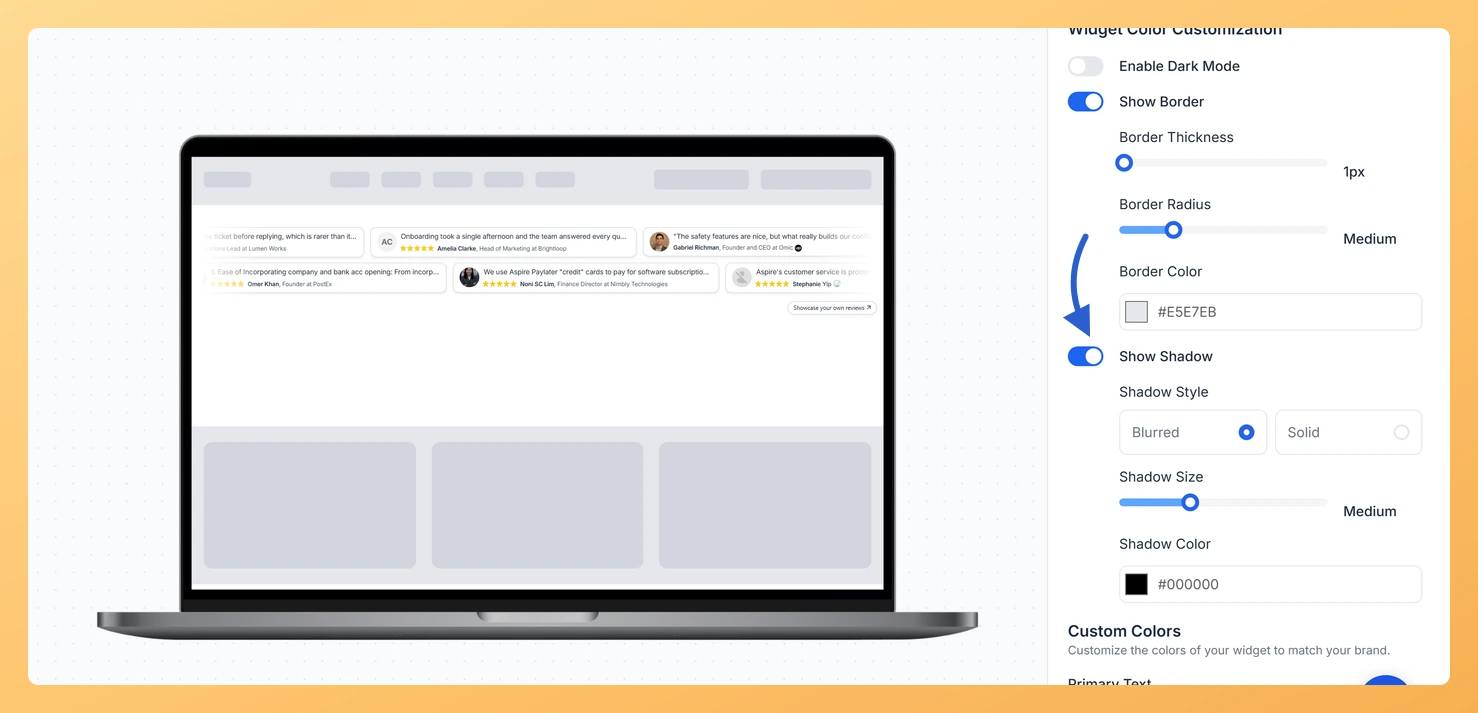
The Show Shadow toggle on a Strip Slider widget in Feedspace places a shadow behind every review card in the scrolling strip. Once it is on, you choose the shadow style, its size and its color.
A shadow makes the cards look raised above the page instead of printed on it. That helps most when the strip sits on a background close to the card color, where the cards would otherwise be hard to tell apart from the page as they move past.
Steps to add a shadow to review cards
Step 1: Open Widgets from the sidebar
From your Feedspace dashboard, click Widgets in the sidebar menu to see the widgets you have already built.
Step 2: Click the pencil icon on your Strip Slider
Find the Strip Slider you want to style and click the Edit (pencil) icon at the bottom of its card. Clicking the preview image instead opens the public widget in a new browser tab.
Step 3: Go to Design
The editor opens on Select Reviews. Click the Design tab at the top to reach the styling settings.
Step 4: Turn on Show Shadow
In the Widget Color Customization section, just below the border settings, turn on the Show Shadow toggle. The shadow controls appear underneath it.
Step 5: Choose the shadow style, size and color
Shadow Style: pick Blurred for a soft shadow that fades out, or Solid for a hard-edged one.
Shadow Size: drag the slider to Small, Medium, Large or X-Large.
Shadow Color: click the swatch or type a hex code. A dark grey reads as a natural shadow, while a brand color gives a more graphic look.
Step 6: Save the design
Check the shadow in the preview, then click Save & Next. The design is saved and the editor opens the Share tab.
Can I use a shadow and a border on the same cards?
Yes. Show Border and Show Shadow are separate toggles, and both can be on at once.
Why can’t I find Show Shadow?
It is hidden while Enable Dark Mode is on, because dark mode uses a fixed set of colors. Turn dark mode off to see the shadow settings again.
You might also find helpful
How Do I Add a Border to Review Cards on My Strip Slider Widget in Feedspace?
Overview The Strip Slider widget in Feedspace shows your reviews as small cards in a thin, endlessly scrolling strip. The Show Border toggle in the Design tab draws an outline around each of those cards, and three controls under it let you set how thick the outline is, how rounded...
How to Create a Strip Slider Widget in Feedspace
Overview The Strip Slider widget in Feedspace allows you to showcase your reviews in a single, horizontally scrolling line: perfect for website headers, footers, or testimonial sections that need a minimalist design. You can adjust autoplay speed, borders, and colors to match your brand style. How to Access Step 1...
How Do I Customize the Design of My Widget in Feedspace?
Overview Feedspace widgets come with a powerful Design tab that lets you tailor every visual aspect of your widget. From card colors and fonts to dark mode and call-to-action buttons, you can fully customize the look to match your website’s brand without writing any code. How to Customize the Widget...