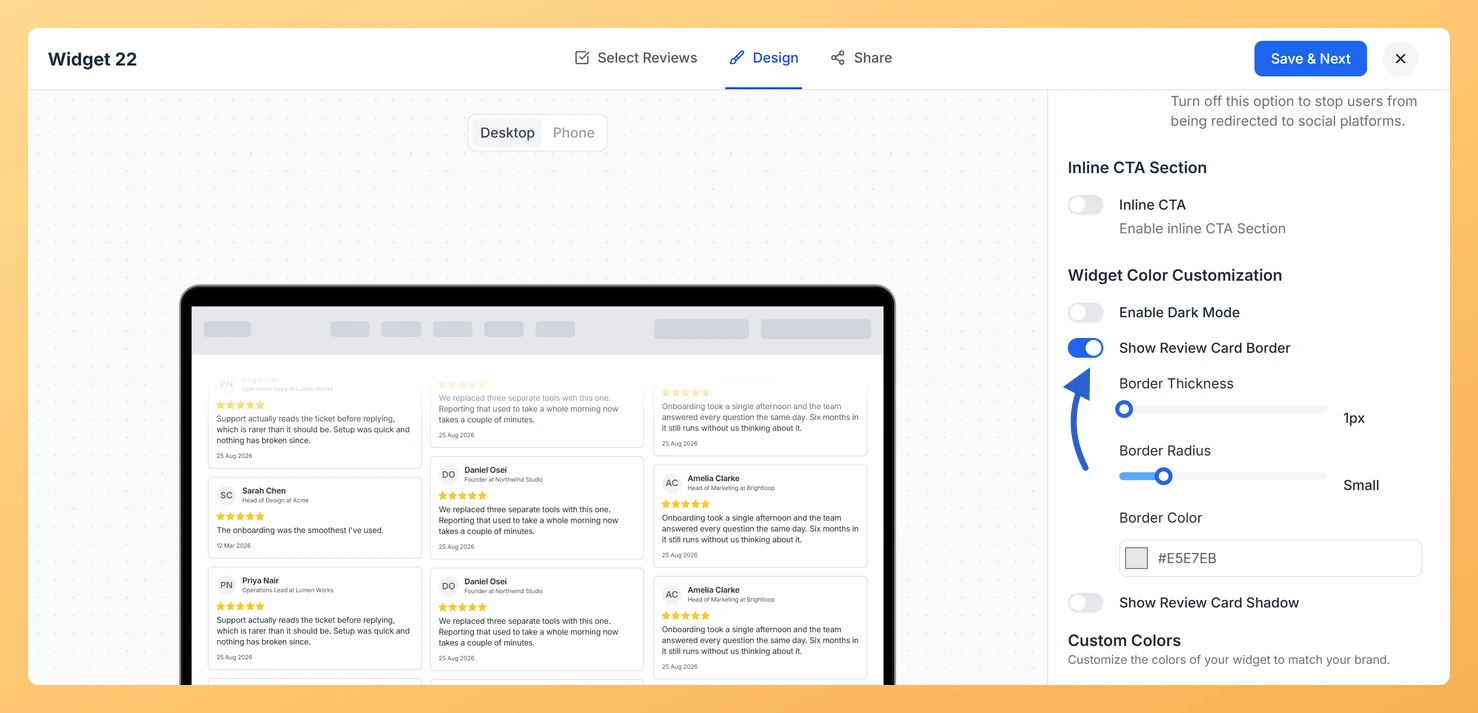
The Vertical Scroll widget stacks review cards in columns that move up and down the page. When the columns are packed with cards, a border keeps each review clearly separated as it moves past.
Turn on Show Review Card Border in the Widget Color Customization section to get Border Thickness (1px to 12px), Border Radius (none to XX-Large) and Border Color. Many teams match the border color to their site dividers so the reviews section blends in with the rest of the page.
How to add a border to review cards on your Vertical Scroll widget
Step 1: Find your widgets
Once you are logged in to Feedspace, choose Widgets in the left sidebar.
Step 2: Open the editor
On the Vertical Scroll widget card, select the Edit (pencil) icon.
Step 3: Choose the Design tab
In the editor, click Design at the top.
Step 4: Go to Widget Color Customization
Scroll the settings panel down to Widget Color Customization.
Step 5: Turn on Show Review Card Border
Switch on Show Review Card Border to reveal the thickness, radius and color controls.
Step 6: Adjust the thickness
Move the Border Thickness slider between 1px and 12px.
Step 7: Round the corners
Move the Border Radius slider from none for square corners up to XX-Large for strongly rounded ones.
Step 8: Pick the color
Select a shade with the Border Color swatch, or enter its hex code.
Step 9: Save the changes
Click Save & Next. Pages that already embed this widget show the border without any change to the embed code.
Preview the columns in the Phone view to check the border on a small screen.
Common questions
Where did Show Review Card Border go?
Turning on Enable Dark Mode hides the border, shadow and color controls. Switch dark mode off and they appear again.
You might also find helpful
How Do I Add a Shadow to Review Cards on My Vertical Scroll Widget in Feedspace?
Overview The Vertical Scroll widget moves columns of review cards up and down your page. A shadow under each card adds depth to the columns, which is useful on pages with a flat, single-color background. Once Show Review Card Shadow is on in Widget Color Customization, you can pick a...
How to Create a Vertical Scroll Widget in Feedspace
Overview The Vertical Scroll widget in Feedspace displays reviews in a continuous upward-scrolling format. It’s ideal for pages with limited horizontal space, such as sidebars, landing pages, or testimonials sections. You can enable cross-scrolling animations, customize borders, and adjust colors to match your brand. How to Access Step 1 –...
How Do I Customize the Design of My Widget in Feedspace?
Overview Every Feedspace widget has a Design tab where you decide how it looks on your site: colors, font, card borders and shadows, what each review card shows, and an optional call-to-action card. Each change appears in the live preview as you make it. A common case: you embed a...