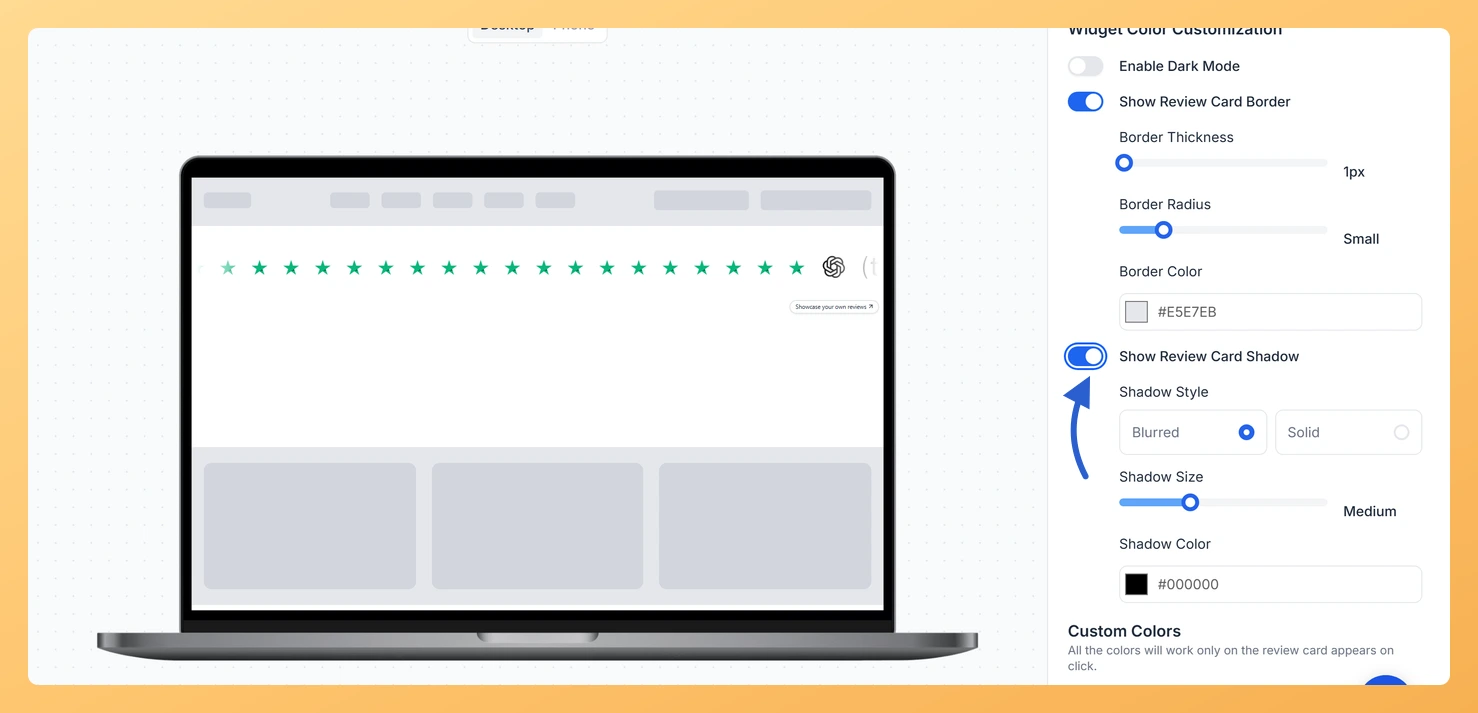
On a Company Logo Slider widget in Feedspace, clicking a logo opens a small card with that customer’s review. The Show Review Card Shadow toggle puts a shadow behind that card, with a choice of style, size and color.
A shadow makes the card look like it is floating above your page, so visitors read it as a pop-up tied to the logo they clicked. It helps most when the section under the slider is the same color as the card and the card would otherwise blend in.
Steps to add a shadow to the review card
Step 1: Open the widget list
From your dashboard, choose Widgets in the sidebar menu.
Step 2: Edit the Company Logo Slider and go to Design
Press the pencil-shaped Edit icon on the widget’s card. When the editor opens, switch to the Design tab.
Step 3: Turn on Show Review Card Shadow
In Widget Color Customization, just below the border settings, turn on Show Review Card Shadow. The shadow controls appear underneath it.
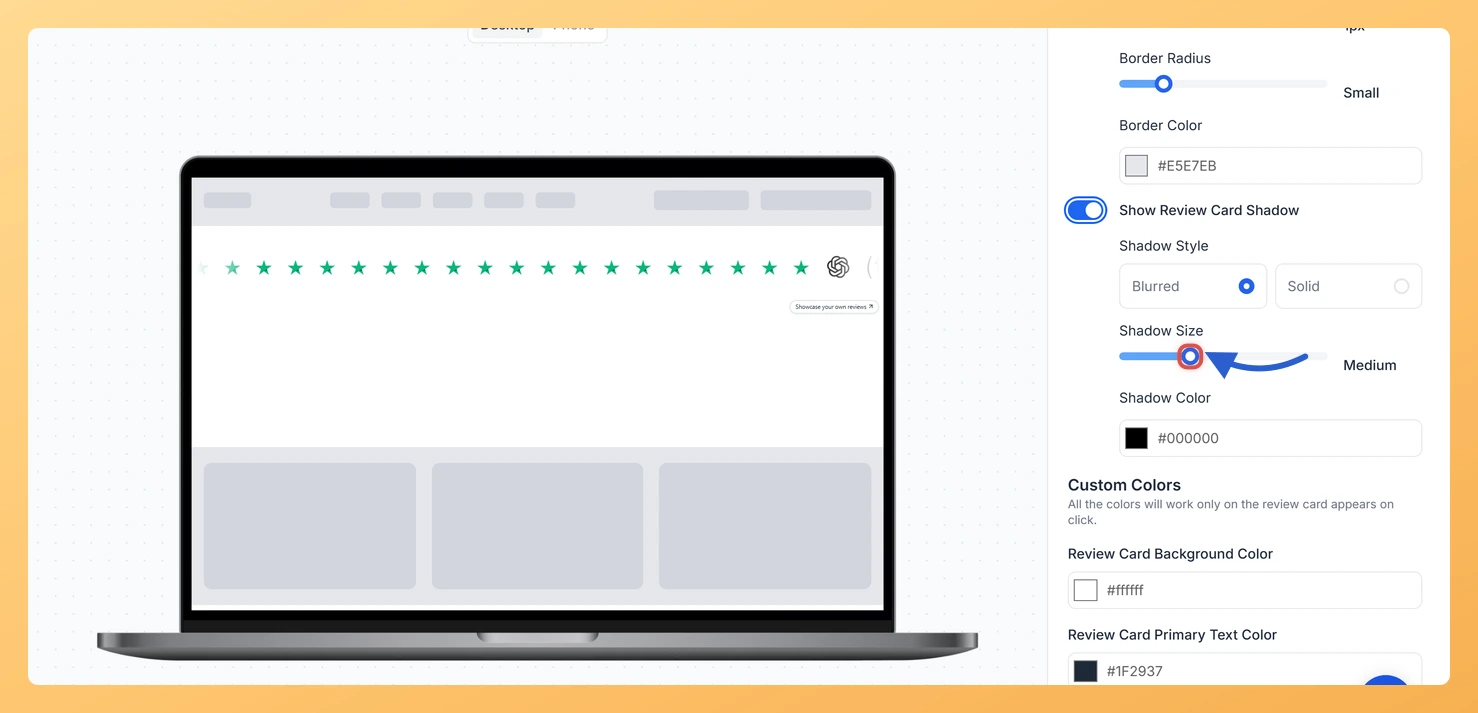
Step 4: Choose the style, size and color
Shadow Style: Blurred for a soft shadow, or Solid for a hard-edged one.
Shadow Size: drag the slider to Small, Medium, Large or X-Large.
Shadow Color: click the swatch or type a hex code.
Step 5: Save your shadow
Click a logo in the preview to check the card, then click Save & Next.
No. It only applies to the review card that opens when a logo is clicked. The logos in the strip stay as they are.
Why is Show Review Card Shadow missing?
Enable Dark Mode is on. Dark mode hides the border, shadow and custom color settings. Turn it off to use them.
You might also find helpful
How Do I Add a Border to Review Cards on My Company Logo Slider Widget in Feedspace?
Overview The Company Logo Slider widget in Feedspace scrolls your customers’ company logos across the page. When a visitor clicks a logo, a review card opens with that customer’s review. The Show Review Card Border toggle draws an outline around that card, and you set its thickness, corner radius and...
How to Create a Company Logo Slider Widget in Feedspace
Overview Feedspace’s Company Logo Slider widget displays your clients’ or partners’ logos in a smooth, continuously scrolling strip. It’s the ideal “as seen on” or “trusted by” social proof bar for your homepage or landing page: no review text needed, just recognizable brand logos. Step 1: Log in to Feedspace...
How Do I Customize the Design of My Widget in Feedspace?
Overview Feedspace widgets come with a powerful Design tab that lets you tailor every visual aspect of your widget. From card colors and fonts to dark mode and call-to-action buttons, you can fully customize the look to match your website’s brand without writing any code. How to Customize the Widget...