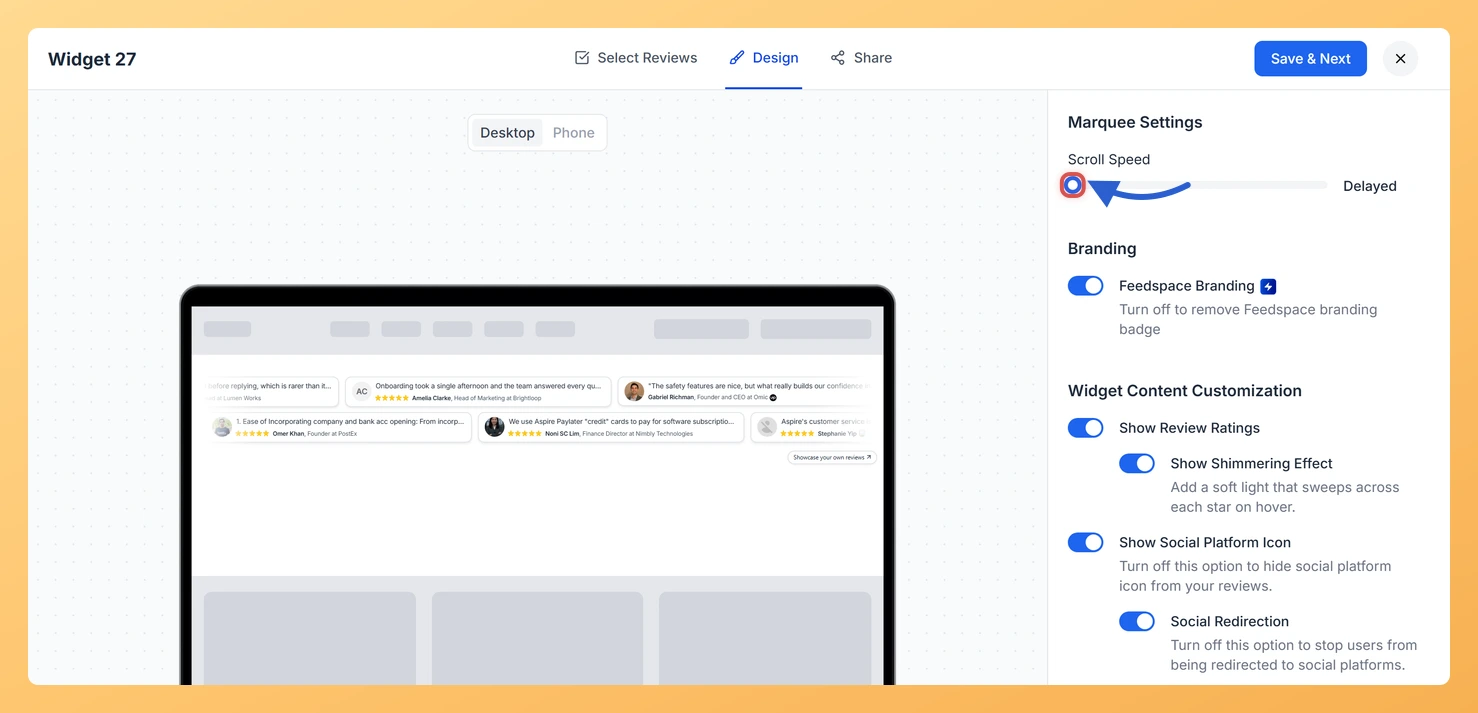
The Strip Slider widget in Feedspace scrolls your review cards across the page in a continuous loop. The Scroll Speed slider in the Marquee Settings section sets how fast that loop moves, with four settings: Delayed, Slow, Medium and Fast.
Speed decides whether visitors can read your reviews or only notice them moving. On a pricing or checkout page, where you want each review read, Delayed or Slow gives people time to finish a card. In a banner near the top of a homepage, where the strip is there to signal “lots of happy customers”, Medium or Fast keeps it lively.
Steps to change the scroll speed
Step 1: Open the Widgets page
In the Feedspace sidebar, under Share, click Widgets.
Step 2: Edit the Strip Slider
Locate your Strip Slider widget’s card and click its Edit (pencil) icon to load the editor.
Step 3: Click the Design tab
Select Design from the tabs at the top. Marquee Settings is the first section in the settings panel on the right.
Step 4: Move the Scroll Speed slider
Drag the Scroll Speed slider to the setting you want. The name of the current setting, Delayed, Slow, Medium or Fast, shows beside the slider, and the preview on the left starts moving at that pace.
Step 5: Save the new speed
Click Save & Next. The speed is saved and the editor moves to the Share tab.
I closed the editor and my speed went back. What happened?
Moving the slider changes the preview but does not save it. Click Save & Next before closing. If you click the close (X) button with unsaved changes, Feedspace asks first: choose Save & close to keep them.
You might also find helpful
How to Create a Strip Slider Widget in Feedspace
Overview The Strip Slider widget in Feedspace allows you to showcase your reviews in a single, horizontally scrolling line: perfect for website headers, footers, or testimonial sections that need a minimalist design. You can adjust autoplay speed, borders, and colors to match your brand style. How to Access Step 1...
Strip Slider Widget vs. Horizontal Scroll Widget in Feedspace: Which One Fits Your Page?
Overview Feedspace gives you two powerful horizontal display formats for showcasing testimonials: the Strip Slider and the Horizontal Scroll. Both present reviews side by side in a clean, scannable layout, and each one is purpose-built for a specific type of page experience. Understanding what sets them apart helps you place...
How Do I Customize the Design of My Widget in Feedspace?
Overview Feedspace widgets come with a powerful Design tab that lets you tailor every visual aspect of your widget. From card colors and fonts to dark mode and call-to-action buttons, you can fully customize the look to match your website’s brand without writing any code. How to Customize the Widget...