
Overview
The Avatar Group widget displays a compact cluster of reviewer avatars alongside a star rating count and a trust headline, giving visitors an immediate visual signal of social proof. Because the widget is designed to be compact and eye-catching, it creates a natural moment of trust that you can convert into action. The Inline CTA option in the Design tab lets you embed a call-to-action card directly inside the widget, so the same element that builds trust also prompts visitors to take the next step, whether that is starting a free trial, booking a demo, or visiting a product page.
When the Inline CTA toggle is enabled, a styled card appears within the Avatar Group layout containing a heading, body text, a labeled button with a custom URL, and full control over button color, card background, and card border. On Masonry and Vertical Scroll layout variants, you can also control CTA Position, choosing to show it at a random position or after every X reviews, so the CTA feels native to the flow of content rather than bolted on.
How to Add an Inline CTA to Your Avatar Group Widget
Step 1: Open the Widgets Section
Log in to your Feedspace account. In the left navigation menu, click Widgets to open the list of all widgets you have created.
Step 2: Edit Your Avatar Group Widget
Locate the Avatar Group widget you want to update. Click the edit icon or the widget name to open the widget editor.
Step 3: Go to the Design Tab
Inside the widget editor, click the Design tab at the top of the panel. This tab contains all visual and layout customization options for your Avatar Group widget.
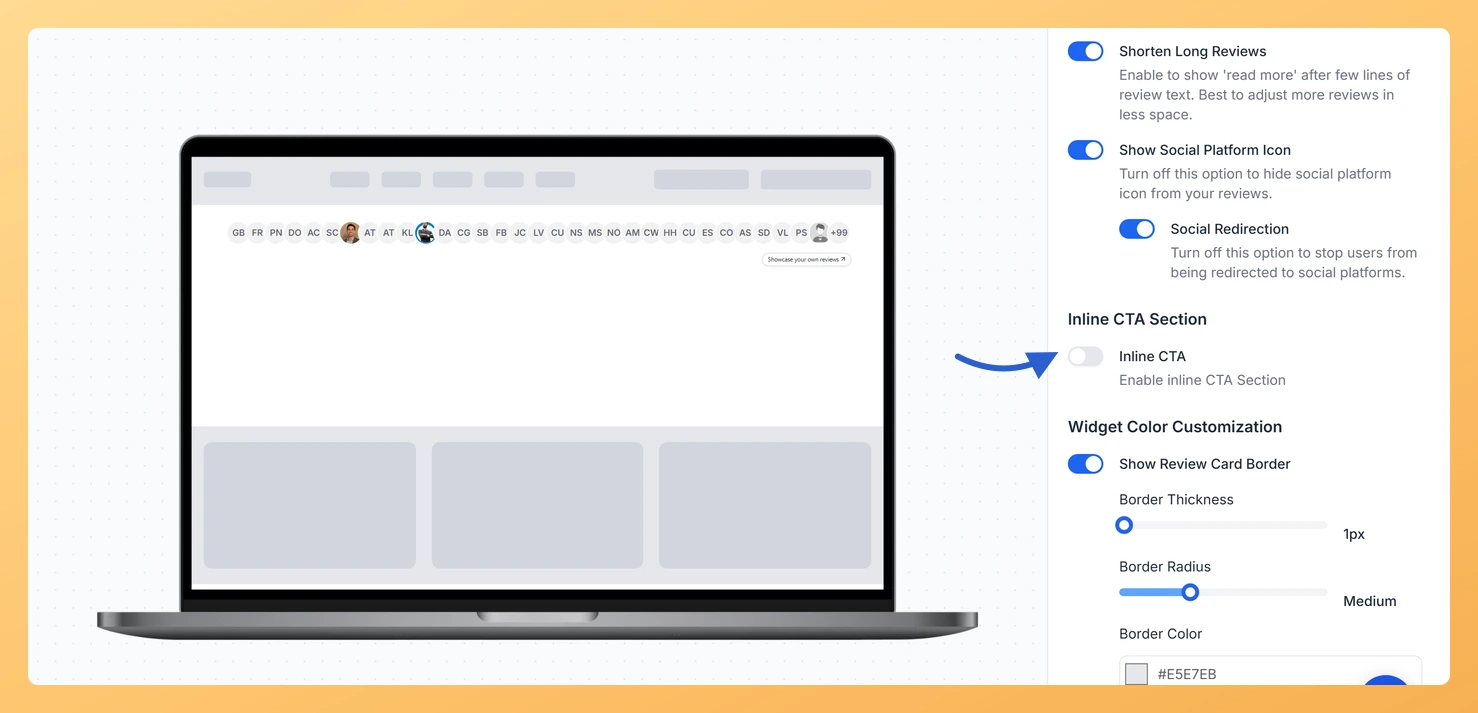
Step 4: Enable the Inline CTA Toggle
Scroll down within the Design tab until you find the Inline CTA section. Click the toggle to enable it. The CTA configuration fields will expand below the toggle.
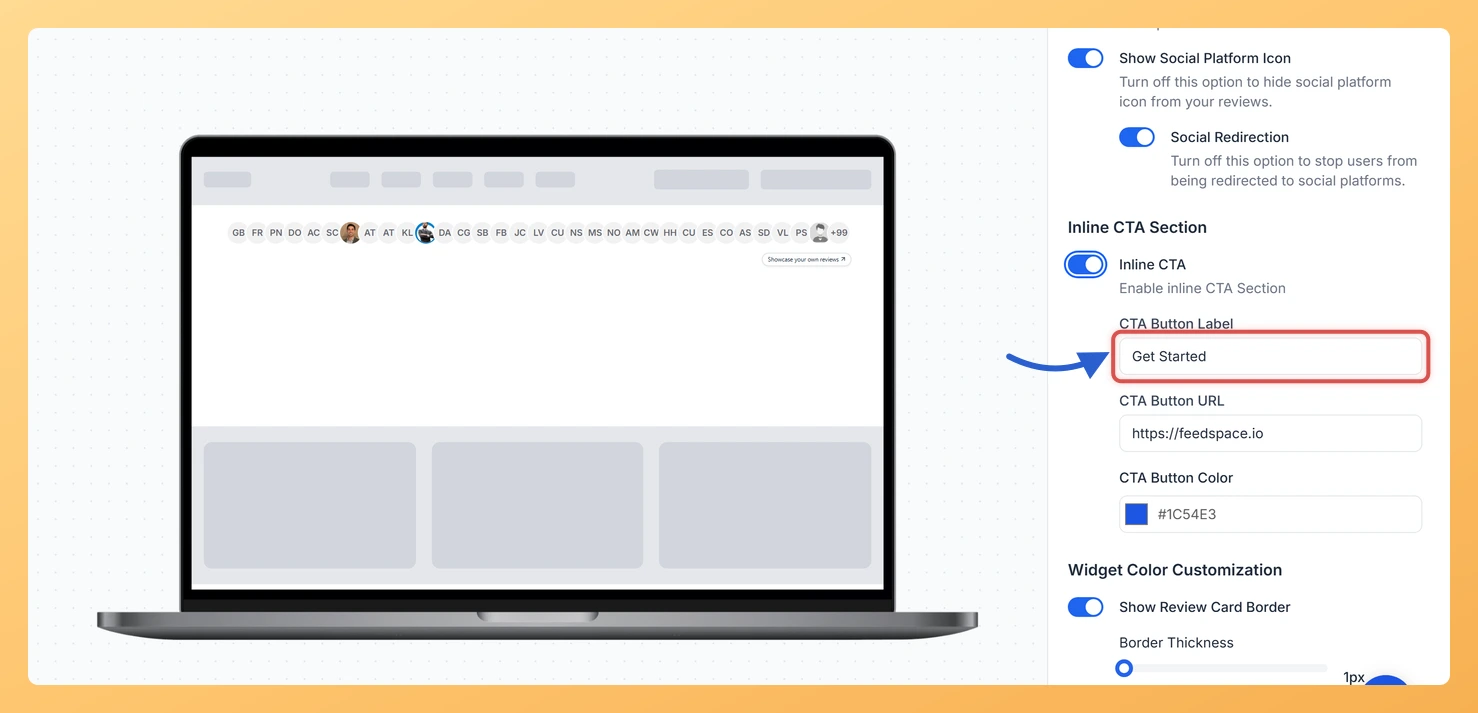
Step 5: Configure the CTA Card Fields
Fill in the fields that appear after enabling the toggle:
- CTA Heading Text: Enter a short, attention-grabbing headline for the card, such as “Join 2,000 happy customers.”
- CTA Body Text: Add one or two supporting sentences that reinforce the heading and set up the button.
- CTA Button Label: Type the button text, such as “Start Free Trial” or “Book a Demo.”
- CTA Button URL: Paste the destination URL the button should open when clicked.
- CTA Button Color: Choose a color that matches your brand or stands out against the card background.
- CTA Card Background: Set the background color of the CTA card to match or complement the widget’s overall design.
- CTA Card Border: Choose a border style and color to define the card’s edges within the widget layout.
Step 6: Set CTA Position (Masonry and Vertical Scroll Only)
If your Avatar Group widget uses the Masonry or Vertical Scroll layout, an additional CTA Position field appears. Choose one of the following options:
- Random: The CTA card is placed at a random position within the review flow each time the widget loads.
- Every X reviews: The CTA card repeats at a fixed interval, for example after every 4 reviews, giving it a predictable and consistent placement throughout the widget.
Step 7: Save and Publish
Once all CTA fields are configured, click Save to apply your changes. If the widget is already embedded on a page, the Inline CTA will appear automatically the next time a visitor loads the page. If you have not yet embedded the widget, copy the embed code from the widget editor and paste it into your website.
What You Can Do Next
- Adjust the CTA button color and card background to match your brand guidelines and run A/B comparisons between color schemes to see which drives more clicks from your Avatar Group widget.
- Switch your Avatar Group widget to the Masonry or Vertical Scroll layout and experiment with CTA Position settings to find the interval that produces the highest engagement without interrupting the review browsing experience.
- Update the CTA Button URL to point to a time-limited offer or seasonal landing page, then revert it after the campaign ends, keeping the same Avatar Group widget in place across your site.
- Combine the Inline CTA with other Design tab customizations for your Avatar Group widget, such as adjusting avatar size, star rating display, and trust headline text, to create a fully cohesive social proof unit.
You might also find helpful
How Do I Customize the Design of My Widget in Feedspace?
Overview Feedspace widgets come with a powerful Design tab that lets you tailor every visual aspect of your widget. From card colors and fonts to dark mode and call-to-action buttons, you can fully customize the look to match your website’s brand without writing any code. How to Customize the Widget...
How to Create an Avatar Group Widget in Feedspace
Overview The Avatar Group widget in Feedspace displays the profile pictures (avatars) of your reviewers in a sleek and minimal circular layout. Itβs ideal for showing social proof in a subtle, space-saving format on your homepage, footer, or testimonial sections. How to Access Step 1 – Log in to Feedspace...
How Do I Customize the Design of My Widget in Feedspace?
Overview Feedspace widgets come with a powerful Design tab that lets you tailor every visual aspect of your widget. From card colors and fonts to dark mode and call-to-action buttons, you can fully customize the look to match your website’s brand without writing any code. How to Customize the Widget...