Overview
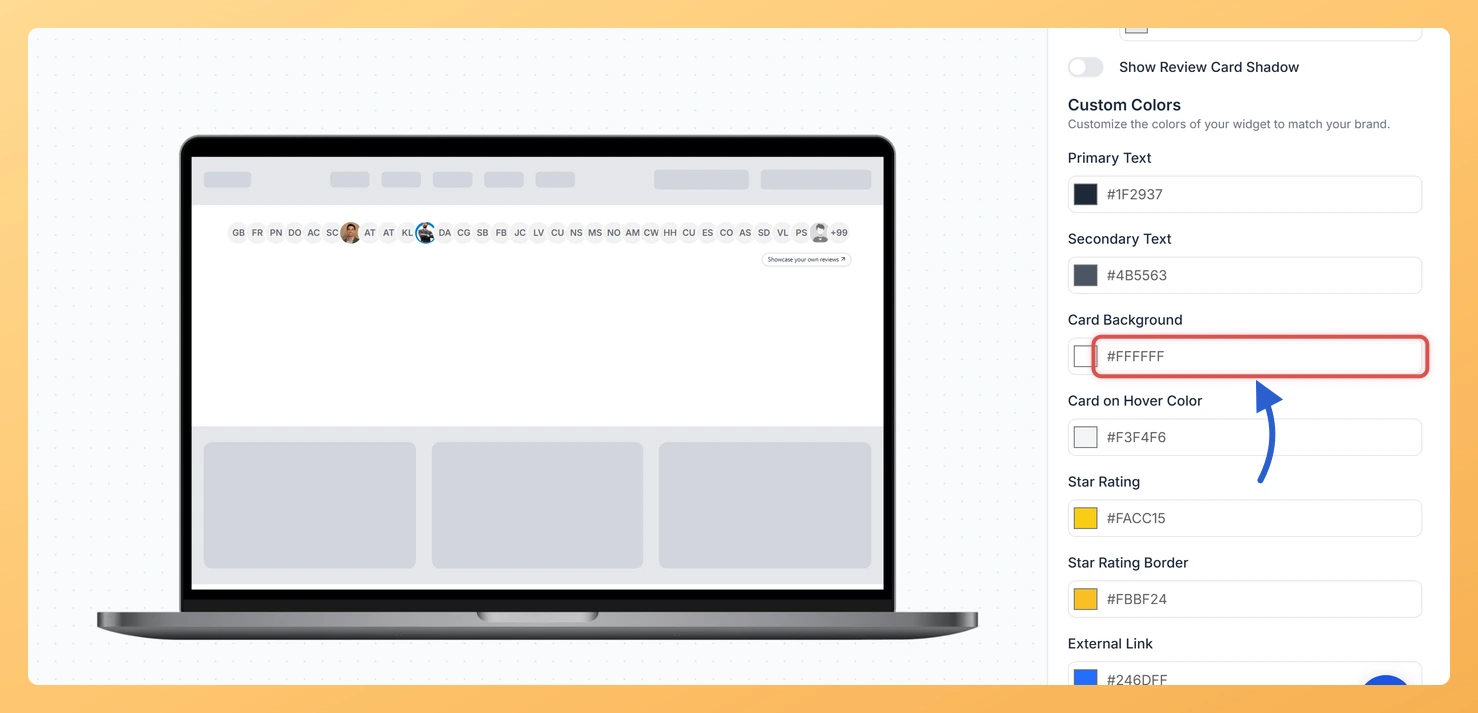
The Avatar Group widget presents a compact cluster of reviewer avatars alongside a star rating count and a trust headline, giving visitors an immediate social proof signal. Behind each avatar cluster, Feedspace renders individual review cards that expand or display as part of the grouped layout. The Card Background Color option, found in the Widget Color Customization section of the Design tab, sets the fill color applied to every one of those review cards simultaneously.
Because the Avatar Group widget relies on a tightly packed visual composition, the card background color plays a direct role in how clearly each reviewer’s card stands out against your page background. Choosing a color that aligns with your brand palette creates a cohesive, polished look, while selecting a high-contrast fill ensures that avatar images, star ratings, and review text remain easy to read at a glance. Some widget configurations also display a Card on Hover Color picker, which lets you set a distinct fill color that appears when a visitor moves their cursor over a card, adding an interactive highlight to the grouped display.
How to Change the Card Background Color for Your Avatar Group Widget
Step 1: Open the Widgets Section
Log in to your Feedspace account and navigate to the Widgets section from the main sidebar. You will see a list of all widgets you have created for your workspace.
Step 2: Edit Your Avatar Group Widget
Locate the Avatar Group widget you want to update and click the edit icon or its name to open the widget editor. The editor loads your current widget configuration and displays a live preview alongside the settings panels.
Step 3: Go to the Design Tab
Inside the widget editor, click the Design tab at the top of the settings panel. This tab contains all visual customization options for your Avatar Group widget, including typography, layout, and color settings.
Step 4: Find the Widget Color Customization Section
Scroll down within the Design tab until you reach the Widget Color Customization section. This section groups all color pickers for the widget in one place, making it straightforward to manage your color scheme without jumping between panels.
Step 5: Configure the Card Background Color
Click the Card Background Color picker to open the color selection tool. You can choose a color by clicking directly on the palette, entering a hex code, or adjusting the hue and opacity sliders. The live preview updates immediately so you can see how your chosen fill color looks across all review cards in the Avatar Group layout. If a Card on Hover Color picker is also available in your widget configuration, click it separately and set the color you want visitors to see when they hover over an individual card. Once you are satisfied with your selections, save your changes using the save or publish button in the editor.
What You Can Do Next
- Adjust the text color on your Avatar Group widget to ensure strong contrast against the new card background color you just set.
- Set the Card on Hover Color if the option appears in your widget, so visitors get a clear interactive highlight when they move over a review card.
- Preview your Avatar Group widget on different page backgrounds to confirm the card fill color looks consistent across your site’s light and dark sections.
- Explore the other color pickers in the Widget Color Customization section, such as star rating color and avatar border color, to complete a unified brand look for your Avatar Group widget.
You might also find helpful
How Do I Change the Text Color on My Avatar Group Widget in Feedspace?
Overview The Avatar Group widget displays a compact cluster of reviewer avatars alongside a star rating count and a trust headline, giving visitors an immediate, social-proof-rich signal at a glance. Because this widget blends multiple layers of text, each serving a different purpose, Feedspace gives you two separate color pickers...
How to Create an Avatar Group Widget in Feedspace
Overview The Avatar Group widget in Feedspace displays the profile pictures (avatars) of your reviewers in a sleek and minimal circular layout. Itβs ideal for showing social proof in a subtle, space-saving format on your homepage, footer, or testimonial sections. How to Access Step 1 – Log in to Feedspace...
How Do I Customize the Design of My Widget in Feedspace?
Overview Feedspace widgets come with a powerful Design tab that lets you tailor every visual aspect of your widget. From card colors and fonts to dark mode and call-to-action buttons, you can fully customize the look to match your website’s brand without writing any code. How to Customize the Widget...