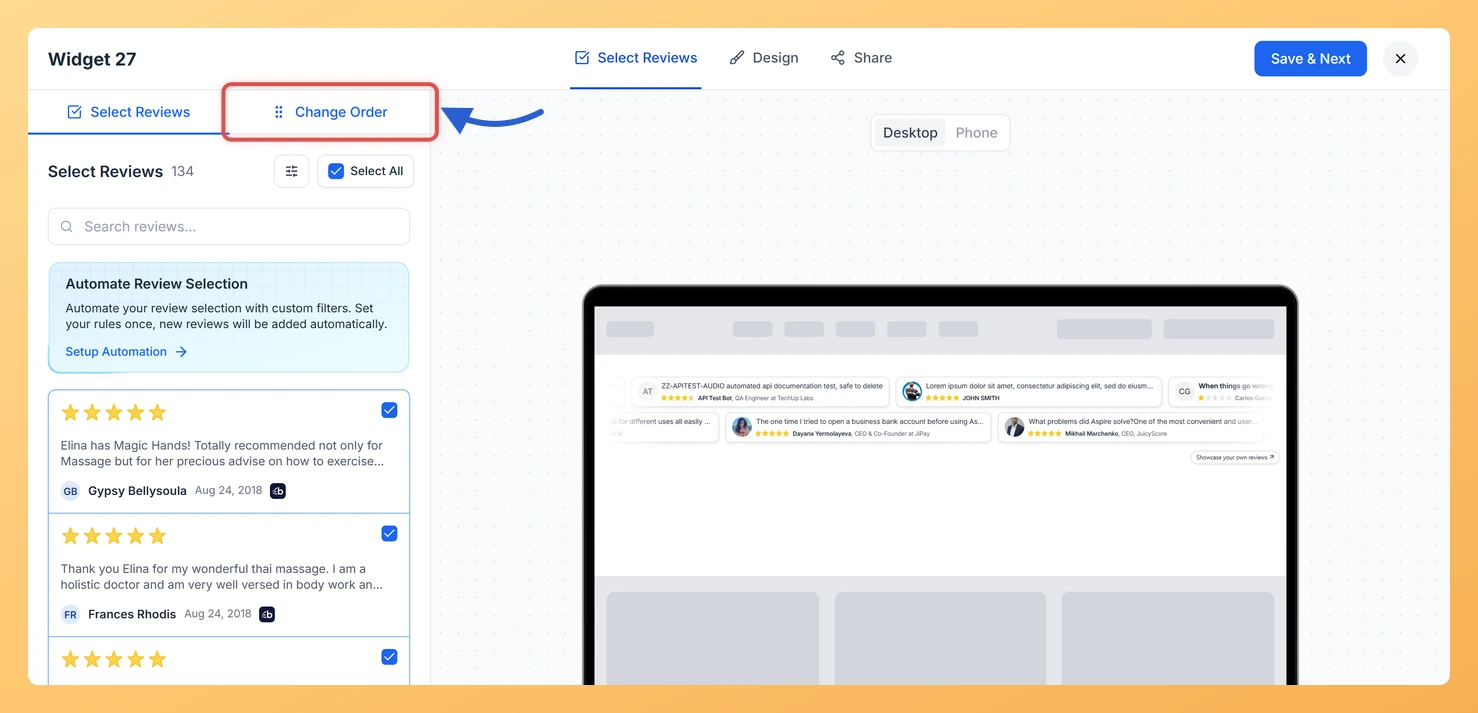
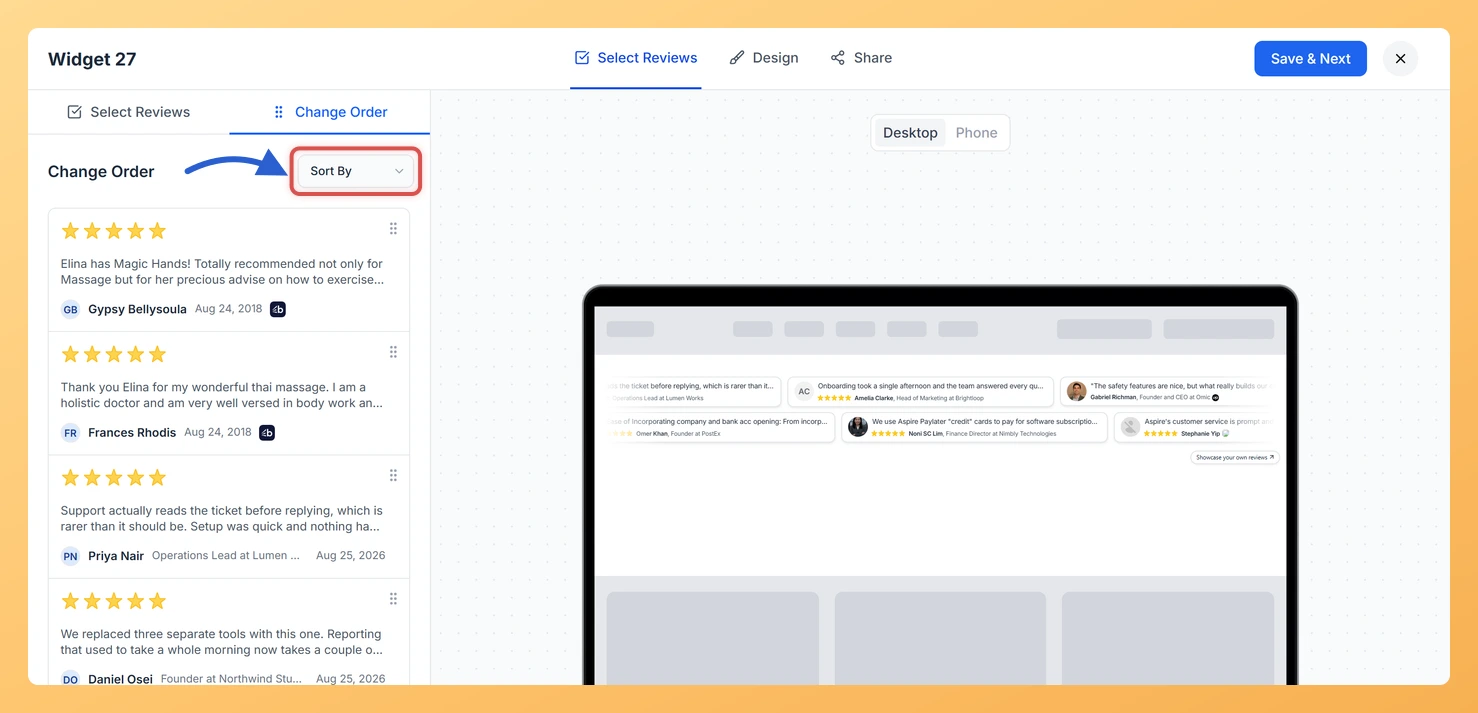
The Strip Slider widget in Feedspace scrolls your selected reviews past in a set order. The Change Order sub-tab lets you set that order yourself by dragging reviews into place, or sort them all by date in one go with the Sort By dropdown.
The reviews at the front of the strip are the ones visitors see the moment the page loads, before the strip has had time to move. Putting your most specific, convincing reviews there, rather than whichever arrived first, means even a visitor who glances for two seconds sees your best proof.
Steps to change the order of reviews
Step 1: Open the Strip Slider editor
Go to Widgets in the sidebar and click the Edit (pencil) icon on your Strip Slider’s card. The editor opens on the Select Reviews tab, which is where the order is set.
Step 2: Click Change Order
At the top of the left-hand panel there are two sub-tabs, Select Reviews and Change Order. Click Change Order. The panel lists only the reviews already in your widget, in the order they currently play.
Step 3: Drag reviews into place
Press and hold the drag handle on a review, move it up or down, and let go where you want it. The review at the top of the list comes first in the strip. The preview updates as you go.
Step 4: Or sort by date
To order everything by date instead, open the Sort By dropdown beside the Change Order heading and choose one of these:
Newest First: your most recent reviews lead the strip.
Oldest First: your earliest reviews lead the strip.
You can still drag individual reviews afterwards to fine-tune the result.
What’s next
Add or remove reviews on the Select Reviews sub-tab, then come back to place any new ones.
Do I need to click a save button after reordering?
No. Dragging a review into a new position and picking a Sort By option both save on their own, so there is nothing more to click.
Why does Change Order say no reviews are selected?
The widget has no reviews in it yet. Go back to the Select Reviews sub-tab, tick the reviews you want, and they will appear on Change Order ready to arrange.
You might also find helpful
How Do I Select Reviews for My Strip Slider Widget in Feedspace?
Overview A Strip Slider widget in Feedspace only plays the reviews you add to it. On the Select Reviews tab of the widget editor you tick reviews one by one, or use the Select All checkbox to add every review in the list at once. Each card in the strip...
How to Create a Strip Slider Widget in Feedspace
Overview The Strip Slider widget in Feedspace allows you to showcase your reviews in a single, horizontally scrolling line: perfect for website headers, footers, or testimonial sections that need a minimalist design. You can adjust autoplay speed, borders, and colors to match your brand style. How to Access Step 1...
What is a Widget in Feedspace?
Overview In Feedspace, a widget is a customizable display tool that allows you to showcase your collected reviews, testimonials, or feedback directly on your website. With widgets, you can turn customer voices into social proof, helping you build trust and credibility with visitors. Instead of just collecting reviews, widgets let...