Feedspace Home Dashboard

How Do I Change the Text Color on My Avatar Group Widget in Feedspace?

Last updated on June 12, 2026

Overview

The Avatar Group widget displays a compact cluster of reviewer avatars alongside a star rating count and a trust headline, giving visitors an immediate, social-proof-rich signal at a glance. Because this widget blends multiple layers of text, each serving a different purpose, Feedspace gives you two separate color pickers to style them independently.

The Primary Text Color controls the review title and body text, which carry the most weight in communicating reviewer sentiment. The Secondary Text Color controls the reviewer name, date, and metadata, which provide context without competing for attention. Tuning each color separately lets you create a clear visual hierarchy inside the widget: prominent review content up front and quieter attribution details in the background, all consistent with your brand palette.

How to Change the Text Color on Your Avatar Group Widget

Step 1: Open the Widgets Section

Log in to your Feedspace account and navigate to the Widgets section from the main sidebar.

Step 2: Edit Your Avatar Group Widget

Locate the Avatar Group widget you want to update. Click the Edit button (pencil icon) next to it to open the widget editor.

Step 3: Go to the Design Tab

Inside the widget editor, click the Design tab. This tab contains all visual customization options for your Avatar Group widget, including layout, colors, and typography settings.

Step 4: Find the Widget Color Customization Section

Scroll down within the Design tab until you reach the Widget Color Customization section. This section contains the two text color pickers: Primary Text Color and Secondary Text Color.

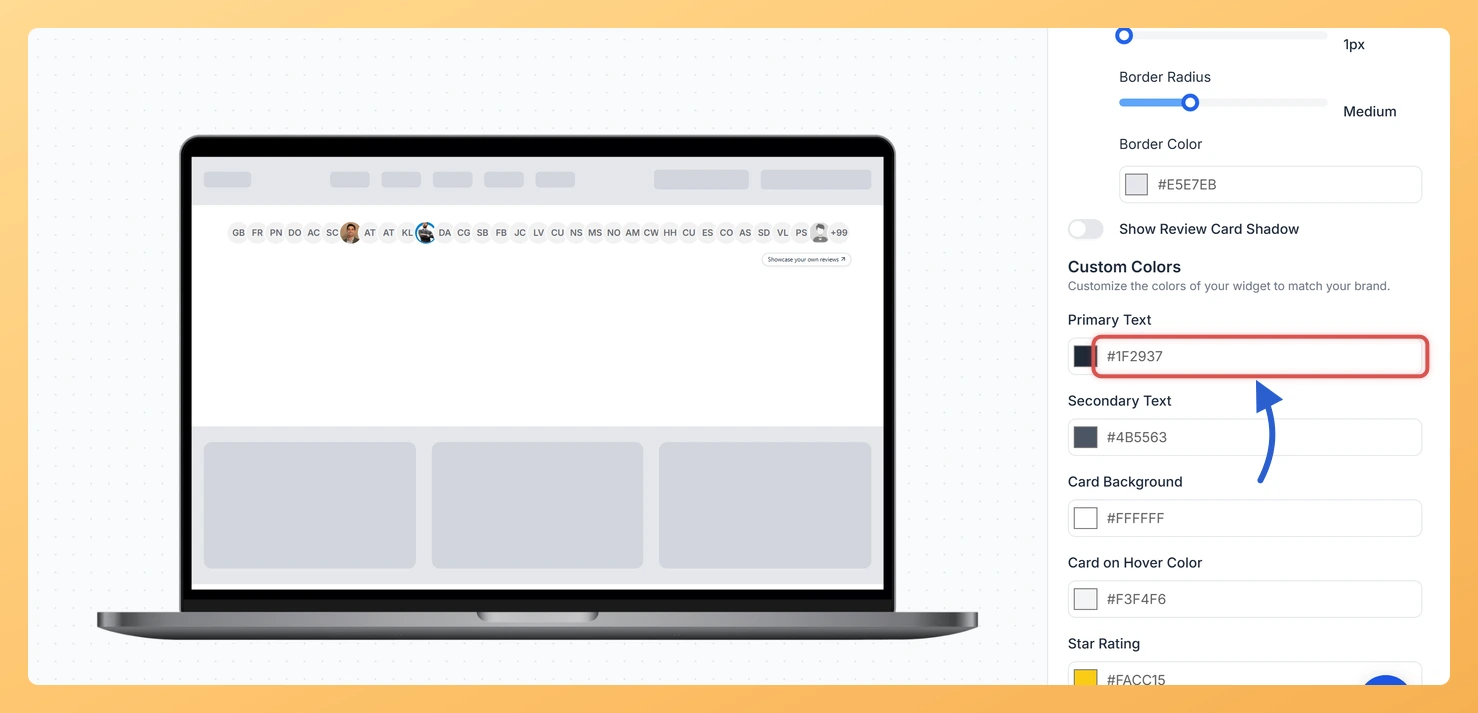
Step 5: Set the Primary Text Color

Click the Primary Text Color picker. This color applies to the review title and body text displayed in the widget. Choose a color that is easy to read against your card background and aligns with your brand’s primary typography style. You can enter a hex code directly or use the color wheel to select a value.

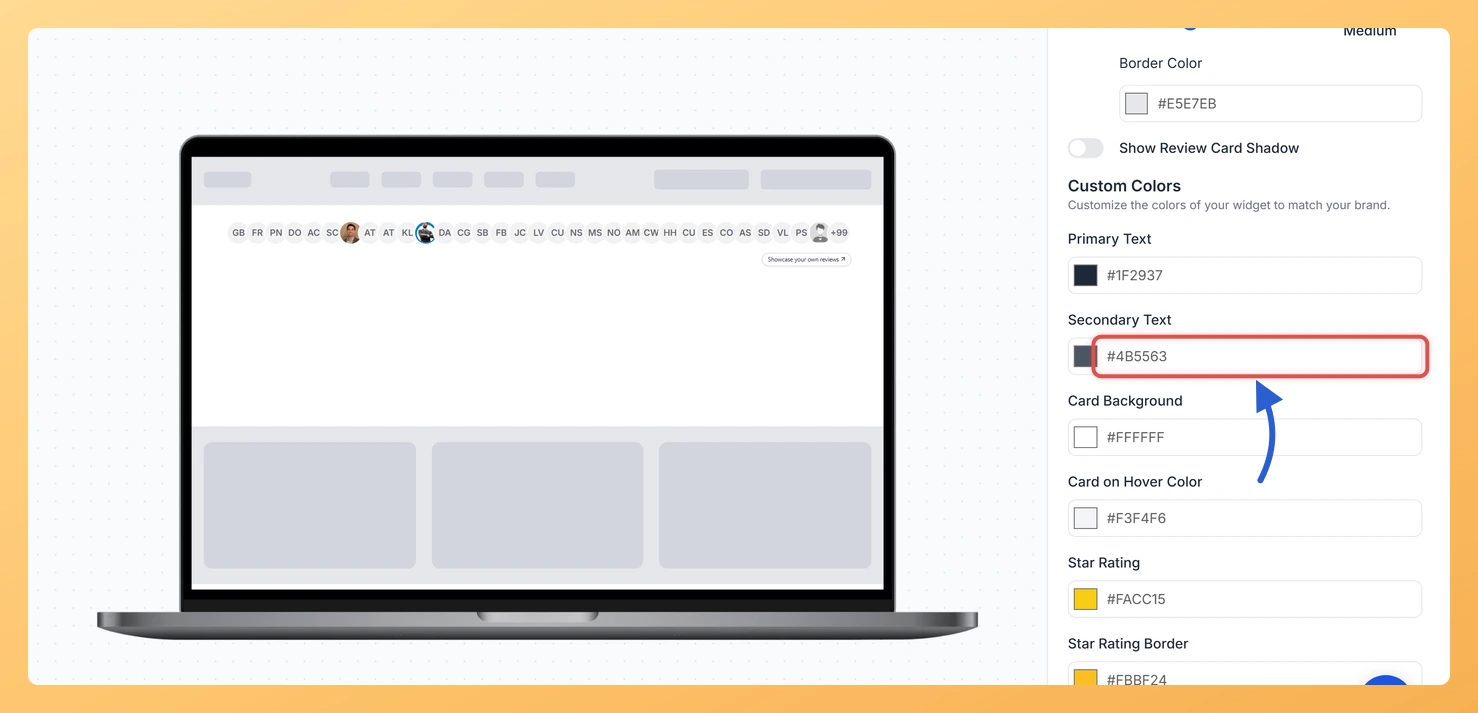
Step 6: Set the Secondary Text Color

Click the Secondary Text Color picker. This color applies to the reviewer name, submission date, and any metadata shown alongside the review. Choose a color that is visually subordinate to the primary text, typically a lighter or muted tone, so the reviewer attribution does not compete with the review content itself.

Step 7: Save and Publish Your Changes

Once you are satisfied with both color selections, click Save to apply your changes. The Avatar Group widget embedded on your site will update automatically to reflect the new text colors.

What You Can Do Next

  • Adjust the card background color to ensure sufficient contrast with your newly chosen text colors by following the guide on changing the card background color on your Avatar Group widget.
  • Customize other design properties of your Avatar Group widget, such as border radius and shadow, by exploring the full widget Design tab options.
  • Preview your Avatar Group widget across light and dark page backgrounds to confirm that both the Primary and Secondary Text Colors remain legible in all contexts.
  • Copy the updated embed code from the widget editor and replace the existing snippet on your website or landing page to publish the refreshed design to your visitors.

You might also find helpful

How Do I Change the Card Background Color on My Avatar Group Widget in Feedspace?

Overview The Avatar Group widget presents a compact cluster of reviewer avatars alongside a star rating count and a trust headline, giving visitors an immediate social proof signal. Behind each avatar cluster, Feedspace renders individual review cards that expand or display as part of the grouped layout. The Card Background...

How to Create an Avatar Group Widget in Feedspace

Overview The Avatar Group widget in Feedspace displays the profile pictures (avatars) of your reviewers in a sleek and minimal circular layout. It’s ideal for showing social proof in a subtle, space-saving format on your homepage, footer, or testimonial sections. How to Access Step 1 – Log in to Feedspace...

How Do I Customize the Design of My Widget in Feedspace?

Overview Feedspace widgets come with a powerful Design tab that lets you tailor every visual aspect of your widget. From card colors and fonts to dark mode and call-to-action buttons, you can fully customize the look to match your website’s brand without writing any code. How to Customize the Widget...