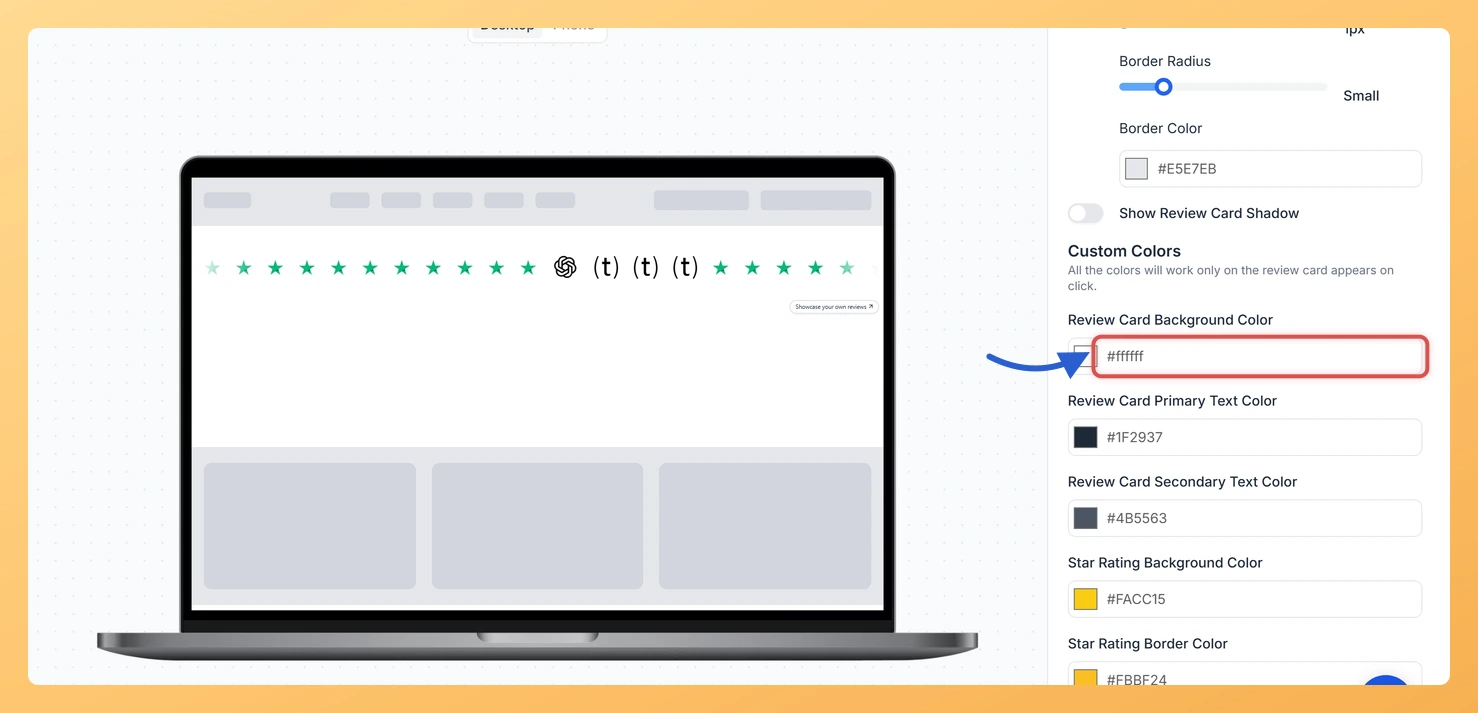
When a visitor clicks a logo in your Company Logo Slider widget, Feedspace opens a small card with that customer’s review. The Review Card Background Color picker sets the fill color of that card.
Because the card opens on top of your page, its color decides whether it looks like part of your site. A light tint of your brand color, for example, ties the pop-up to your design instead of dropping a plain white box onto a colored section.
Steps to change the card background color
Step 1: Head to your widgets
Once signed in, select Widgets from the navigation on the left.
Step 2: Load the widget editor
Use the Edit (pencil) icon on the Company Logo Slider’s card, then click Design. Scroll down to Custom Colors in the Widget Color Customization section.
Step 3: Pick the Review Card Background Color
Click the swatch next to Review Card Background Color, or type a hex code into the box beside it. Click a logo in the preview to open a card and check the new color.
This color is only for the review card. The note under Custom Colors explains it: all the colors there work only on the review card that appears on click.
Is there a separate hover color for the card?
No. The Company Logo Slider has no Card on Hover Color setting, so the card keeps the Review Card Background Color you pick.
You might also find helpful
How Do I Change the Text Color on My Company Logo Slider Widget in Feedspace?
Overview The Company Logo Slider widget in Feedspace shows a customer’s review on a card when a visitor clicks their logo. Two pickers set the text colors on that card: Review Card Primary Text Color and Review Card Secondary Text Color. Setting a strong primary color and a softer secondary...
How to Create a Company Logo Slider Widget in Feedspace
Overview Feedspace’s Company Logo Slider widget displays your clients’ or partners’ logos in a smooth, continuously scrolling strip. It’s the ideal “as seen on” or “trusted by” social proof bar for your homepage or landing page: no review text needed, just recognizable brand logos. Step 1: Log in to Feedspace...
How Do I Customize the Design of My Widget in Feedspace?
Overview Feedspace widgets come with a powerful Design tab that lets you tailor every visual aspect of your widget. From card colors and fonts to dark mode and call-to-action buttons, you can fully customize the look to match your website’s brand without writing any code. How to Customize the Widget...