The Avatar Blocks widget displays reviewer testimonials in a structured block grid, pairing each reviewer’s avatar with their name, rating, and review text side by side. Because the widget arranges this information in a visually prominent layout, the font you choose has a direct impact on how polished and readable each block appears to visitors.
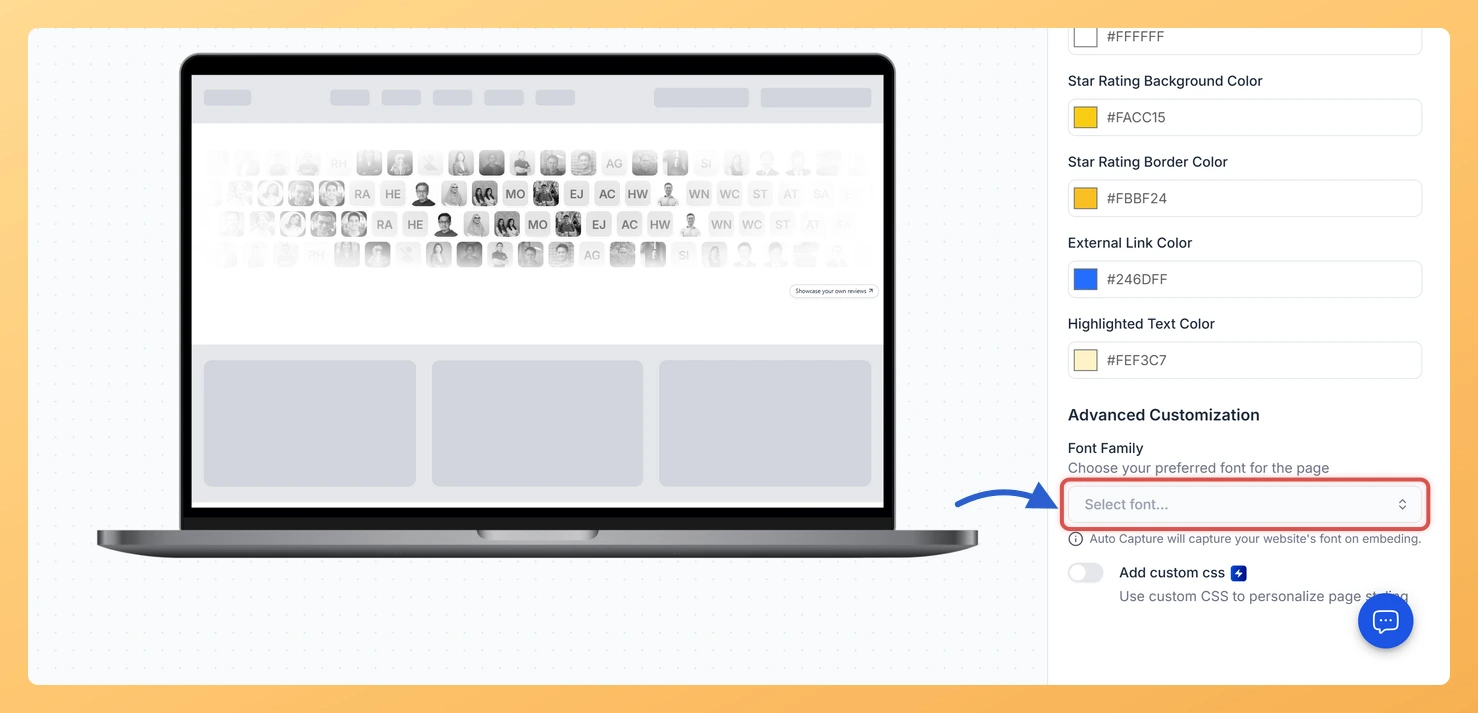
The Font Family selector is found in the Advanced Customization section of the Design tab. It lets you pick from a curated range of typefaces to match your brand’s visual identity. The Auto Capture option goes one step further: it detects the font your website is already using and applies it automatically to every block in the widget, so reviewer names, star ratings, and testimonial text all blend into your existing page design without any manual matching.
How to change the font on your Avatar Blocks widget
Step 1: Open the Widgets section
Log in to your Feedspace account. From the main navigation, click Widgets to open your list of saved widgets.
Step 2: Edit your Avatar Blocks widget
Spot the Avatar Blocks widget whose type you want to change and click the pencil Edit icon on its card to open the editor.
Step 3: Go to the Design tab
Inside the widget editor, click the Design tab at the top of the settings panel. This tab contains all visual customization options for your Avatar Blocks widget.
Step 4: Find the Advanced Customization section
Scroll down within the Design tab until you reach the Advanced Customization section. This section contains additional styling controls, including the Font Family selector.
Step 5: Select a Font Family
Click the Font Family dropdown to open the list of available fonts. Choose any font from the list to apply it across all text elements in your Avatar Blocks widget, including reviewer names, testimonial body text, and any labels. To let Feedspace detect and use the font already active on your website, select the Auto Capture option. The widget preview updates in real time so you can compare options before saving.
Step 6: Save your changes
Once you are satisfied with the selected font, click Save & Next to apply the changes. Your Avatar Blocks widget will now render with the new font wherever it is embedded.
What’s next
Adjust the text color on your Avatar Blocks widget to complement the new font and keep each reviewer block visually consistent.
Use the Auto Capture option on other widgets across your account so all embedded Feedspace content shares the same typography as your website.
Preview your Avatar Blocks widget on your live page after saving to confirm the font renders correctly in your site’s layout and at different screen sizes.
Explore other Advanced Customization settings in the Design tab, such as border radius and spacing, to further refine the look of each reviewer block in the grid.
Common questions
What happens if I never pick a font?
The widget borrows the font of the page it is embedded on. That is what the note under Font Family means by Auto Capture, and it is often the tidiest result, because the reviews then match the type around them without you matching anything by hand.
You might also find helpful
How Do I Change the Text Color on My Avatar Blocks Widget in Feedspace?
Overview The Avatar Blocks widget presents testimonials in a structured block grid, placing each reviewer’s avatar alongside their review title, body text, name, date, and metadata in a clean side-by-side layout. Because this widget surfaces so much textual information at once, controlling how that text looks is essential for creating...
How to Create an Avatar Blocks Widget in Feedspace
Overview Feedspace’s Avatar Blocks widget displays your reviews in bold, grid-based cards where the reviewer’s profile picture takes centre stage. It’s a strong, visually balanced layout that works well on testimonial pages, pricing pages, and anywhere you want reviews to feel authentic and human. Step 1: Log in to Feedspace...
How Do I Customize the Design of My Widget in Feedspace?
Overview Feedspace widgets come with a powerful Design tab that lets you tailor every visual aspect of your widget. From card colors and fonts to dark mode and call-to-action buttons, you can fully customize the look to match your website’s brand without writing any code. How to Customize the Widget...