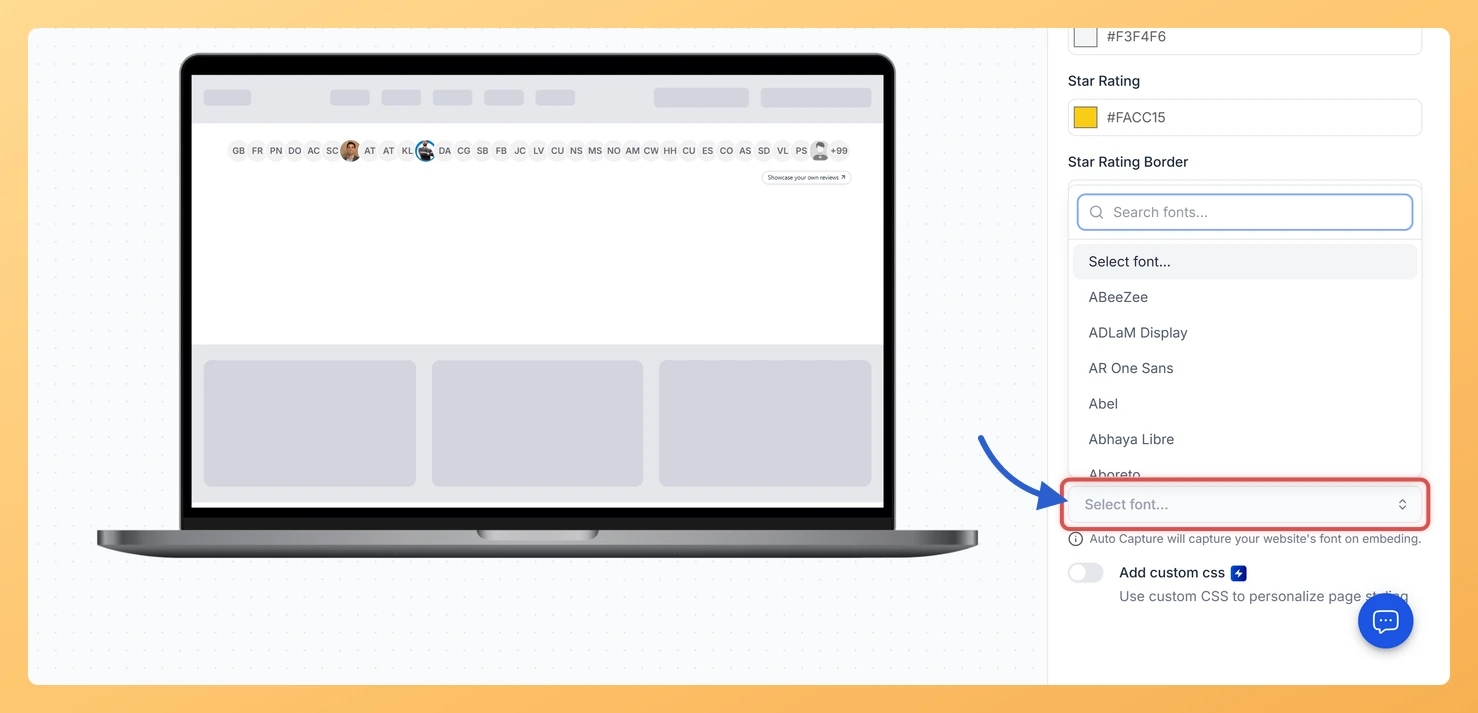
The Font Family setting on an Avatar Group widget in Feedspace sets the typeface of the widget’s text, such as the review card that opens from an avatar. Pick a font from the list, or leave it empty to use your website’s font.
The Avatar Group usually sits right next to your headline or sign-up button, so a mismatched font is easy to spot there. Matching it makes the widget look built into the page.
Steps to change the font
Step 1: Start from Widgets
Click Widgets in the sidebar.
Step 2: Edit the Avatar Group
Press the Edit (pencil) icon at the foot of the widget’s card, go to Design, and scroll to the end of the panel, Advanced Customization.
Step 3: Choose a font
Click the Font Family box. Type in the search box at the top of the list to find a font, then click it.
I can’t find Auto Capture in the list. Where is it?
It isn’t a list option. Leave Font Family empty and, as the note under the field says, Auto Capture picks up your website’s font once the widget is embedded.
You might also find helpful
How Do I Change the Text Color on My Avatar Group Widget in Feedspace?
Overview The Avatar Group widget in Feedspace has two text color settings, Primary Text and Secondary Text. Together they color the text visitors read, such as the review on the card that opens from an avatar. A strong primary color with a softer secondary one gives each review a clear...
How to Create an Avatar Group Widget in Feedspace
Overview The Avatar Group widget in Feedspace displays the profile pictures (avatars) of your reviewers in a sleek and minimal circular layout. It’s ideal for showing social proof in a subtle, space-saving format on your homepage, footer, or testimonial sections. How to Access Step 1 – Log in to Feedspace...
How Do I Customize the Design of My Widget in Feedspace?
Overview Feedspace widgets come with a powerful Design tab that lets you tailor every visual aspect of your widget. From card colors and fonts to dark mode and call-to-action buttons, you can fully customize the look to match your website’s brand without writing any code. How to Customize the Widget...