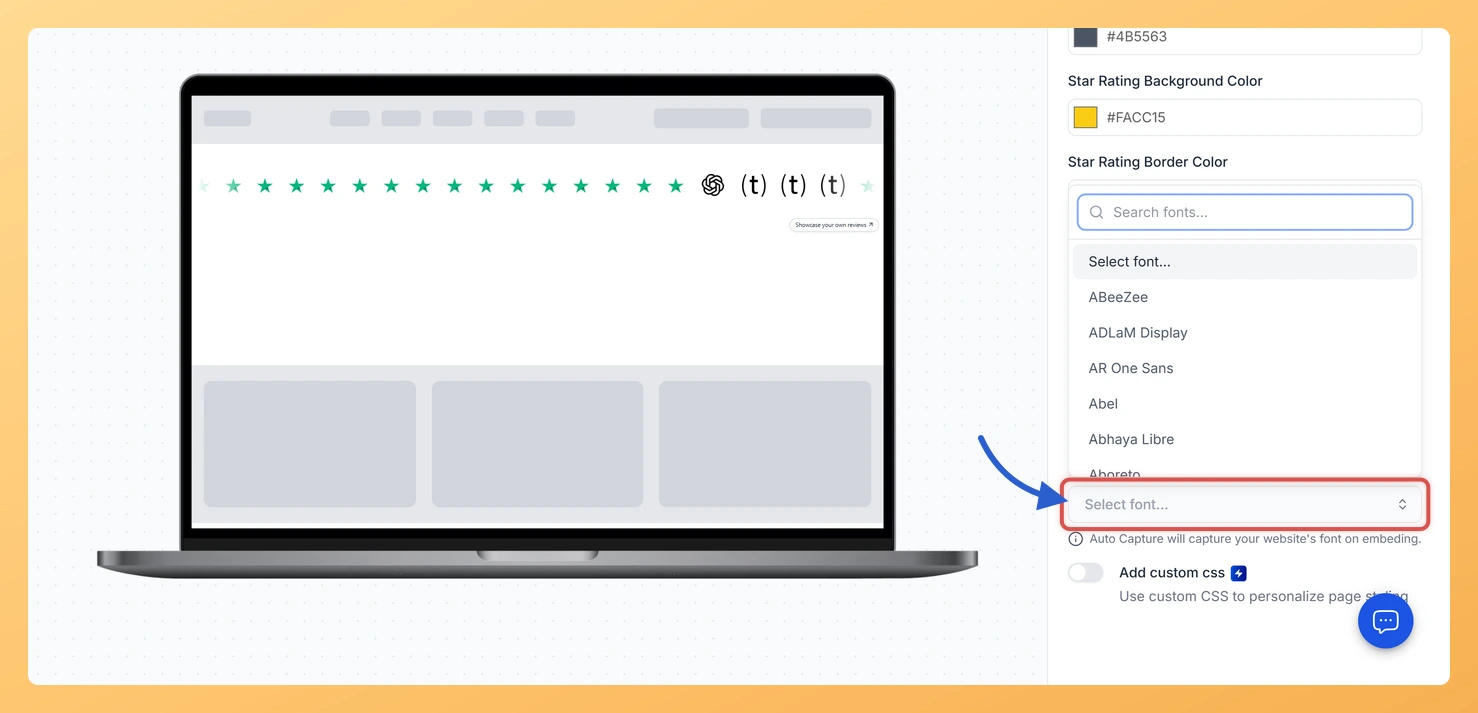
The Font Family setting on a Company Logo Slider widget in Feedspace sets the typeface of the widget’s text, such as the review card that opens when a visitor clicks a logo. You can pick a font from the list, or leave it empty so the widget uses your website’s font.
If your site uses a distinctive brand font, a review card in a default font looks borrowed from somewhere else. Matching it keeps the whole experience, logos and reviews, feeling like your own page.
Steps to change the font
Step 1: Start on the Widgets page
Click Widgets in the sidebar to see all your widgets.
Step 2: Edit the Company Logo Slider
Press the Edit (pencil) icon at the bottom of the widget’s card, then open the Design tab and scroll to Advanced Customization at the end of the panel.
Step 3: Pick a font
Click the Font Family box to open the list. Type in the search box at the top to find a font by name, then click it.
It isn’t in the list. Auto Capture is what happens when you leave Font Family empty: as the note under the field says, it picks up your website’s font once the widget is embedded.
Does the font change the logos?
No. Logos are images from your reviews, so they look the same whatever font you pick.
You might also find helpful
How Do I Change the Text Color on My Company Logo Slider Widget in Feedspace?
Overview The Company Logo Slider widget in Feedspace shows a customer’s review on a card when a visitor clicks their logo. Two pickers set the text colors on that card: Review Card Primary Text Color and Review Card Secondary Text Color. Setting a strong primary color and a softer secondary...
How to Create a Company Logo Slider Widget in Feedspace
Overview Feedspace’s Company Logo Slider widget displays your clients’ or partners’ logos in a smooth, continuously scrolling strip. It’s the ideal “as seen on” or “trusted by” social proof bar for your homepage or landing page: no review text needed, just recognizable brand logos. Step 1: Log in to Feedspace...
How Do I Customize the Design of My Widget in Feedspace?
Overview Feedspace widgets come with a powerful Design tab that lets you tailor every visual aspect of your widget. From card colors and fonts to dark mode and call-to-action buttons, you can fully customize the look to match your website’s brand without writing any code. How to Customize the Widget...