The Cross Slider widget runs short review snippets along a slanted strip that slides across your page. A widget set in a different typeface from the rest of your page is the quickest way for visitors to spot that the reviews came from somewhere else.
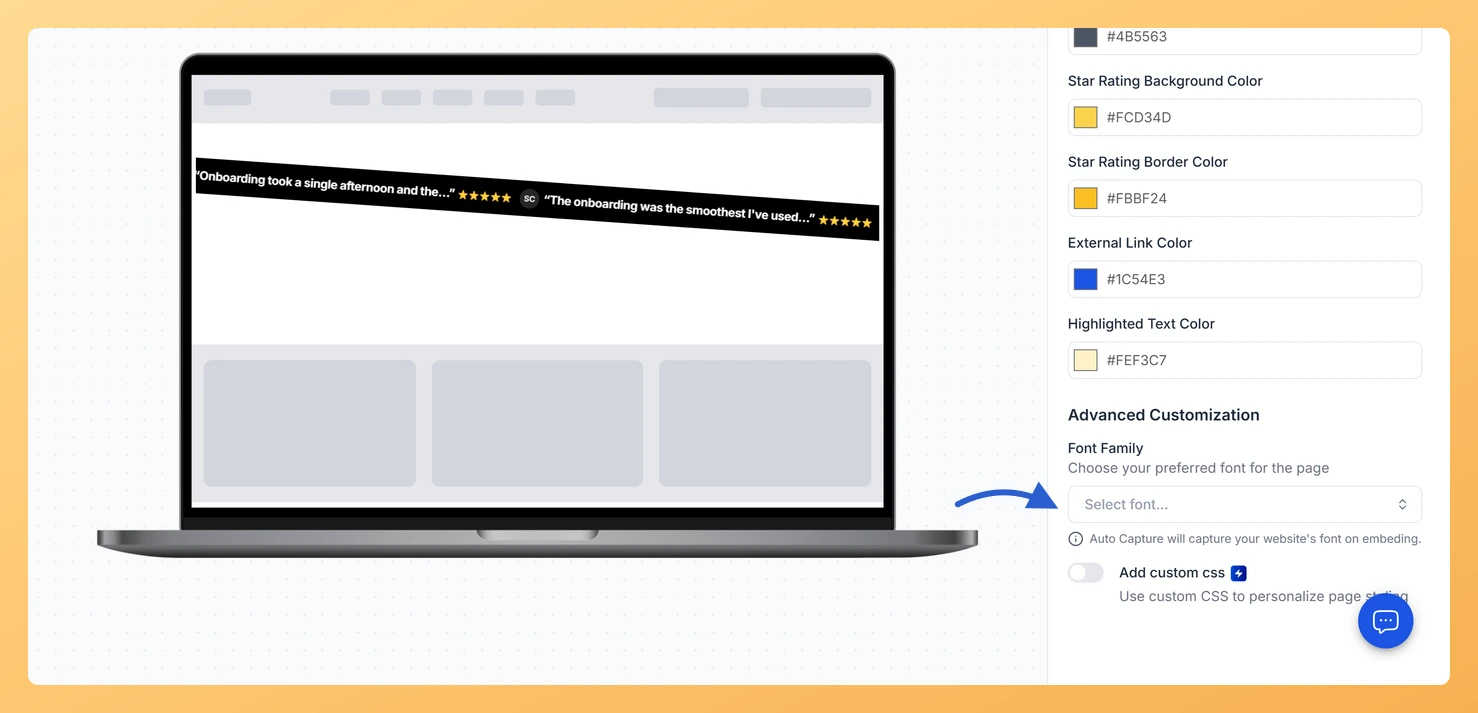
Font Family in the Advanced Customization section lets you pick the typeface for the widget. The field is searchable, so you can type a name instead of scrolling the list, and its note reads “Auto Capture will capture your website’s font on embeding.”
How to change the font on your Cross Slider widget
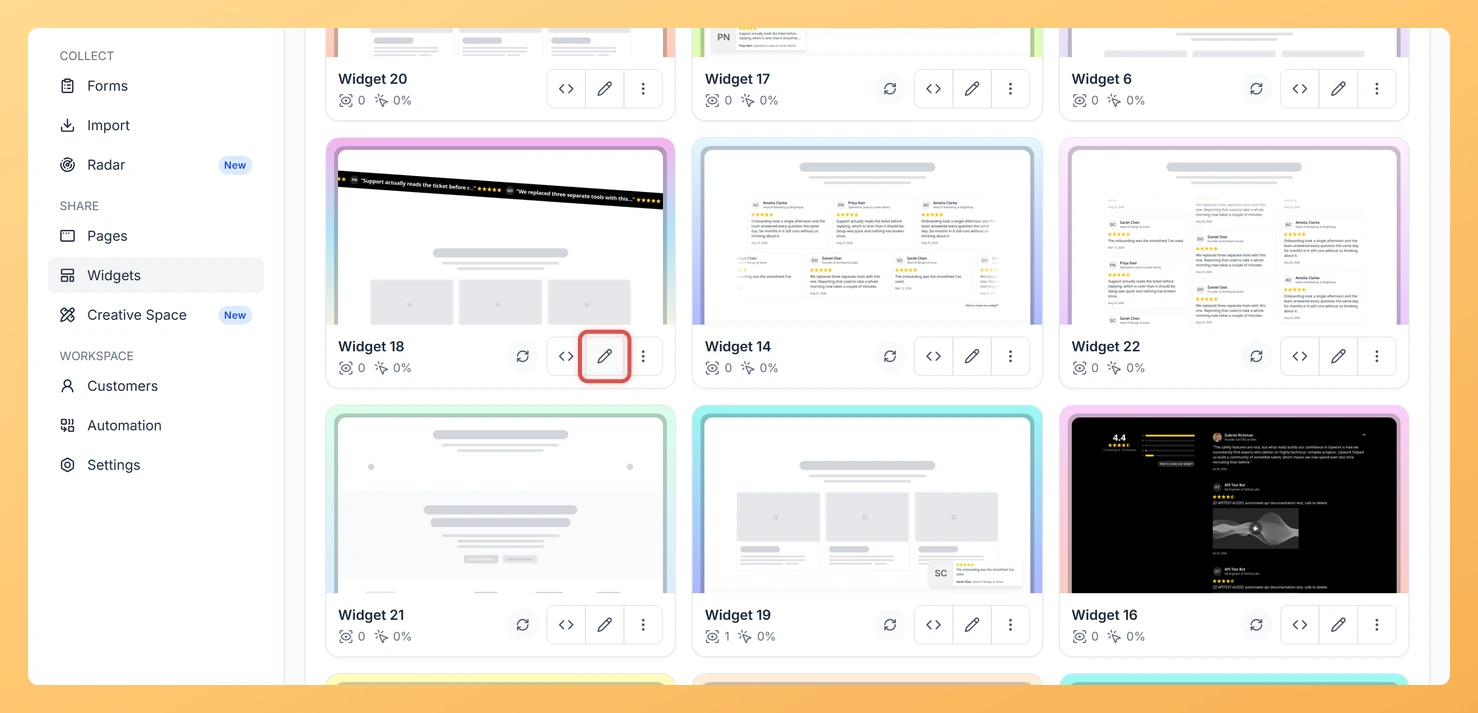
Step 1: Open your widget list
From your Feedspace dashboard, select Widgets in the sidebar on the left.
Step 2: Edit the Cross Slider widget
On the Cross Slider widget card, click the Edit (pencil) icon to load the editor.
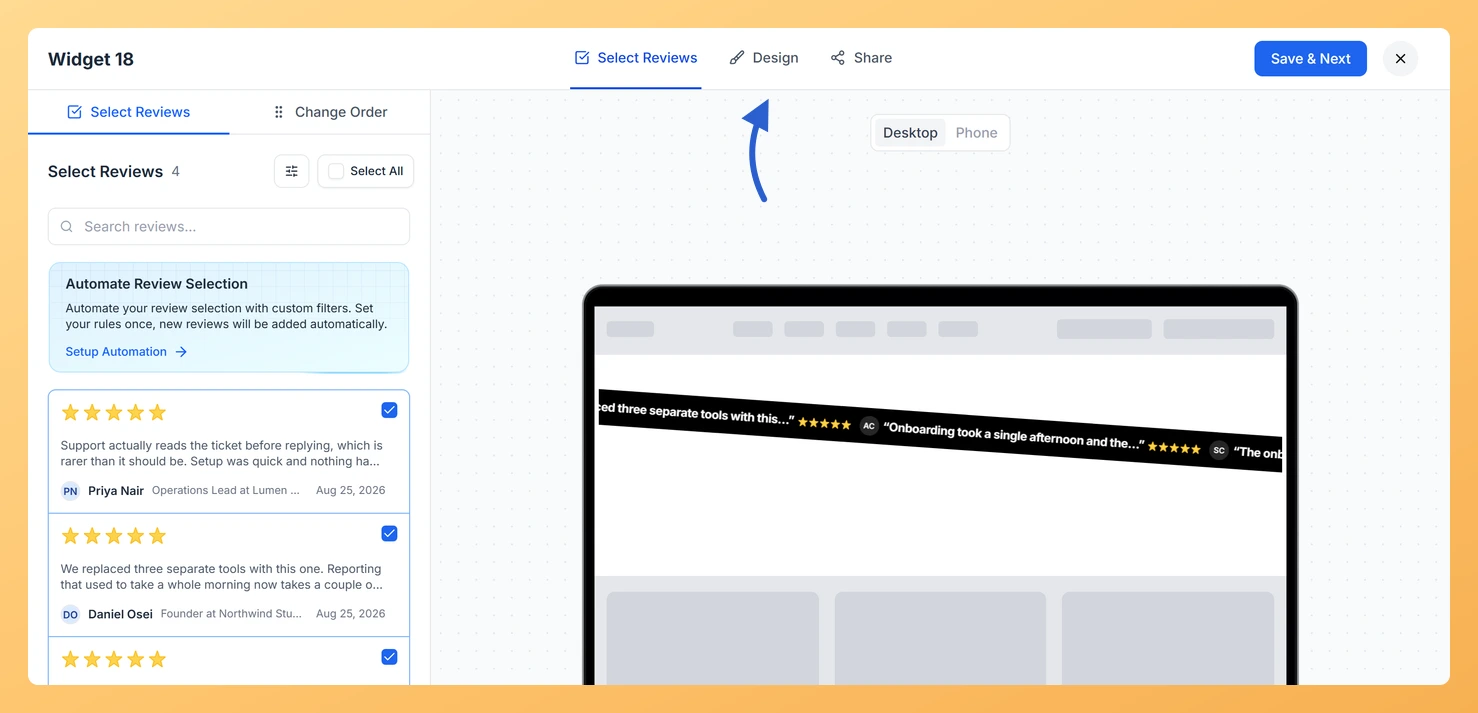
Step 3: Open the Design tab
In the row of tabs along the top, choose Design.
Step 4: Scroll to Advanced Customization
Advanced Customization is the last section in the settings panel on the right.
Step 5: Pick a font in Font Family
Click the Font Family field, which shows a “Select font” placeholder until you choose one, and pick the typeface you want. The preview redraws in that font.
Step 6: Save the widget
Click Save & Next to keep the change. Embedded copies of the widget update by themselves.
It does not have to, but it usually should. If you leave it alone, the note under the field says the embed captures your website’s font instead.
You might also find helpful
How Do I Change the Text Color on My Cross Slider Widget in Feedspace?
Overview The Cross Slider widget runs short review snippets along a slanted strip that slides across your page. Its colors come in two groups: one for the strip and one for the review cards, so you can style each separately. For the review cards, set Review Card Primary Text Color...
How to Create a Cross Slider Widget in Feedspace
Overview Feedspace’s Cross Slider widget displays your reviews in a dynamic cross-scrolling layout: with rows of cards moving in opposite directions simultaneously. This creates a visually striking testimonial section that immediately draws the eye. Step 1: Log in to Feedspace Go to your Feedspace Dashboard and log in using your...
How Do I Customize the Design of My Widget in Feedspace?
Overview Every Feedspace widget has a Design tab where you decide how it looks on your site: colors, font, card borders and shadows, what each review card shows, and an optional call-to-action card. Each change appears in the live preview as you make it. A common case: you embed a...