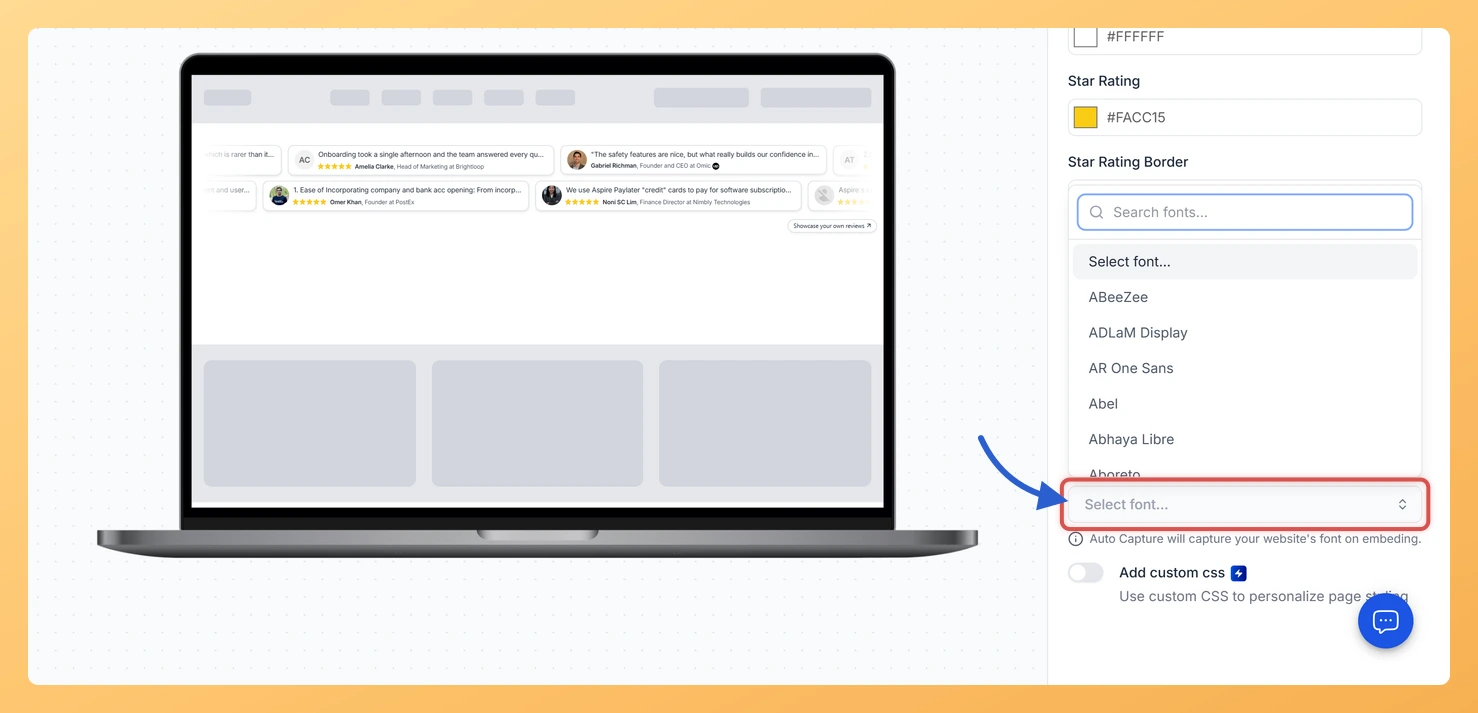
The Font Family setting on a Strip Slider widget in Feedspace decides which typeface the review text and reviewer names use. You can pick a font from the list, or leave it empty and let the widget take on your website’s own font.
A strip of reviews in a font that does not match the rest of the page is one of the quickest ways for an embed to look bolted on. Setting the font to the one your headings or body copy already use makes the strip read as part of your site.
Steps to change the font
Step 1: Start from your widget list
Click Widgets in the sidebar. Your Strip Slider appears in the list with the rest of your widgets.
Step 2: Open it for editing
Use the Edit (pencil) icon at the foot of the Strip Slider’s card to get into the editor.
Step 3: Go to the Design tab
Click Design at the top, then scroll to the bottom of the settings panel to Advanced Customization.
Step 4: Choose a font
Click the Font Family box to open the list of fonts. Type a font’s name to narrow the list, then click the one you want. The preview switches to it right away.
Step 5: Save the font
Click Save & Next in the top right corner to apply it.
What font does the widget use if I don’t pick one?
Your website’s font. The note under the field explains it: Auto Capture picks up your site’s font when the widget is embedded. Auto Capture is not an option in the list, so there is nothing to select for it; just leave Font Family empty.
You might also find helpful
How Do I Change the Text Color on My Strip Slider Widget in Feedspace?
Overview The Strip Slider widget in Feedspace has two text color settings. Primary Text colors the review itself and the reviewer’s name. Secondary Text colors the smaller details beside the name, such as the reviewer’s job title and company. Setting them separately gives each card a clear order to read...
How to Create a Strip Slider Widget in Feedspace
Overview The Strip Slider widget in Feedspace allows you to showcase your reviews in a single, horizontally scrolling line: perfect for website headers, footers, or testimonial sections that need a minimalist design. You can adjust autoplay speed, borders, and colors to match your brand style. How to Access Step 1...
How Do I Customize the Design of My Widget in Feedspace?
Overview Feedspace widgets come with a powerful Design tab that lets you tailor every visual aspect of your widget. From card colors and fonts to dark mode and call-to-action buttons, you can fully customize the look to match your website’s brand without writing any code. How to Customize the Widget...