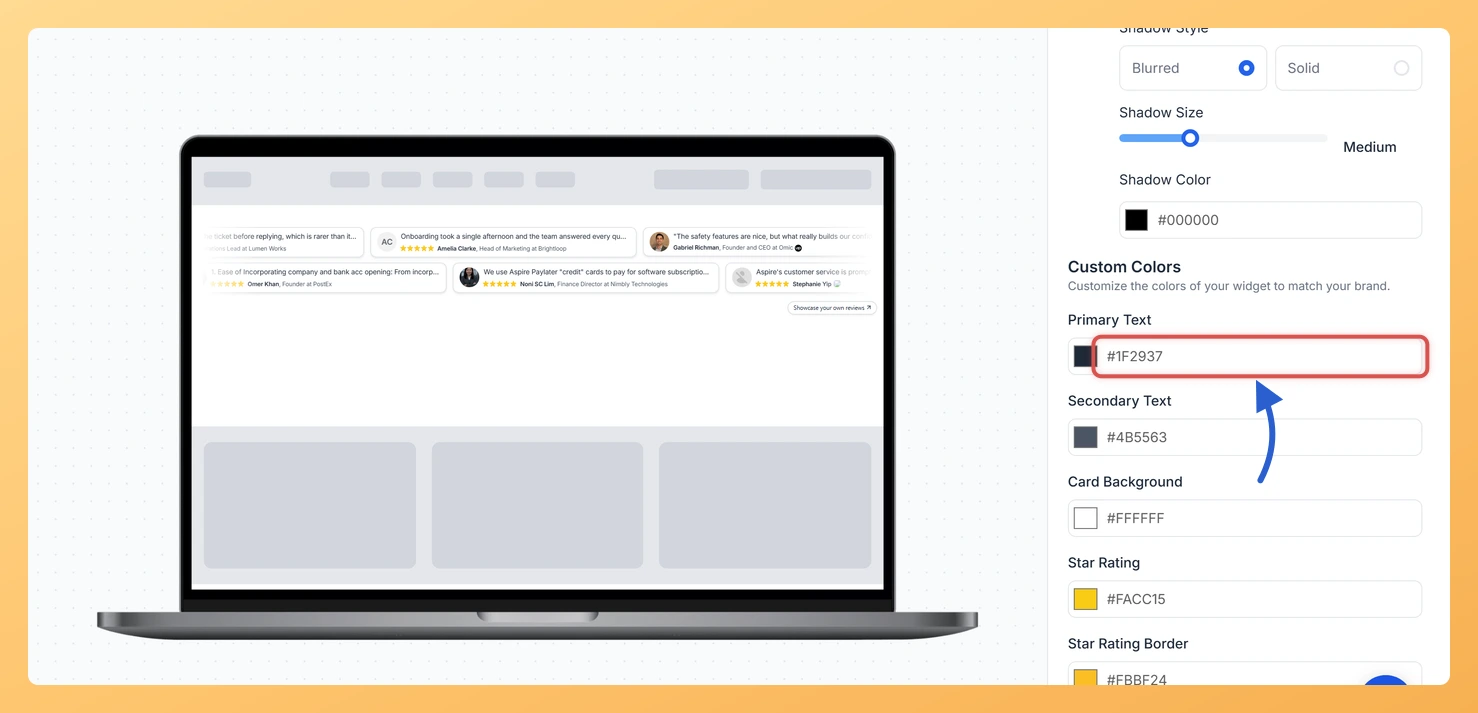
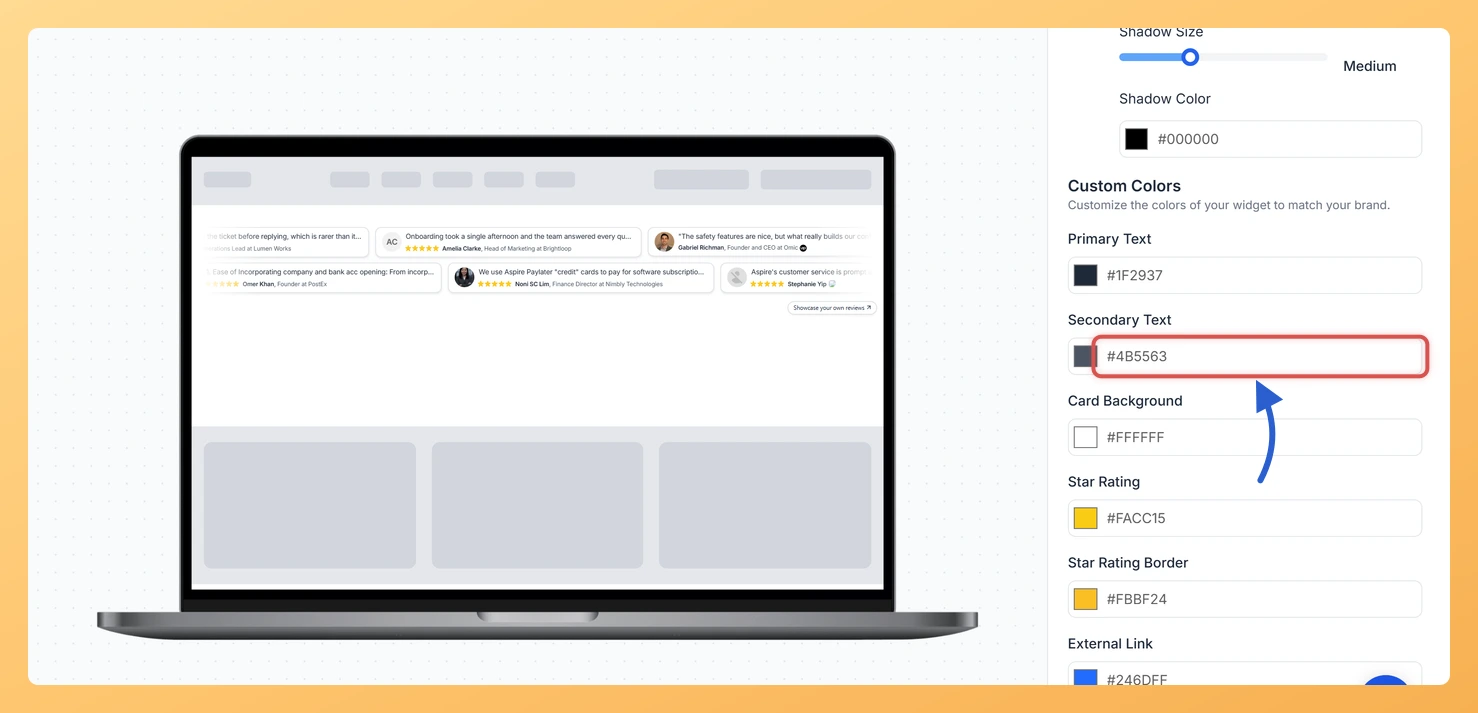
The Strip Slider widget in Feedspace has two text color settings. Primary Text colors the review itself and the reviewer’s name. Secondary Text colors the smaller details beside the name, such as the reviewer’s job title and company.
Setting them separately gives each card a clear order to read in. A dark primary color with a lighter grey secondary keeps attention on what the customer said, while still showing who they are, which matters when a job title like “Head of Marketing” is part of what makes the review convincing.
Steps to change the text color
Step 1: Open your widgets
From the left-hand menu in Feedspace, select Widgets.
Step 2: Load the Strip Slider in the editor
Click the pencil-shaped Edit icon on your Strip Slider’s card, then choose the Design tab once the editor has opened.
Step 3: Set the Primary Text color
Scroll to Custom Colors in the Widget Color Customization section. Click the swatch next to Primary Text, or type a hex code into the box beside it. The review text and the reviewer names in the preview change color.
Step 4: Set the Secondary Text color
Directly below, set Secondary Text the same way. This changes the job title and company shown after each reviewer’s name.
Enable Dark Mode is switched on. Dark mode picks its own text colors and hides the custom color pickers until you turn it off.
Will the new colors show on my website without re-embedding?
Yes. The widget on your site is loaded from Feedspace on every page view, so saved changes appear there without touching the embed code.
You might also find helpful
How Do I Change the Card Background Color on My Strip Slider Widget in Feedspace?
Overview Every review in a Strip Slider widget sits on its own small card. The Card Background picker in Feedspace sets the fill color of all those cards at once. White cards look right on a white page, but they can glare on a tinted section or disappear on a...
How to Create a Strip Slider Widget in Feedspace
Overview The Strip Slider widget in Feedspace allows you to showcase your reviews in a single, horizontally scrolling line: perfect for website headers, footers, or testimonial sections that need a minimalist design. You can adjust autoplay speed, borders, and colors to match your brand style. How to Access Step 1...
How Do I Customize the Design of My Widget in Feedspace?
Overview Feedspace widgets come with a powerful Design tab that lets you tailor every visual aspect of your widget. From card colors and fonts to dark mode and call-to-action buttons, you can fully customize the look to match your website’s brand without writing any code. How to Customize the Widget...