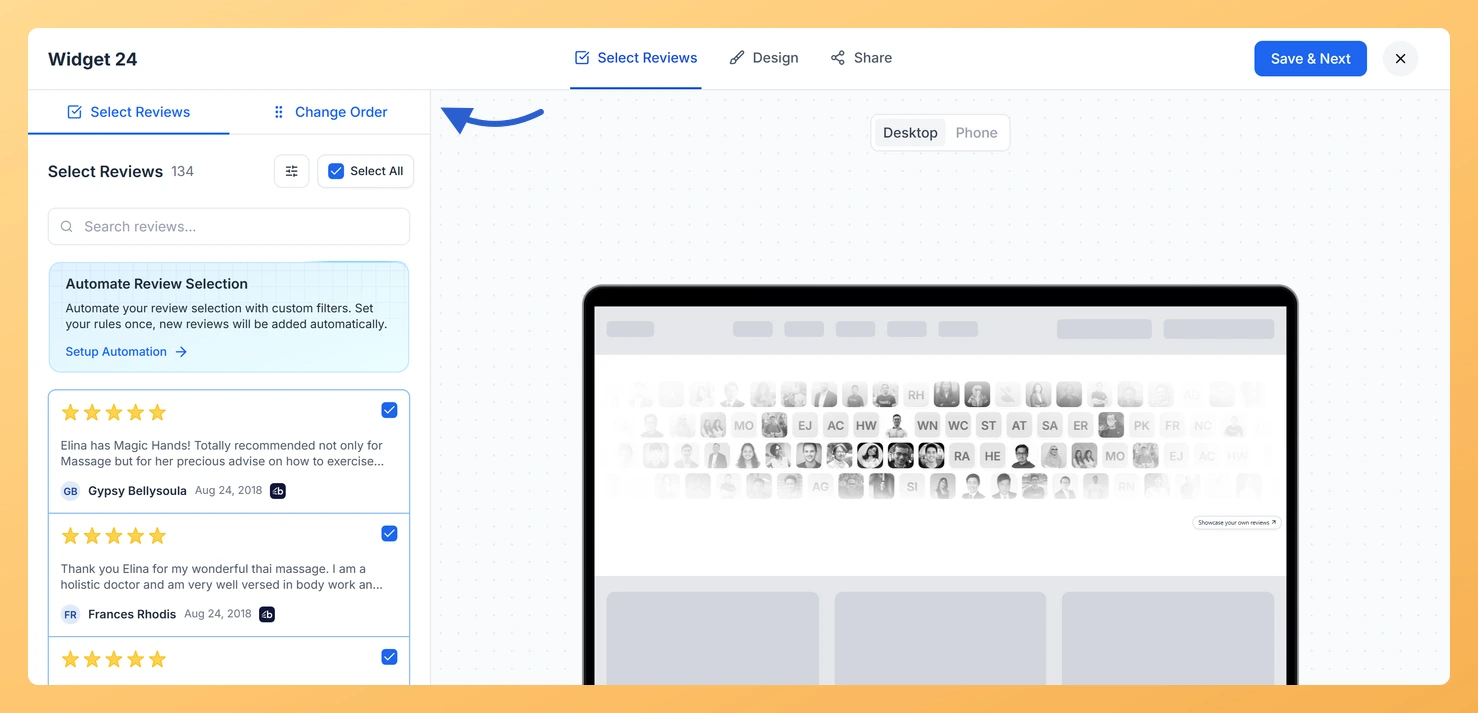
The Avatar Blocks widget in Feedspace displays reviews in a structured block grid where each card places the reviewer’s avatar and testimonial side by side, creating a clean and organised layout that visitors can scan at a glance. Because the grid fills in row order, the reviews that appear in the first row are seen immediately, before any scrolling happens. That makes the sequence of your reviews more consequential in this widget than in a slider or scroll format, where visitors are drawn in by movement. In the Avatar Blocks grid, the first row is your window of attention, and placing your most compelling testimonials there maximises the impact of every page load.
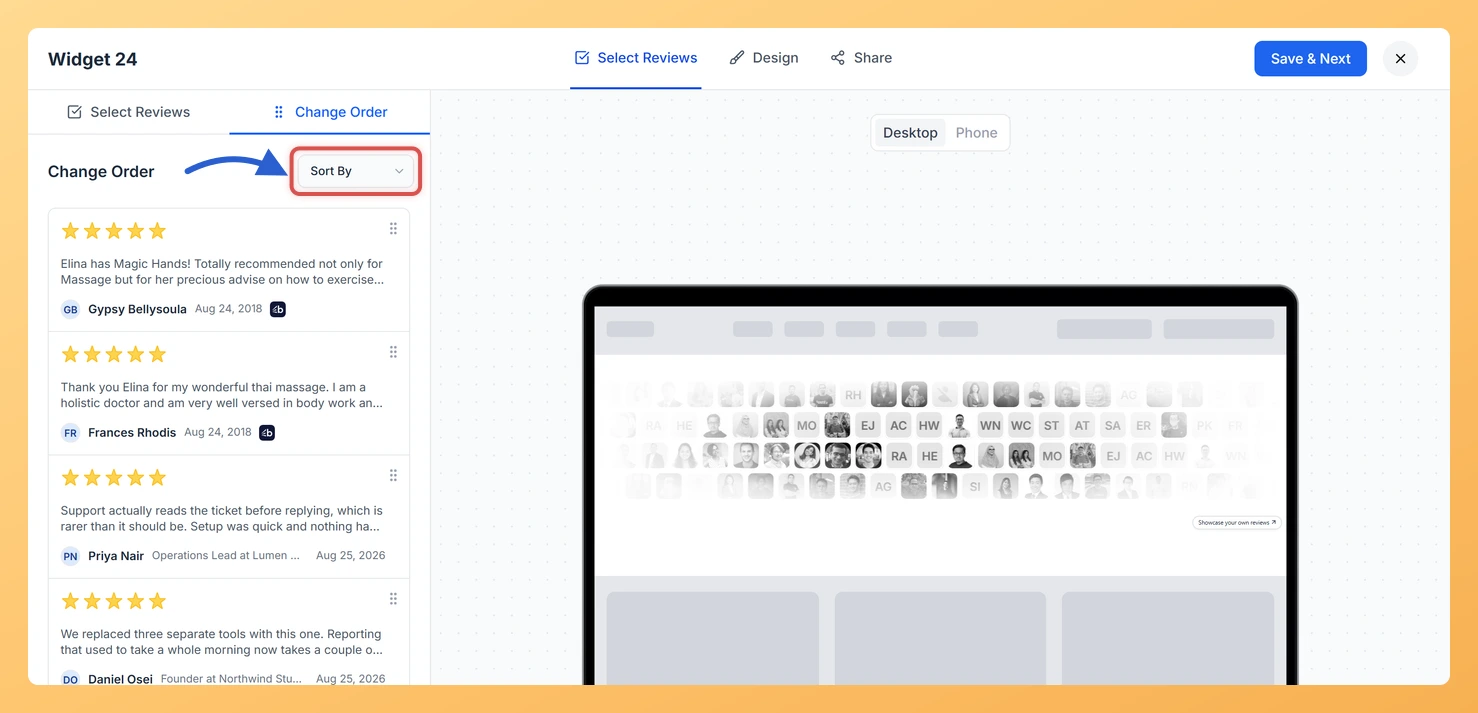
The Change Order sub-tab inside the Select Reviews tab gives you two ways to control that sequence. You can drag and drop individual reviews into any custom arrangement you choose, or you can use the Sort By dropdown to apply a date-based sort, either Newest First or Oldest First, across all selected reviews in one action. This article walks you through both methods so you can set exactly the right sequence for your Avatar Blocks widget.
How to change the order of reviews for your Avatar Blocks widget
Step 1: Open your Avatar Blocks widget in the editor
Log in to your Feedspace account and navigate to the Widgets section from the main sidebar. Locate your Avatar Blocks widget and click the Edit (pencil) icon on its card, which opens the editor on Select Reviews. If you have not created an Avatar Blocks widget yet, create one and select your reviews before continuing with the steps below.
Step 2: Go to the Select Reviews tab
Inside the widget editor, click the Select Reviews tab at the top of the panel. This tab is where you choose which reviews appear in your grid. You must have at least one review selected before the Change Order sub-tab becomes available.
Step 3: Open the Change Order sub-tab
Within the Select Reviews tab, locate the sub-tab navigation and click Change Order. The panel switches to show only the reviews you have already selected, arranged in their current display sequence. Each review appears as a row displaying the reviewer’s avatar and name, making it easy to see whose review sits in which position within the grid.
Step 4: Drag and drop reviews into a custom order
To arrange reviews manually, click and hold the drag handle on any review row, then drag it up or down to the position you want. Release to drop it in place. Repeat this for as many reviews as needed until your sequence reflects the story you want to tell. Because the Avatar Blocks grid fills in row order, focus on placing your most persuasive testimonials in the first few positions so they occupy the top row and are visible to every visitor the moment the page loads, without requiring any scrolling.
Step 5: Use Sort By to apply a date-based order
If you prefer to sort reviews by date rather than arranging them manually, use the Sort By dropdown at the top of the Change Order sub-tab. Click the dropdown and choose one of the two options:
Newest First: displays your most recently received reviews starting from the top-left block, keeping the first row of the grid fresh and current as new reviews arrive.
Oldest First: places your earliest reviews at the beginning of the grid, which can be useful when you want to highlight a history of long-standing customer trust from the very first row.
Selecting either option instantly reorders all reviews in the list. You can then make further manual adjustments using drag and drop if you want to fine-tune which specific reviews land in the first row of the grid.
Step 6: Save your widget
Once your review sequence is set, click Save & Next to apply the new order. Your Avatar Blocks widget will now display reviews in the sequence you have defined, with your chosen testimonials filling the first row of the grid exactly as arranged.
What’s next
Use the Select Reviews tab to add or remove reviews from your Avatar Blocks widget, then return to the Change Order sub-tab to refresh the sequence so the strongest testimonials always occupy the top row of the grid.
Try placing reviews from different industries or customer types in the first row of the grid to see which combination resonates most with the visitors who land on that page.
Adjust the card layout and avatar size in the Design tab so the grid displays the right number of blocks per row, which directly affects how many reviews are visible without scrolling.
Your live site picks the change up on its own: the widget is loaded from Feedspace each time a visitor opens the page, so there is no embed code to replace.
Common questions
Do I need to save after dragging a block?
No, and there is no save button on this sub-tab to press. Dragging a block into a new position and picking a Sort By option both save themselves as you do them.
You might also find helpful
How Do I Select Reviews for My Avatar Blocks Widget in Feedspace?
Overview The Avatar Blocks widget displays your reviews in a structured block grid, placing each reviewer’s avatar alongside their testimonial for a clean, organised presentation. Because reviews are arranged in a grid, the number and selection of reviews you include directly affects how polished the layout looks. An uneven or...
How to Create an Avatar Blocks Widget in Feedspace
Overview Feedspace’s Avatar Blocks widget displays your reviews in bold, grid-based cards where the reviewer’s profile picture takes centre stage. It’s a strong, visually balanced layout that works well on testimonial pages, pricing pages, and anywhere you want reviews to feel authentic and human. Step 1: Log in to Feedspace...
What is a Widget in Feedspace?
Overview In Feedspace, a widget is a customizable display tool that allows you to showcase your collected reviews, testimonials, or feedback directly on your website. With widgets, you can turn customer voices into social proof, helping you build trust and credibility with visitors. Instead of just collecting reviews, widgets let...