The Avatar Blocks widget displays your reviews in a structured block grid, placing each reviewer’s avatar alongside their testimonial for a clean, organised presentation. Because reviews are arranged in a grid, the number and selection of reviews you include directly affects how polished the layout looks. An uneven or sparse selection can leave empty columns, while a carefully chosen set fills the grid symmetrically.
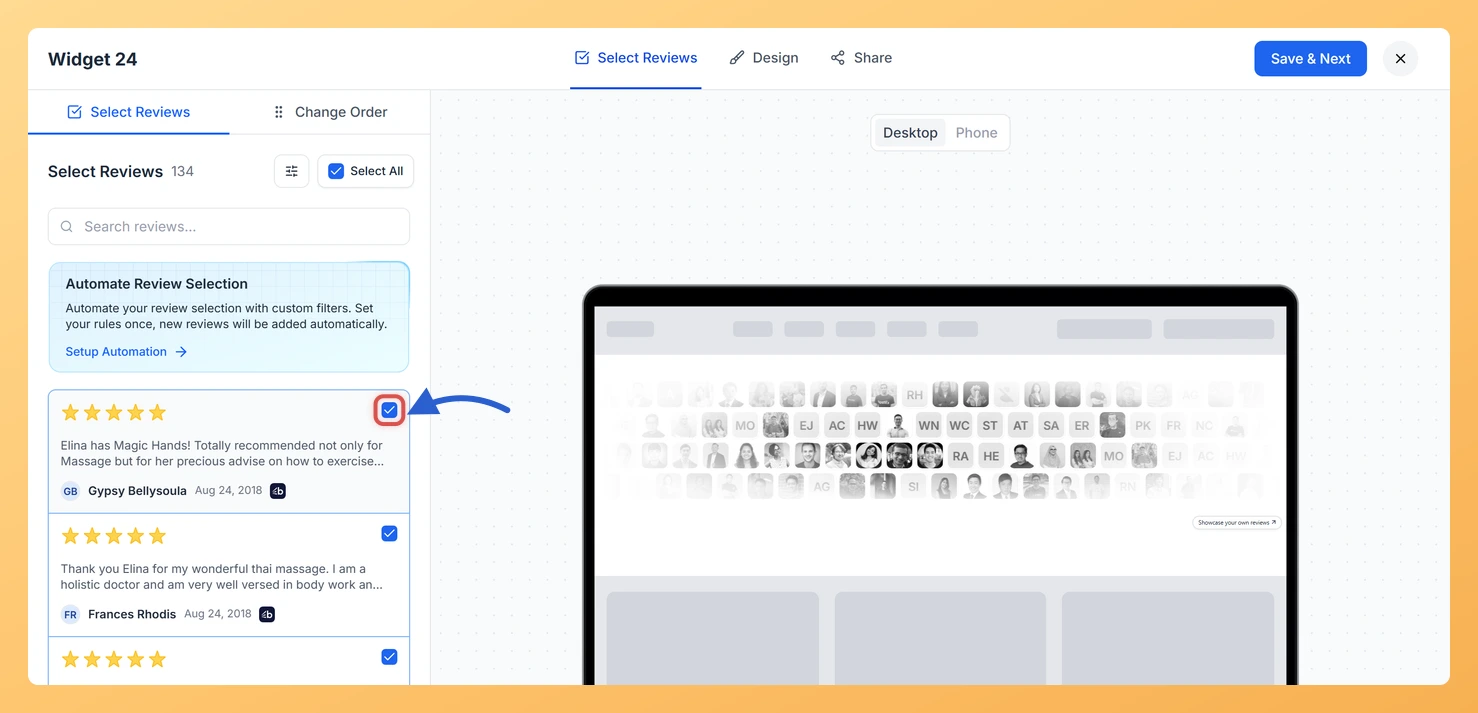
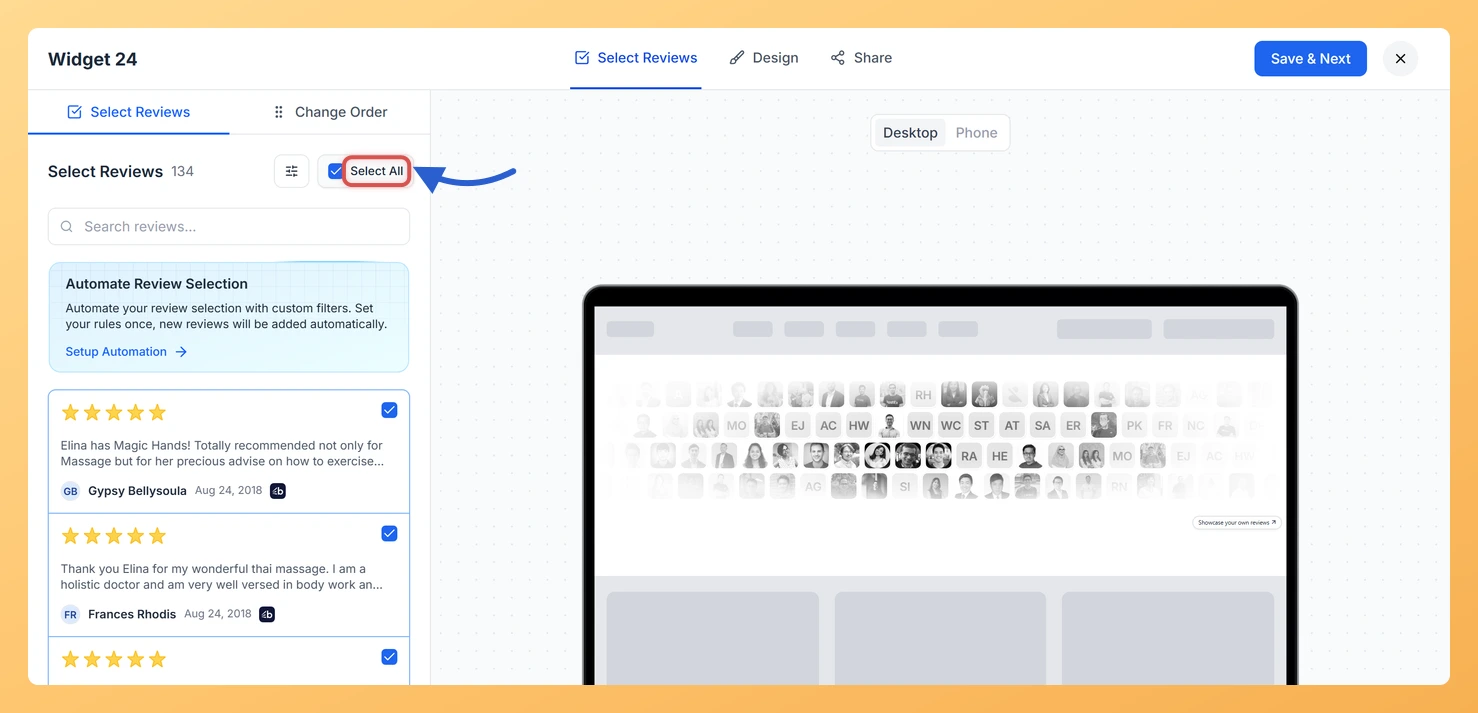
The Select Reviews tab in the Avatar Blocks widget editor gives you precise control over which reviews appear. You can tick individual checkboxes to handpick specific testimonials, or use the Select All button to include every available review at once. Aiming for 6 to 12 reviews works best for this widget, since an even number fills the block grid without leaving gaps. This guide walks you through both selection methods.
How to Select Reviews for your Avatar Blocks widget
Step 1: Open your Avatar Blocks widget in Feedspace
Log in to Feedspace and navigate to the Widgets section from your dashboard. Locate the Avatar Blocks widget you want to update and click to open its editor. If you have not yet created an Avatar Blocks widget, use the option to create a new widget and choose the Avatar Blocks type.
Step 2: Go to the Select Reviews tab
Inside the widget editor, click the Select Reviews tab. This tab lists all the reviews available to include in your Avatar Blocks widget. Each review is shown with its reviewer name, star rating, and a preview of the testimonial text so you can identify the right entries before selecting them.
Step 3: Select Reviews using individual checkboxes
To handpick specific reviews, tick the checkbox next to each review you want to include. You can select as many or as few as you need. For the Avatar Blocks widget, aim for an even number between 6 and 12 reviews. An even count keeps the block grid symmetrical and avoids a half-empty row at the bottom of the layout.
Step 4: Use Select All to include every review
If you want to display all available reviews, click the Select All button at the top of the review list. This ticks every checkbox at once, saving you from selecting each review individually. If your total review count is already within the 6 to 12 range, or if you plan to filter the list first, Select All is the fastest way to populate your Avatar Blocks widget.
Step 5: Deselect reviews to refine your grid
After using Select All, you can uncheck individual reviews to remove them from the selection. This lets you start from a full set and remove any reviews that are less relevant, too short, or duplicate sentiments, until you have the even number that fits your grid cleanly. Click the checkbox of any selected review to deselect it.
Step 6: Save your widget
Once you are satisfied with your review selection, click Save & Next to apply the changes to your Avatar Blocks widget. The widget will update to display only the reviews you selected, arranged in the structured block grid layout with each reviewer’s avatar alongside their testimonial.
What’s next
Search and filter the review list in the Select Reviews tab to find the highest-rated or most recent testimonials before making your final selection for the Avatar Blocks grid.
Adjust the Avatar Blocks widget layout settings to control the number of columns in the block grid and ensure your selected reviews fill each row evenly.
Copy the embed code for your Avatar Blocks widget and add it to your website or landing page so visitors see the structured grid of reviewer avatars and testimonials.
Return to the Select Reviews tab at any time to swap out reviews, keeping your Avatar Blocks widget fresh with your latest and most compelling testimonials.
Common questions
Will reviews that arrive later be added for me?
Not by ticking them here, which is a one-off choice that stays as you left it. If you want the grid to keep itself current, open Setup Automation and set rules instead.
You might also find helpful
How to Create an Avatar Blocks Widget in Feedspace
Overview Feedspace’s Avatar Blocks widget displays your reviews in bold, grid-based cards where the reviewer’s profile picture takes centre stage. It’s a strong, visually balanced layout that works well on testimonial pages, pricing pages, and anywhere you want reviews to feel authentic and human. Step 1: Log in to Feedspace...
What is a Widget in Feedspace?
Overview In Feedspace, a widget is a customizable display tool that allows you to showcase your collected reviews, testimonials, or feedback directly on your website. With widgets, you can turn customer voices into social proof, helping you build trust and credibility with visitors. Instead of just collecting reviews, widgets let...
How Do I Search and Filter Reviews for My Avatar Blocks Widget in Feedspace?
Overview The Avatar Blocks widget displays your reviews in a structured block grid where each block shows a reviewer avatar alongside their testimonial. Because the layout pairs a profile photo and name directly with the review text, the quality of individual reviews matters more here than in other widget types....