
Feedspace Home Dashboard

How Do I Change the Order of Reviews in My Avatar Group Widget in Feedspace?

Last updated on June 12, 2026

Overview

The Avatar Group widget in Feedspace displays a compact cluster of overlapping reviewer profile photos that gives visitors an immediate visual impression of your customer community. Because the avatars are stacked and overlap one another, the reviewers placed earliest in the sequence appear at the front of the cluster, making them the most visible faces on the page.

This means the order of reviews in your Avatar Group widget is not just an aesthetic preference: it directly determines which faces dominate the visual and which ones are partially hidden behind others. Placing reviewers with the most recognisable or visually varied profile photos first ensures your cluster looks its most compelling and trustworthy at first glance.

The Change Order sub-tab inside the widget editor gives you two ways to control this sequence: a Sort By dropdown for automatic ordering by date, or drag-and-drop for a fully custom arrangement that puts exactly the right faces at the front.

How to Change the Order of Reviews in Your Avatar Group Widget

Step 1: Open the Avatar Group Widget Editor

Log in to your Feedspace account and navigate to the Widgets section from the main sidebar. Locate the Avatar Group widget you want to update and click on it to open the widget editor.

Step 2: Go to the Select Reviews Tab

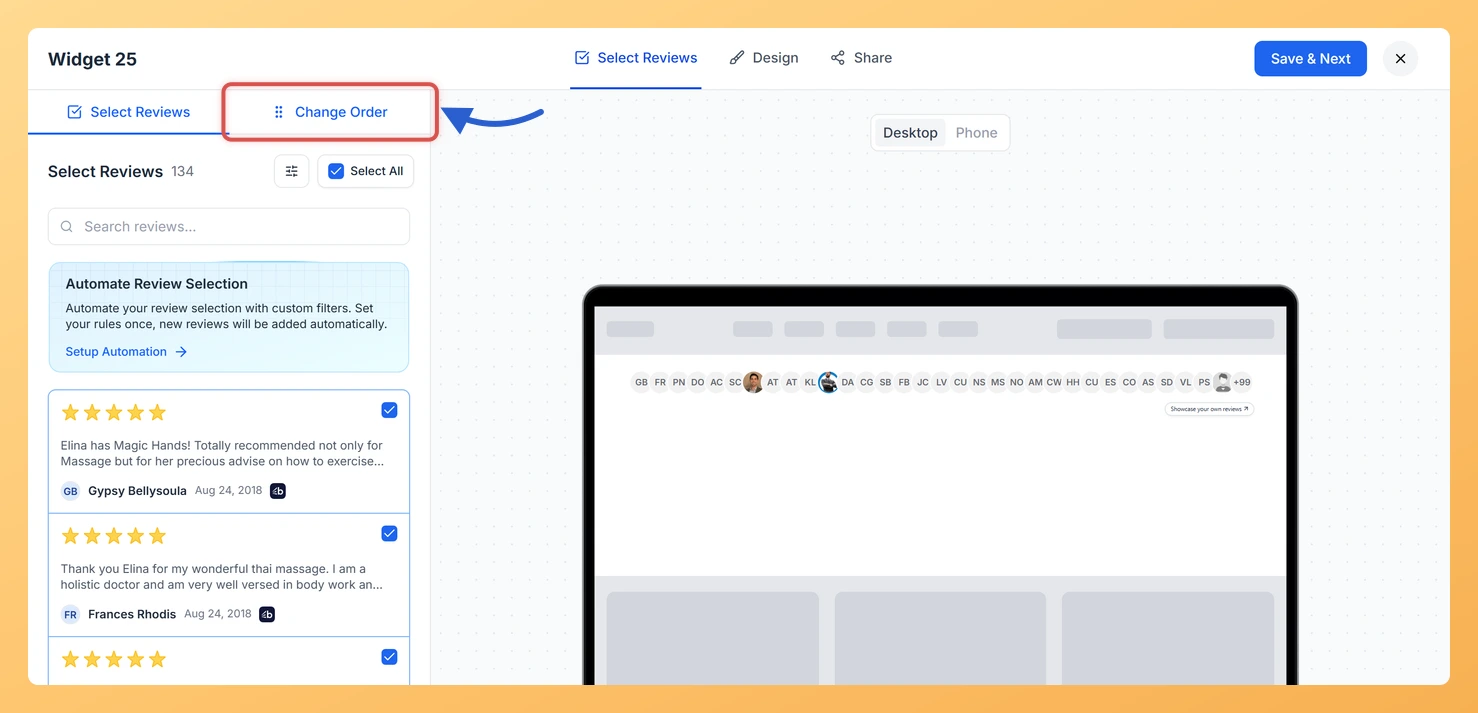
Inside the widget editor, click the Select Reviews tab. This tab shows the reviews you have already added to the Avatar Group widget and contains the sub-tabs used to control their order.

Step 3: Open the Change Order Sub-Tab

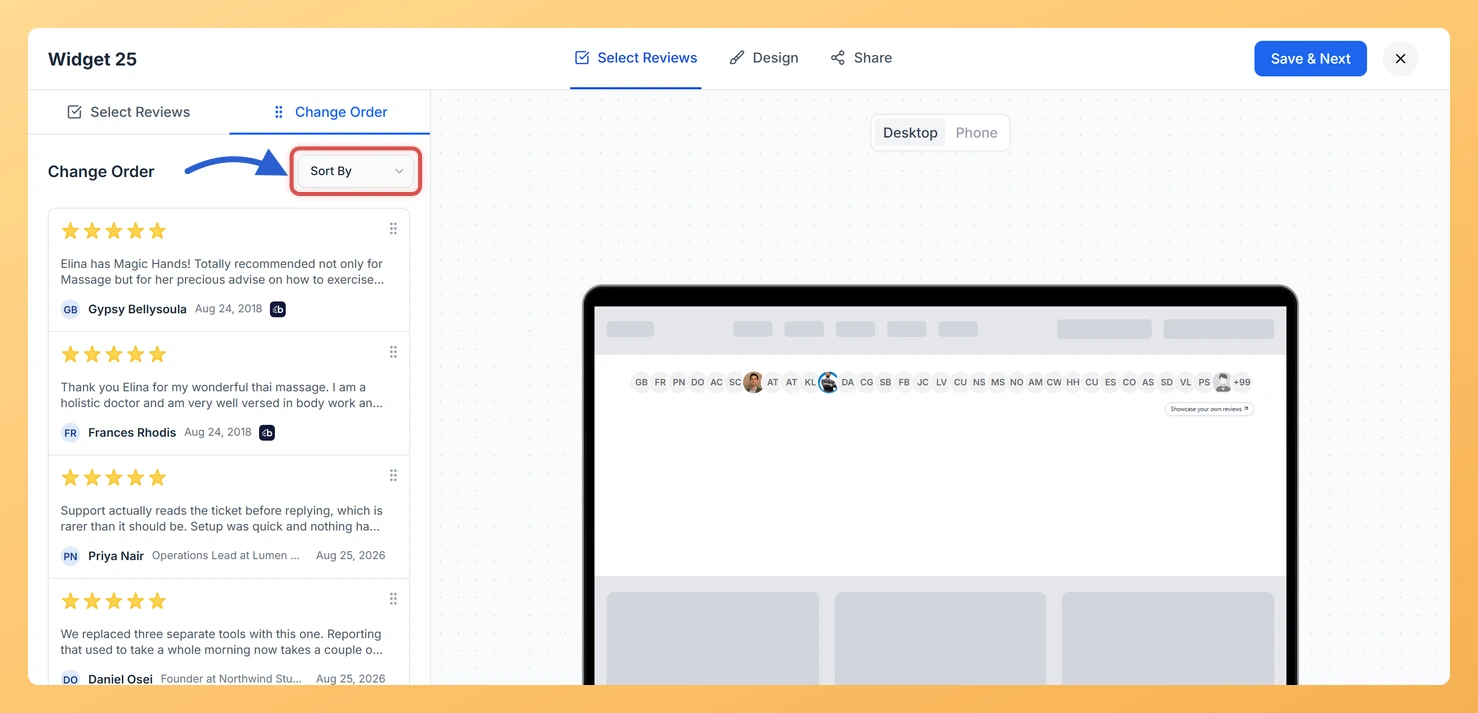
Within the Select Reviews tab, click the Change Order sub-tab. This panel displays all the reviews currently selected for your Avatar Group widget and gives you the controls to rearrange them.

Step 4: Choose a Sort Option or Drag Reviews into Position

You have two ways to set the order of reviews in your Avatar Group widget:

  • Sort By dropdown: Click the Sort By dropdown at the top of the Change Order sub-tab and select one of the automatic sort options:
    • Newest First: Reviews are arranged with the most recently collected review at the front of the avatar cluster. New reviews you add later will automatically appear at the front.
    • Oldest First: The earliest collected reviews are placed at the front of the cluster.
  • Drag and drop (custom order): To arrange avatars manually, grab any review card by its drag handle and move it up or down the list. Place reviewers with the most recognisable or visually varied profile photos at the top of the list so they appear at the front of the overlapping avatar cluster. The sequence you set here is exactly how the avatars will be stacked when the widget is displayed on your site.

Step 5: Save Your Changes

Once you are satisfied with the order, click the Save button to apply your changes. The Avatar Group widget will immediately reflect the new sequence, with the avatars you placed first now appearing at the front of the cluster on your live embed or published page.

What You Can Do Next

  • Return to the Select Reviews tab to add or remove reviews from your Avatar Group widget, then revisit the Change Order sub-tab to place any newly added reviewers with strong profile photos at the front of the cluster.
  • Use the Search and Filter options in the Select Reviews tab to find reviewers with real profile photos before selecting them, so you always have the most visually compelling faces available to order.
  • Switch to the Newest First sort option after a product launch or campaign to automatically bring fresh reviewer faces to the front of the avatar cluster without manual rearranging.
  • Open the Customize tab to adjust avatar size, border color, and the number of avatars displayed, so the visual arrangement you have set through ordering works in harmony with the overall widget design.

You might also find helpful

How Do I Select Reviews for My Avatar Group Widget in Feedspace?

Overview The Avatar Group widget in Feedspace displays a cluster of reviewer profile photos, giving visitors an immediate visual sense of your customer community. Unlike text-heavy widgets, the Avatar Group’s impact depends almost entirely on the faces shown, so choosing the right reviews is critical to making it look polished...

How to Create an Avatar Group Widget in Feedspace

Overview The Avatar Group widget in Feedspace displays the profile pictures (avatars) of your reviewers in a sleek and minimal circular layout. It’s ideal for showing social proof in a subtle, space-saving format on your homepage, footer, or testimonial sections. How to Access Step 1 – Log in to Feedspace...

What is a Widget in Feedspace?

Overview In Feedspace, a widget is a customizable display tool that allows you to showcase your collected reviews, testimonials, or feedback directly on your website. With widgets, you can turn customer voices into social proof, helping you build trust and credibility with visitors. Instead of just collecting reviews, widgets let...