
Feedspace Home Dashboard

How Do I Change the Order of Reviews in My Avatar Slider Widget in Feedspace?

Last updated on June 12, 2026

Overview

The Avatar Slider widget in Feedspace gives each reviewer prominent visual space, placing their avatar, name, and identity at the heart of every slide. Because visitors see one reviewer at a time, the sequence in which reviews appear has a direct impact on how your audience responds. Leading with your strongest or most recognisable reviewers creates an immediate impression, while mixing diverse industries and use cases across the sequence helps your slider appeal to a broader range of visitors as they watch it animate through.

The Change Order sub-tab inside the Select Reviews tab gives you two ways to control that sequence. You can drag and drop individual reviews into any custom arrangement you choose, or you can use the Sort By dropdown to apply a date-based sort, either Newest First or Oldest First, across all selected reviews in one action. This article walks you through both methods so you can set exactly the right sequence for your Avatar Slider widget.

How to Change the Order of Reviews for Your Avatar Slider Widget

Step 1: Open Your Avatar Slider Widget in the Editor

Log in to your Feedspace account and navigate to the Widgets section from the main sidebar. Locate your Avatar Slider widget and click on it to open the widget editor. If you have not created an Avatar Slider widget yet, create one and select your reviews before continuing with the steps below.

Step 2: Go to the Select Reviews Tab

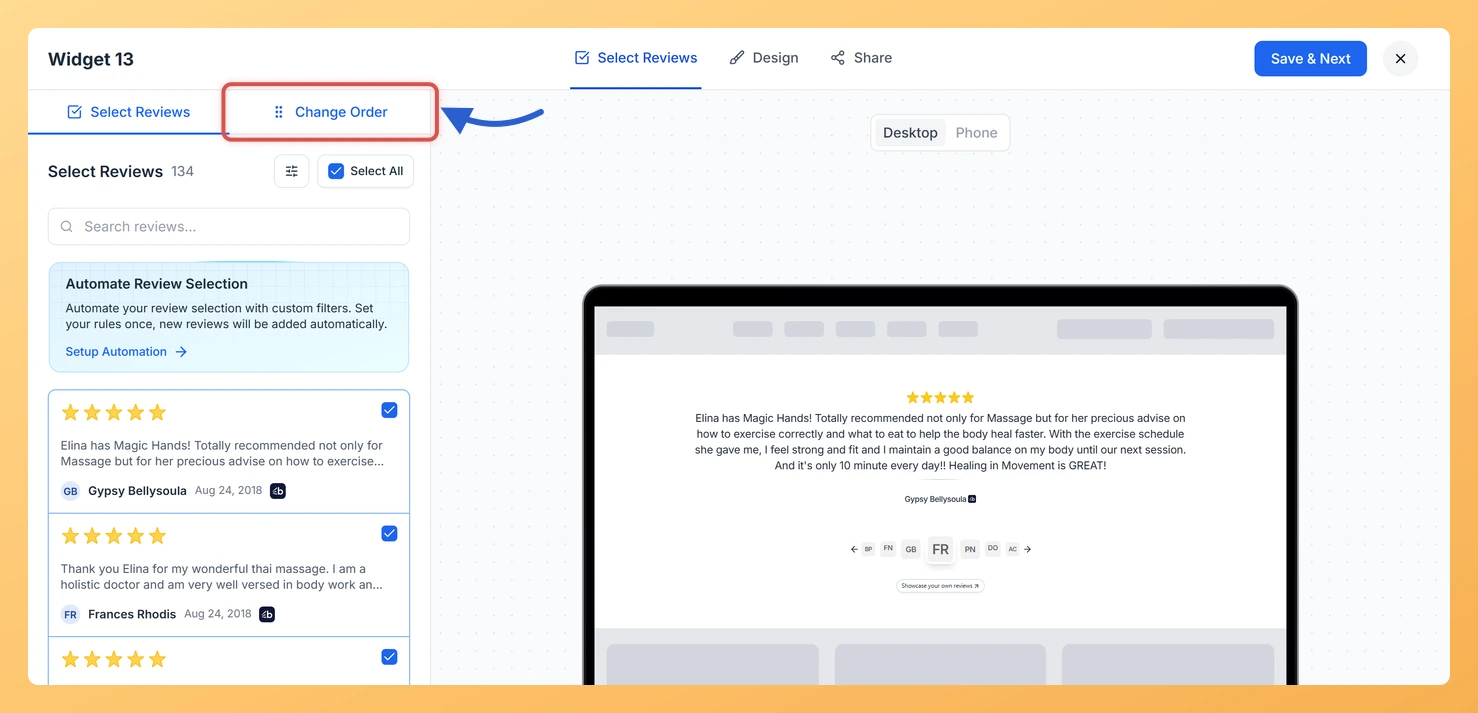
Inside the widget editor, click the Select Reviews tab at the top of the panel. This tab is where you choose which reviews appear in your slider. You must have at least one review selected before the Change Order sub-tab becomes available.

Step 3: Open the Change Order Sub-tab

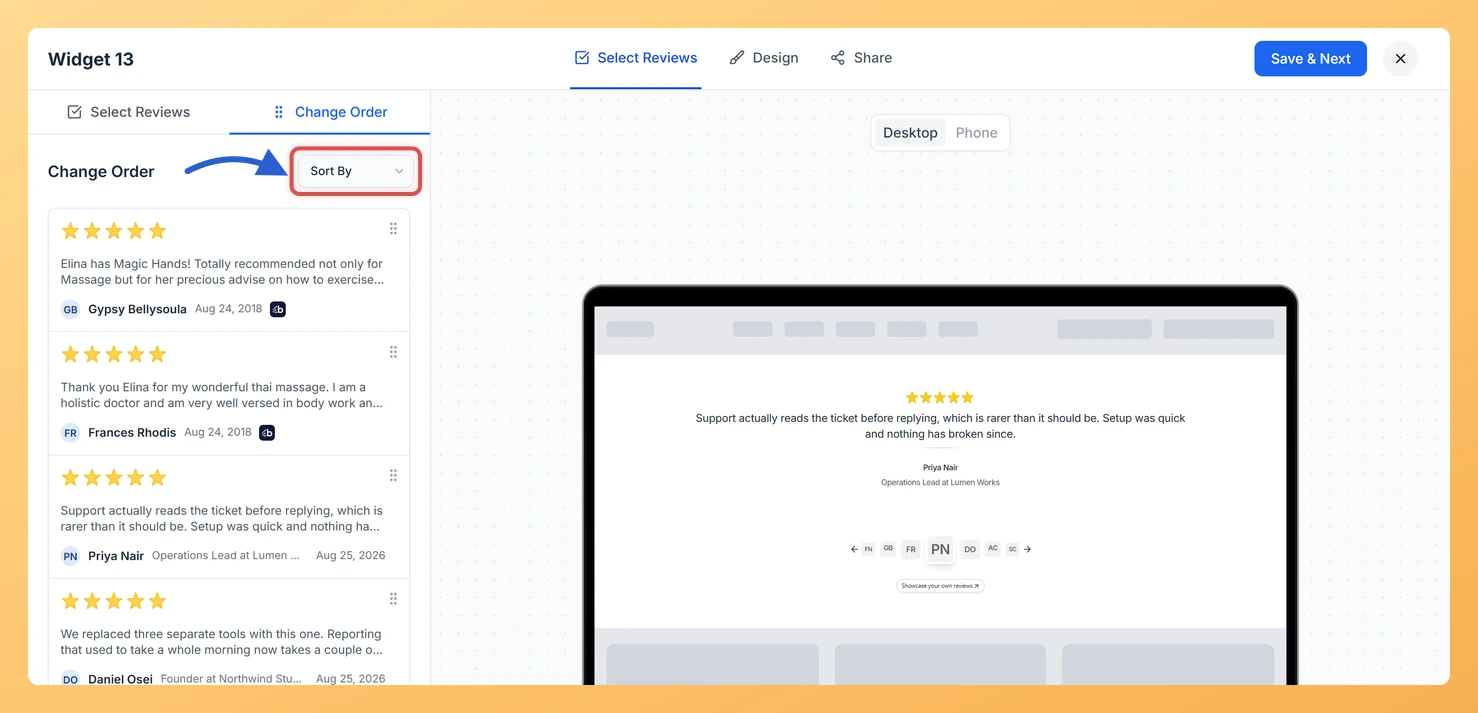
Within the Select Reviews tab, locate the sub-tab navigation and click Change Order. The panel switches to show only the reviews you have already selected, arranged in their current display sequence. Each review appears as a row displaying the reviewer’s avatar and name, making it easy to see whose review sits in which position.

Step 4: Drag and Drop Reviews into a Custom Order

To arrange reviews manually, click and hold the drag handle on any review row, then drag it up or down to the position you want. Release to drop it in place. Repeat this for as many reviews as needed until your sequence reflects the story you want to tell. A common approach is to open with a well-known reviewer to build instant credibility, then alternate between different industries or customer types so the slider appeals to a wider audience as it cycles through.

Step 5: Use Sort By to Apply a Date-Based Order

If you prefer to sort reviews by date rather than arranging them manually, use the Sort By dropdown at the top of the Change Order sub-tab. Click the dropdown and choose one of the two options:

  • Newest First: displays your most recently received reviews at the start of the slider, keeping the sequence fresh and up to date as new reviews arrive.
  • Oldest First: places your earliest reviews at the beginning, which can be useful when you want to show a timeline of long-standing customer trust.

Selecting either option instantly reorders all reviews in the list. You can then make further manual adjustments using drag and drop if you want to fine-tune the result.

Step 6: Save Your Widget

Once your review sequence is set, click the Save button to apply the new order. Your Avatar Slider widget will now display reviews in the sequence you have defined, presenting each reviewer’s avatar and identity in the exact arrangement you chose.

What You Can Do Next

  • Use the Select Reviews tab to add or remove reviews from your Avatar Slider, then return to the Change Order sub-tab to refine the sequence whenever your review library changes.
  • Experiment with leading the slider with reviewers from different industries or roles to see which opening review generates the strongest engagement on your page.
  • Adjust the autoplay speed in the Customize tab so the slider paces through your carefully arranged sequence at a rate that gives visitors enough time to register each reviewer’s identity.
  • Copy the updated embed code from the Share tab and republish your Avatar Slider widget on your website or landing page to make your new review order live for visitors.

You might also find helpful

How Do I Select Reviews for My Avatar Slider Widget in Feedspace?

Overview The Avatar Slider widget is designed to make each reviewer feel front and center. As it slides through testimonials, it gives prominent visual space to the reviewer’s avatar, name, and identity alongside their review text. Because the widget leads with who said it, the reviews you choose to include...

How to Create an Avatar Slider Widget in Feedspace

Overview The Avatar Slider widget in Feedspace displays one review at a time with a reviewer’s avatar, name, and feedback. It includes smooth sliding transitions and navigation arrows for switching between reviews. This layout is ideal for minimal testimonial sections that highlight one review prominently. How to Access Step 1...

What is a Widget in Feedspace?

Overview In Feedspace, a widget is a customizable display tool that allows you to showcase your collected reviews, testimonials, or feedback directly on your website. With widgets, you can turn customer voices into social proof, helping you build trust and credibility with visitors. Instead of just collecting reviews, widgets let...