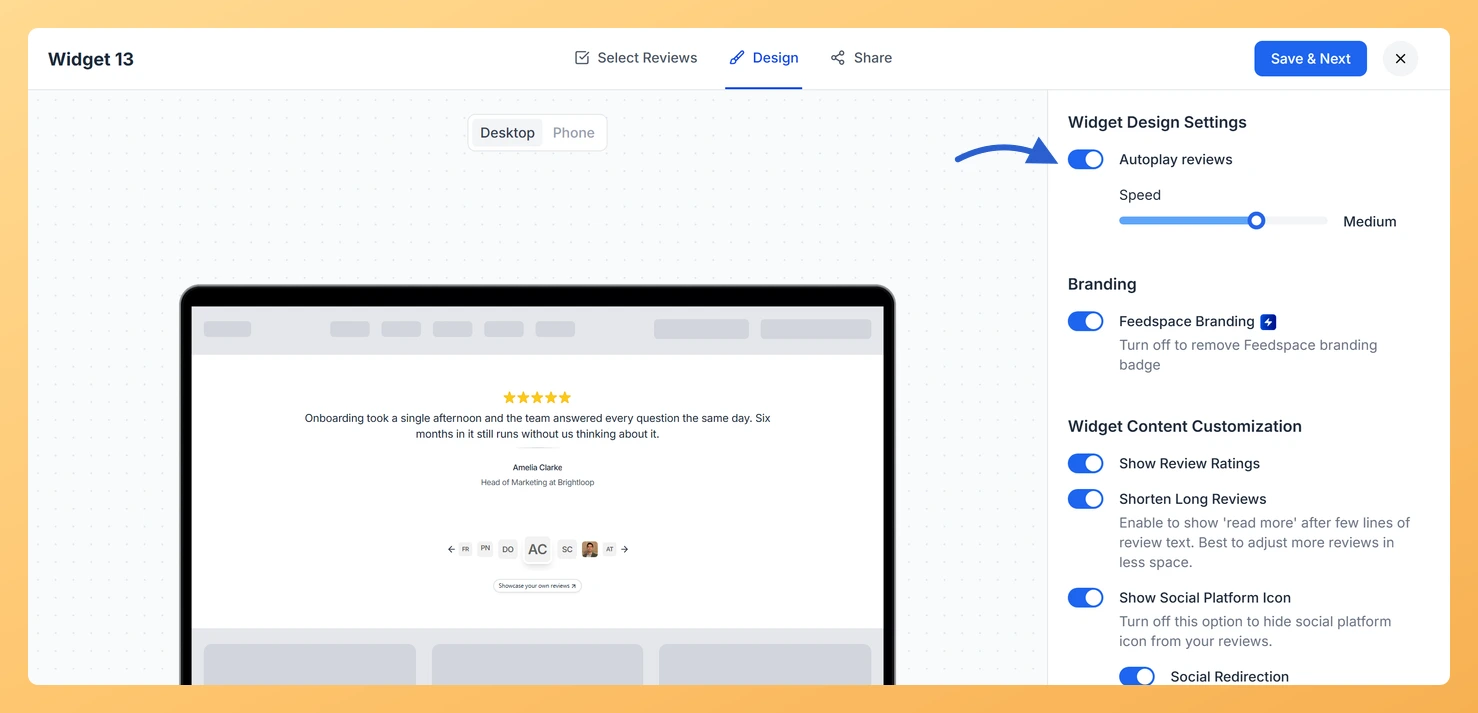
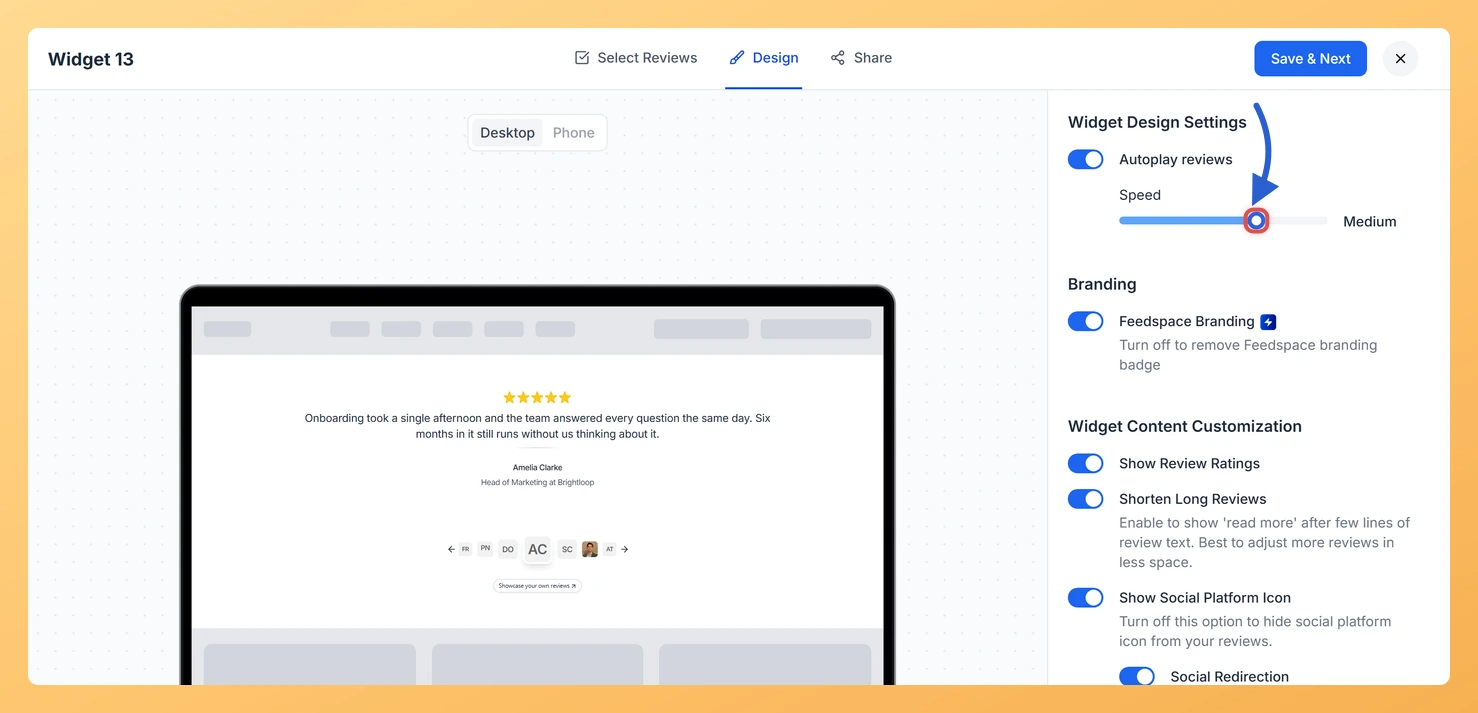
An Avatar Slider widget in Feedspace shows one review at a time, with arrows and a row of avatars to move between them. The Autoplay reviews toggle makes the slider move to the next review by itself, and a Speed slider sets how quickly.
Most visitors never click a slider’s arrows. With autoplay on, someone who stays on the page for half a minute sees several reviews instead of only the first.
Steps to turn on autoplay
Step 1: Visit Widgets
Click Widgets in the SHARE group of the sidebar.
Step 2: Open the Design tab
Click the Edit (pencil) icon on your Avatar Slider, then Design. Widget Design Settings is the first section.
Step 3: Turn on Autoplay reviews
Switch on Autoplay reviews. A Speed slider appears under it and the preview starts moving.
Step 4: Choose a speed
Drag Speed to Delayed, Slow, Medium or Fast. The current setting shows beside the slider. Delayed or Slow give visitors time to finish longer reviews.
Can visitors still move between reviews themselves?
Yes. The arrows and the row of avatars below the review stay in place with autoplay on.
Where is the Speed slider?
It only appears while Autoplay reviews is on. Turn the toggle on and it shows directly underneath.
You might also find helpful
How Do I Enable Dark Mode on My Avatar Slider Widget in Feedspace?
Overview The Enable Dark Mode toggle switches an Avatar Slider widget in Feedspace to a ready-made dark color scheme, so you don’t need to recolor each part yourself. Use it when the slider sits on a dark section of your site. A light slider on a dark page looks like...
How to Create an Avatar Slider Widget in Feedspace
Overview The Avatar Slider widget in Feedspace displays one review at a time with a reviewer’s avatar, name, and feedback. It includes smooth sliding transitions and navigation arrows for switching between reviews. This layout is ideal for minimal testimonial sections that highlight one review prominently. How to Access Step 1...
How Do I Customize the Design of My Widget in Feedspace?
Overview Feedspace widgets come with a powerful Design tab that lets you tailor every visual aspect of your widget. From card colors and fonts to dark mode and call-to-action buttons, you can fully customize the look to match your website’s brand without writing any code. How to Customize the Widget...