
Feedspace Home Dashboard

How Do I Select Reviews for My Avatar Slider Widget in Feedspace?

Last updated on June 12, 2026

Overview

The Avatar Slider widget is designed to make each reviewer feel front and center. As it slides through testimonials, it gives prominent visual space to the reviewer’s avatar, name, and identity alongside their review text. Because the widget leads with who said it, the reviews you choose to include matter more here than in almost any other widget format.

The Select Reviews tab in the Avatar Slider widget editor gives you direct control over which reviews appear in the slider. You can pick reviews one at a time using individual checkboxes, or add your entire review library in a single click using the Select All button. Prioritising reviews from customers who have a name, a profile photo, and a recognisable identity will give your Avatar Slider the credibility boost it is built to deliver.

This article walks you through both selection methods so you can build the most trustworthy possible slider for your Feedspace page.

How to Select Reviews for Your Avatar Slider Widget

Step 1: Open Your Avatar Slider Widget in the Editor

Log in to your Feedspace account and navigate to the Widgets section from the main sidebar. Locate the Avatar Slider widget you want to edit and click on it to open the widget editor. If you have not created an Avatar Slider widget yet, click the button to create a new widget and choose Avatar Slider as the widget type.

Step 2: Go to the Select Reviews Tab

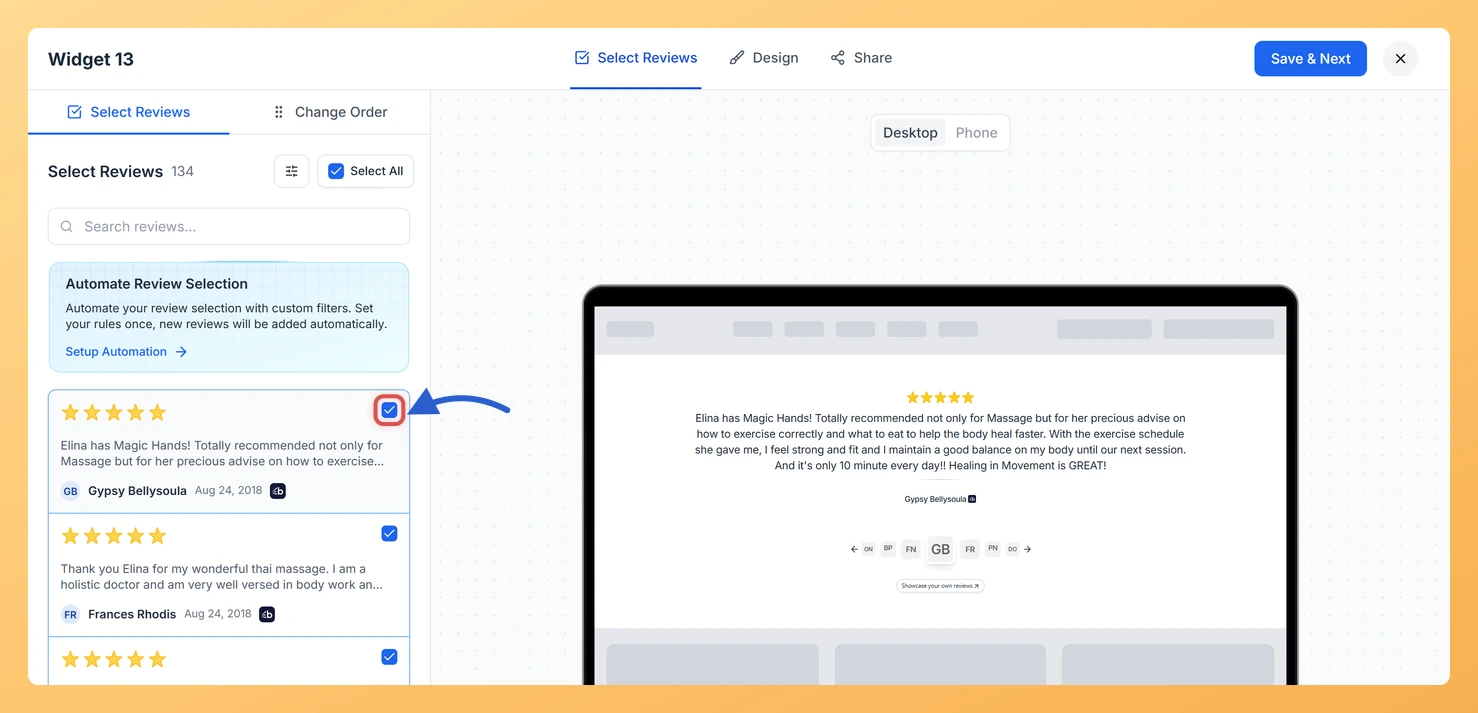
Inside the widget editor, locate the tab bar at the top of the panel. Click the Select Reviews tab. This tab displays all the reviews available in your Feedspace account, each shown as a card with the reviewer’s avatar, name, and a preview of their testimonial text. These are the reviews you can choose to include in your Avatar Slider.

Step 3: Select Reviews Using Individual Checkboxes

To hand-pick specific reviews, click the checkbox on each review card you want to include. A checkmark appears on the card to confirm it has been selected. Because the Avatar Slider puts the reviewer’s identity on display, focus on reviews from customers who have a recognisable name and a profile photo, as these produce the most visually complete and credible slides. You can select as many or as few reviews as you need.

Step 4: Select All Reviews Using the Select All Button

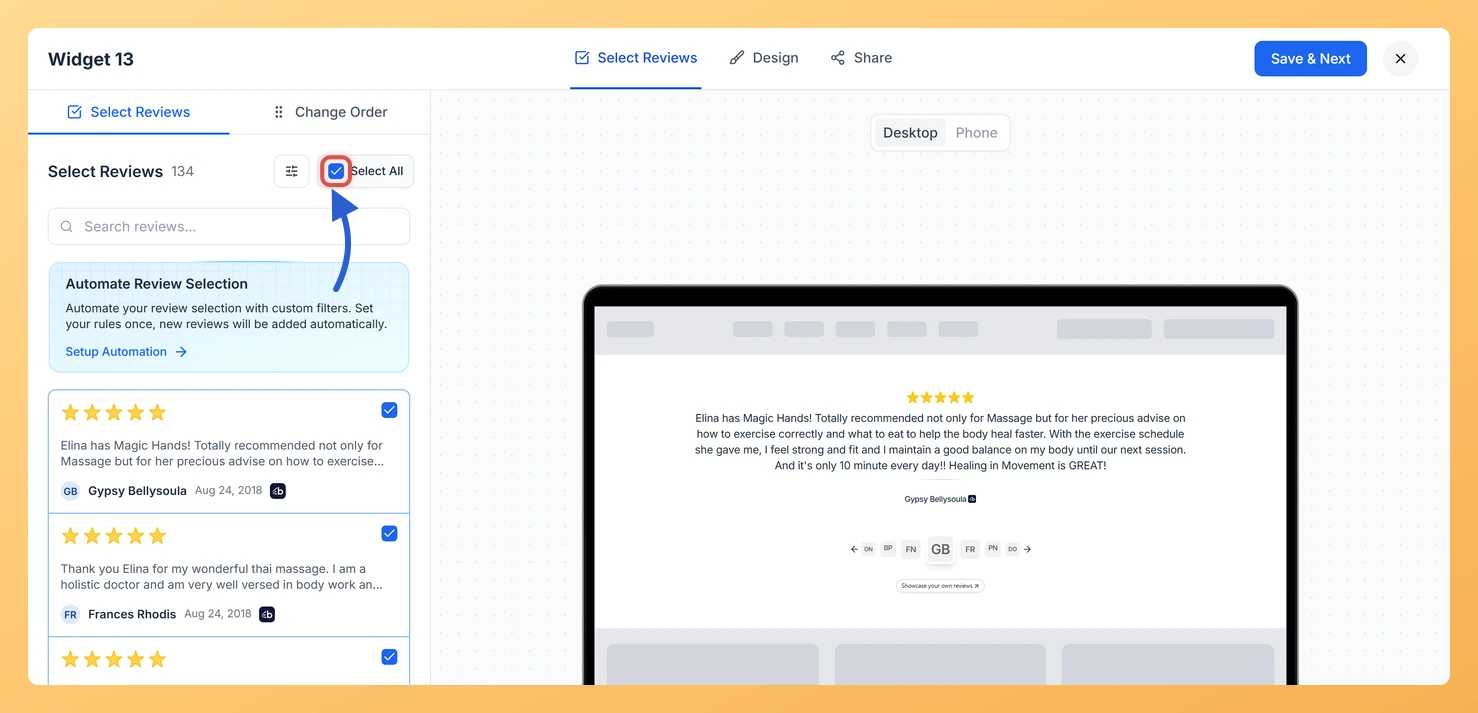
If you want to include every available review in your Avatar Slider at once, click the Select All button at the top of the Select Reviews tab. All review cards will immediately show a checkmark, confirming they are all selected. This is the fastest way to populate your slider when you want to showcase your full review library without choosing each one manually.

Step 5: Deselect Reviews You Do Not Want to Include

After using Select All, you can refine your selection by clicking the checkbox on any review card you want to remove. The checkmark disappears and that review will no longer appear in the slider. This combination of selecting all and then deselecting a few is often the quickest way to narrow down to exactly the reviews you want, especially when most of your reviews are suitable for display.

Step 6: Save Your Widget

Once you are satisfied with your selection, click the Save button to apply your changes. Your Avatar Slider widget will now cycle through only the reviews you have chosen, displaying each reviewer’s avatar and name prominently as the slider moves from one testimonial to the next.

What You Can Do Next

  • Use the search and filter options in the Select Reviews tab to find reviews from customers with complete profiles, so your Avatar Slider always shows identifiable reviewers.
  • Customise the visual appearance of your Avatar Slider, including avatar size and slide transition style, in the Design tab of the widget editor.
  • Copy the embed code for your Avatar Slider widget and add it to your website, landing page, or sales page to display your curated reviews to visitors.
  • Return to the Select Reviews tab at any time to add new reviews as they come in, keeping your Avatar Slider fresh with your most recent and most credible testimonials.

You might also find helpful

How to Create an Avatar Slider Widget in Feedspace

Overview The Avatar Slider widget in Feedspace displays one review at a time with a reviewer’s avatar, name, and feedback. It includes smooth sliding transitions and navigation arrows for switching between reviews. This layout is ideal for minimal testimonial sections that highlight one review prominently. How to Access Step 1...

What is a Widget in Feedspace?

Overview In Feedspace, a widget is a customizable display tool that allows you to showcase your collected reviews, testimonials, or feedback directly on your website. With widgets, you can turn customer voices into social proof, helping you build trust and credibility with visitors. Instead of just collecting reviews, widgets let...

How Do I Search and Filter Reviews for My Avatar Slider Widget in Feedspace?

Overview The Avatar Slider widget presents each review as a full slide with the reviewer’s avatar, name, and identity at the visual centre. Because the widget design draws the viewer’s eye directly to the person behind the testimonial, the reviews you choose matter more than in a compact text-only layout....