Feedspace Home Dashboard

How Do I Change the Star Rating Color on My Avatar Group Widget in Feedspace?

Last updated on June 12, 2026

Overview

The Avatar Group widget displays a compact cluster of reviewer avatars alongside a star rating count and a trust headline, giving visitors an at-a-glance signal of social proof. Because the star rating is one of the most prominent visual elements in this tightly composed layout, its color has a direct impact on how the widget blends with or stands out against your page design.

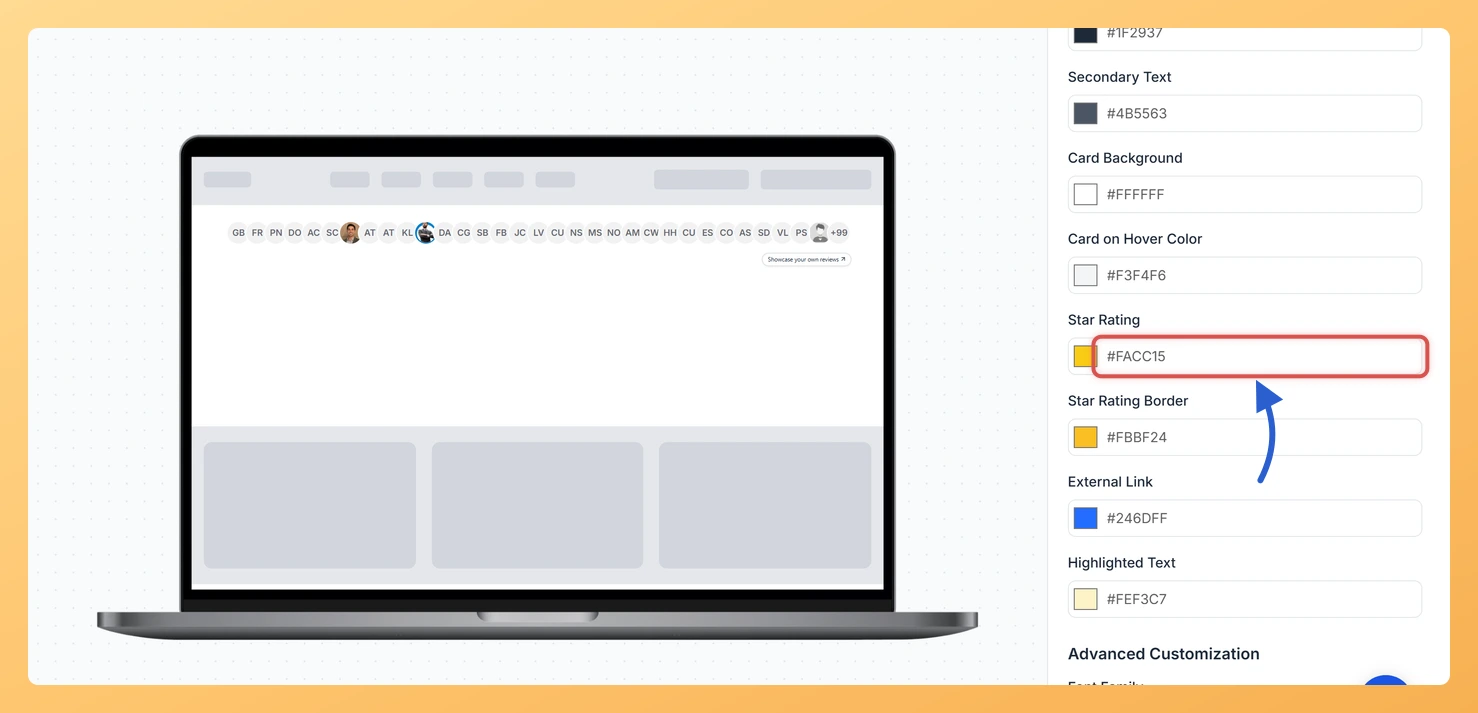
Feedspace gives you two dedicated color pickers for the star rating icons inside the Avatar Group widget: Star Rating Color, which controls the fill color of the star icons, and Star Rating Border Color, which controls the outline or border color around each star. Adjusting these two options lets you align the rating display with your brand palette, improve contrast against light or dark backgrounds, and keep the widget looking polished and intentional rather than relying on the default colors.

How to Change the Star Rating Color for Your Avatar Group Widget

Step 1: Open the Widgets Section

Log in to your Feedspace account and navigate to the Widgets section from the left-hand sidebar. This is where all your created widgets are listed and managed.

Step 2: Edit Your Avatar Group Widget

Locate the Avatar Group widget you want to update. Click the Edit option (pencil icon or edit button) next to that widget to open its settings editor.

Step 3: Go to the Design Tab

Inside the widget editor, click the Design tab. This tab contains all visual customization options for the Avatar Group widget, including layout, typography, and color settings.

Step 4: Find the Widget Color Customization Section

Scroll down within the Design tab until you reach the Widget Color Customization section. This section groups all color pickers for the widget’s elements in one place.

Step 5: Configure the Star Rating Color and Star Rating Border Color

You will see two color pickers in this section:

  • Star Rating Color: Click this color picker to set the fill color of the star icons. Choose a color that complements your brand and provides clear visibility against the widget background.
  • Star Rating Border Color: Click this color picker to set the outline or border color of the star icons. This is useful for adding definition to the stars, especially on backgrounds where the fill color alone may not stand out.

After selecting your desired colors using the color pickers, the widget preview will update in real time so you can see exactly how the changes look before saving.

Step 6: Save Your Changes

Once you are satisfied with the star rating colors, click the Save button to apply your changes. The Avatar Group widget embedded on your site will reflect the updated colors immediately after saving.

What You Can Do Next

  • Show or hide the star rating count on your Avatar Group widget to control how much rating detail is visible to your visitors.
  • Customize other color settings in the Widget Color Customization section, such as the background color and text color, to create a fully cohesive widget design.
  • Preview your Avatar Group widget across different pages of your site to confirm the new star rating colors look correct in every context where the widget appears.
  • Create a new Avatar Group widget with a different color scheme if you need variations of the widget for different pages or campaigns.

You might also find helpful

How Do I Show or Hide Star Ratings on My Avatar Group Widget in Feedspace?

Overview The Avatar Group widget displays a clustered row of reviewer avatars alongside a star rating count and a trust headline, giving visitors a compact social proof element at a glance. Each review card in the widget can show the individual star rating given by that reviewer, or it can...

How to Create an Avatar Group Widget in Feedspace

Overview The Avatar Group widget in Feedspace displays the profile pictures (avatars) of your reviewers in a sleek and minimal circular layout. It’s ideal for showing social proof in a subtle, space-saving format on your homepage, footer, or testimonial sections. How to Access Step 1 – Log in to Feedspace...

How Do I Customize the Design of My Widget in Feedspace?

Overview Feedspace widgets come with a powerful Design tab that lets you tailor every visual aspect of your widget. From card colors and fonts to dark mode and call-to-action buttons, you can fully customize the look to match your website’s brand without writing any code. How to Customize the Widget...