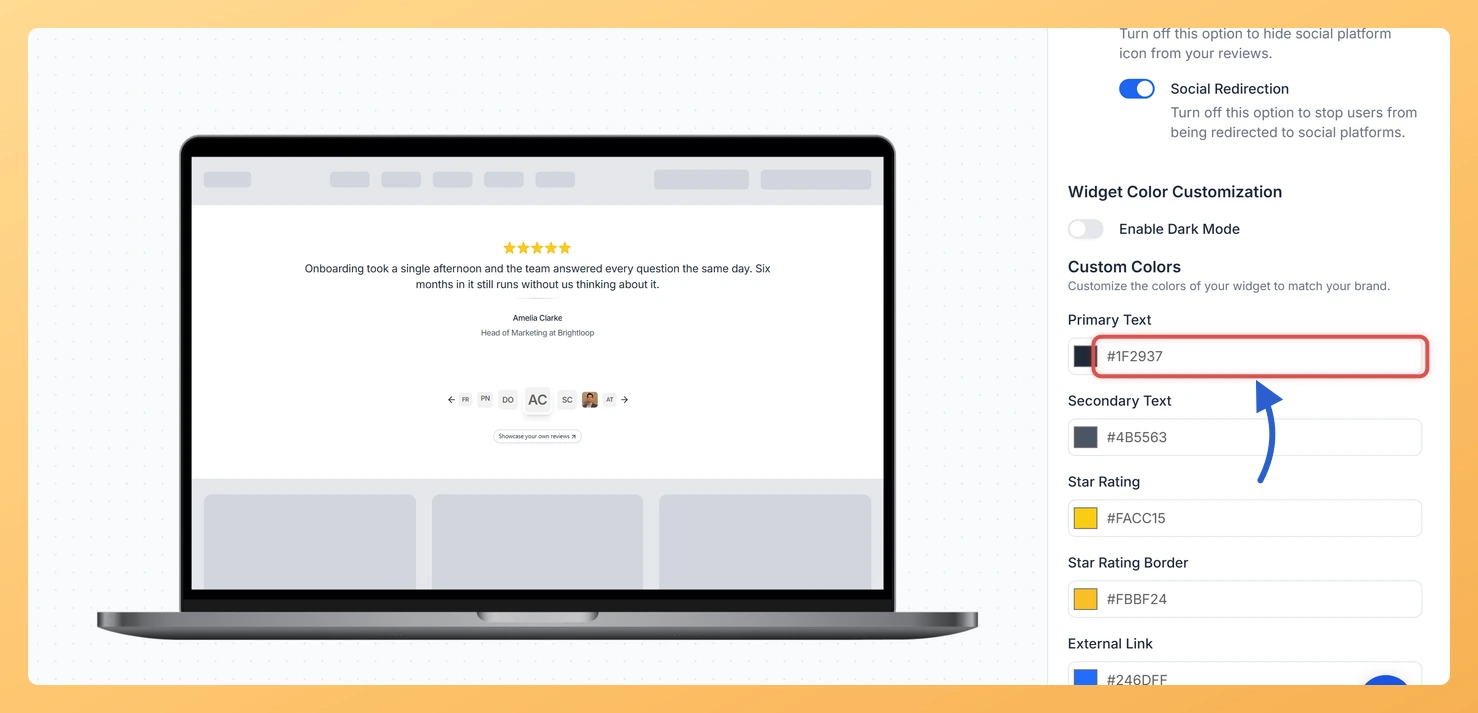
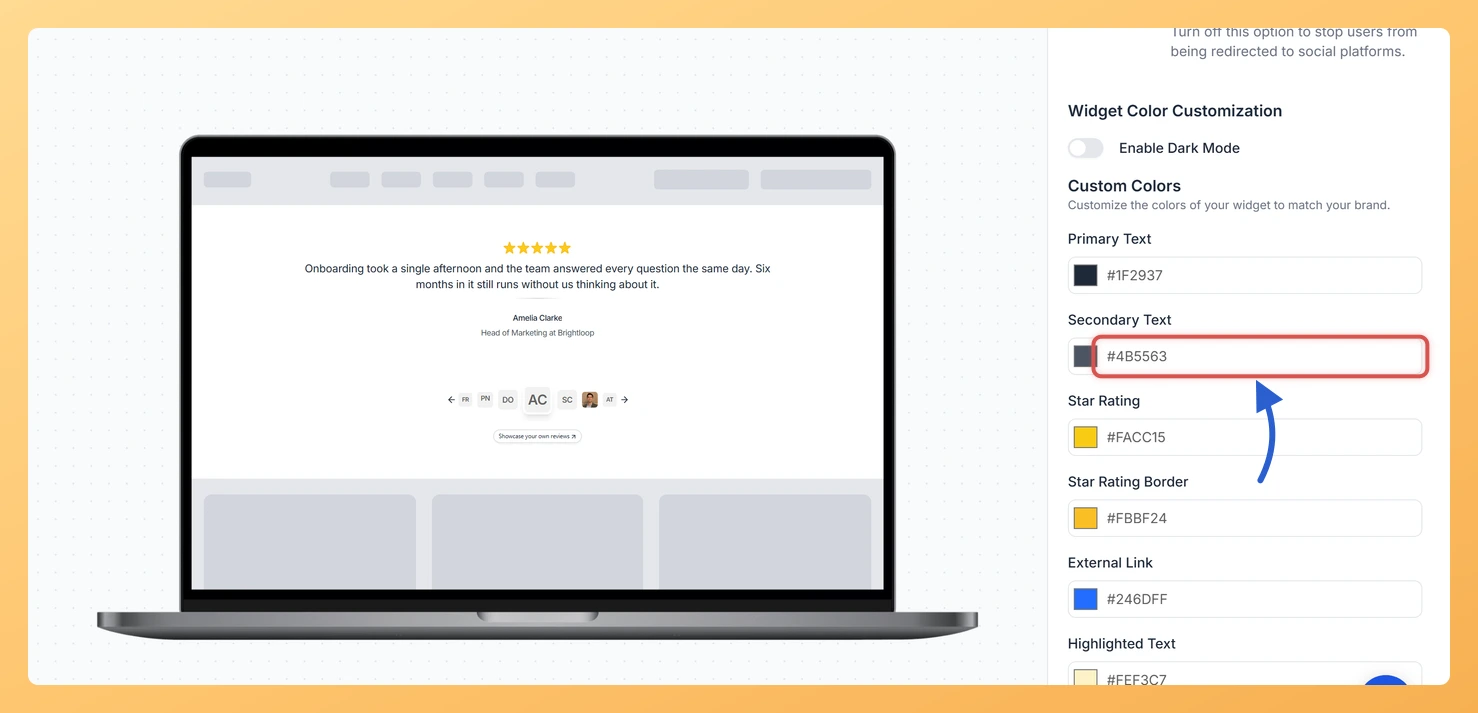
The Avatar Slider widget in Feedspace has two text color settings: Primary Text and Secondary Text. Between them they color the review on each slide and the details about the reviewer.
With one review filling the slide, contrast matters. A strong primary color keeps the quote easy to read, while a softer secondary color stops the reviewer’s details from competing with it.
Steps to change the text color
Step 1: Select Widgets
From the left-hand menu, click Widgets.
Step 2: Load the Design tab
Click the pencil-shaped Edit icon on the Avatar Slider’s card, then Design.
Step 3: Set Primary Text
Scroll to Custom Colors. Click the swatch next to Primary Text, or type a hex code into the box beside it.
Step 4: Set Secondary Text
Set Secondary Text, directly below, the same way. The preview shows both colors as you go.
Enable Dark Mode is on and has hidden them. Switch it off to set your own text colors.
You might also find helpful
How Do I Change the Font on My Avatar Slider Widget in Feedspace?
Overview The Avatar Slider widget in Feedspace shows one review at a time, large and centred, with a row of reviewer avatars underneath. The Font Family setting decides the typeface of that review text and the reviewer’s details. Because a single review fills the slide, its font is one of...
How to Create an Avatar Slider Widget in Feedspace
Overview The Avatar Slider widget in Feedspace displays one review at a time with a reviewer’s avatar, name, and feedback. It includes smooth sliding transitions and navigation arrows for switching between reviews. This layout is ideal for minimal testimonial sections that highlight one review prominently. How to Access Step 1...
How Do I Customize the Design of My Widget in Feedspace?
Overview Feedspace widgets come with a powerful Design tab that lets you tailor every visual aspect of your widget. From card colors and fonts to dark mode and call-to-action buttons, you can fully customize the look to match your website’s brand without writing any code. How to Customize the Widget...