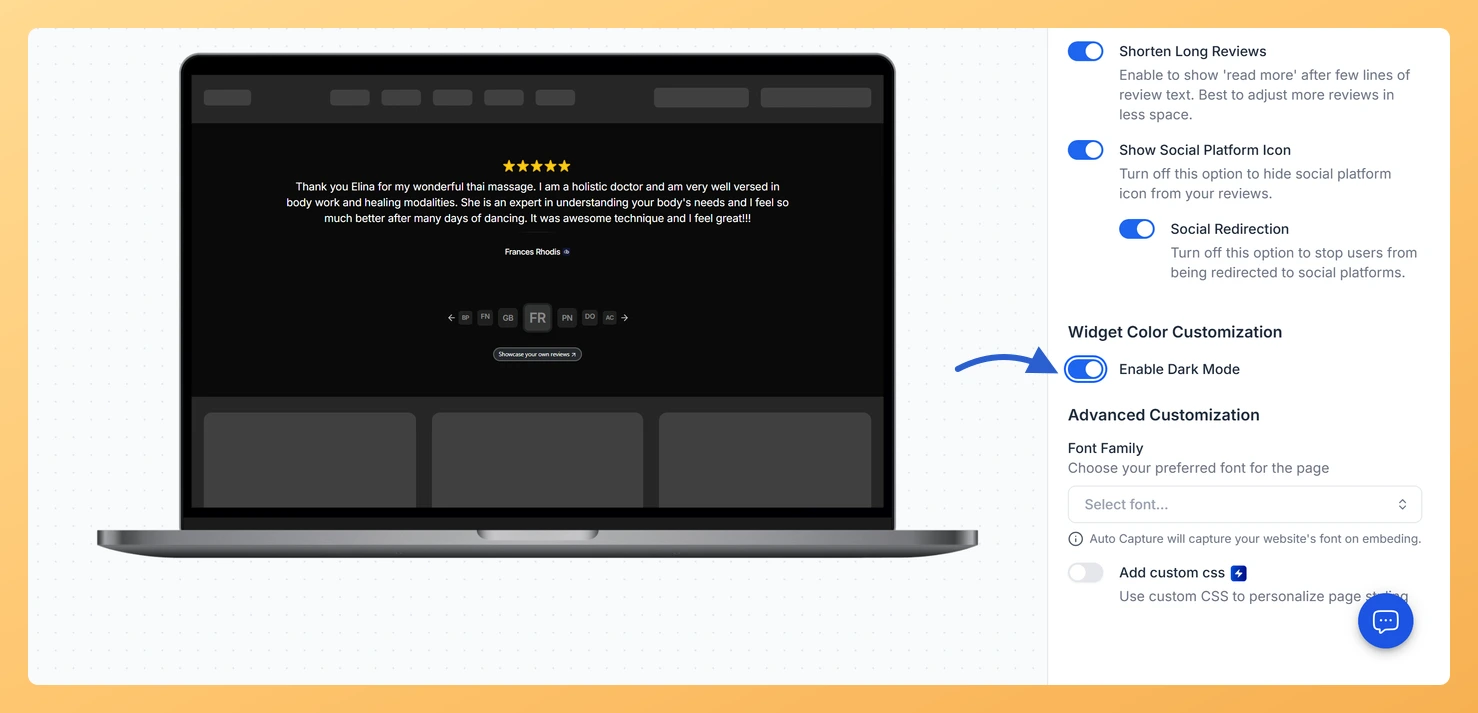
The Enable Dark Mode toggle switches an Avatar Slider widget in Feedspace to a ready-made dark color scheme, so you don’t need to recolor each part yourself.
Use it when the slider sits on a dark section of your site. A light slider on a dark page looks like a panel borrowed from somewhere else; a dark one blends in.
Steps to turn on dark mode
Step 1: Click Widgets
In your dashboard sidebar, click Widgets.
Step 2: Open the slider’s Design tab
Use the Edit (pencil) icon on the slider’s card to load the editor, and switch to the Design tab.
Step 3: Turn on Enable Dark Mode
Scroll to Widget Color Customization, just after Widget Content Customization, and switch on Enable Dark Mode. The preview turns dark straight away.
Dark mode hides them while it is on, because it supplies its own colors. Turn Enable Dark Mode off and Custom Colors comes back with your previous settings.
Do I need to update the embed code afterwards?
No. The widget loads from Feedspace on every page view, so the dark version appears on your site once you save.
You might also find helpful
Which Feedspace Widgets Support Dark Mode?
Overview All of them. Every widget type in Feedspace carries an Enable Dark Mode toggle, so the layout you choose is never the thing that decides whether your testimonials can go dark. That matters when you are picking a widget for a dark site. You can choose the layout on...
How to Create an Avatar Slider Widget in Feedspace
Overview The Avatar Slider widget in Feedspace displays one review at a time with a reviewer’s avatar, name, and feedback. It includes smooth sliding transitions and navigation arrows for switching between reviews. This layout is ideal for minimal testimonial sections that highlight one review prominently. How to Access Step 1...
How Do I Customize the Design of My Widget in Feedspace?
Overview Feedspace widgets come with a powerful Design tab that lets you tailor every visual aspect of your widget. From card colors and fonts to dark mode and call-to-action buttons, you can fully customize the look to match your website’s brand without writing any code. How to Customize the Widget...