

Feedspace Home Dashboard

How Do I Customize the Background of My Wall of Love Page?

Last updated on June 11, 2026

Steps to Customize the Background

Step 1: Open the Design Tab

  1. Log in to your Feedspace account.
  2. Go to Pages and click the edit icon on the page you want to update.
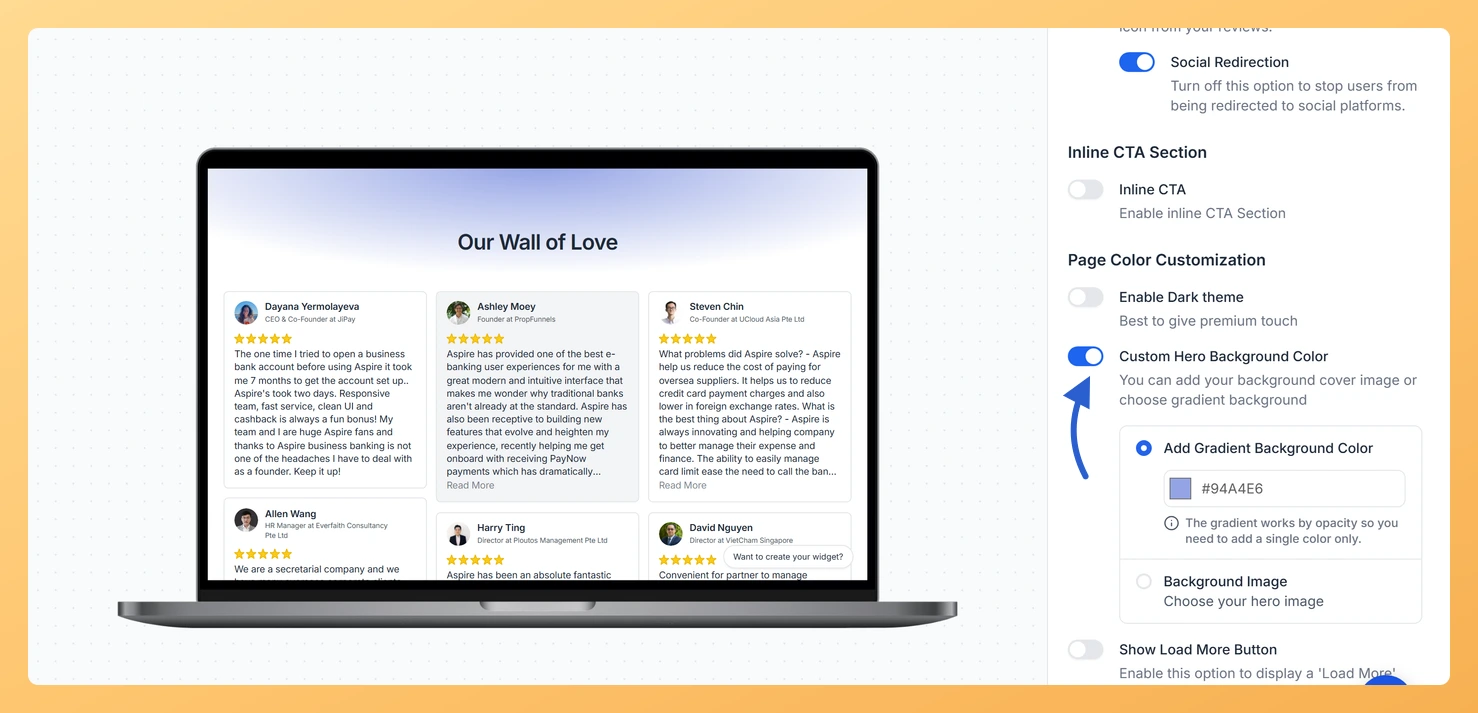
  3. Click the Design tab and scroll down the right panel to the color and background settings.

Step 2: Choose a Background Type

Select how the background behind your reviews will look:

  • Background Color: Click the color swatch next to Page Background Color and pick any color from the color picker. This sets a solid color across the entire page.
  • Background Image: Enable Add Custom Background and click Upload to add a background image. The maximum file size is 15 MB. You can also enable Darken Background to apply an overlay that keeps the text readable.

Step 3: Customize Card and Text Colors

Scroll down to find individual color pickers for each part of the page. Click any swatch to open the color picker and choose your preferred color:

  • Primary Text Color: The main text on the page, such as the page title.
  • Secondary Text Color: Supporting text such as reviewer names and dates.
  • Card Background Color: The background color of each review card.
  • Card Hover Color: The color a card changes to when a visitor hovers over it.
  • Star Rating Color and Star Rating Border Color: The color of the star icons on review cards.
  • External Link Color: The color of any links inside reviews.
  • Highlighted Text Color: The color used for highlighted text reviews.

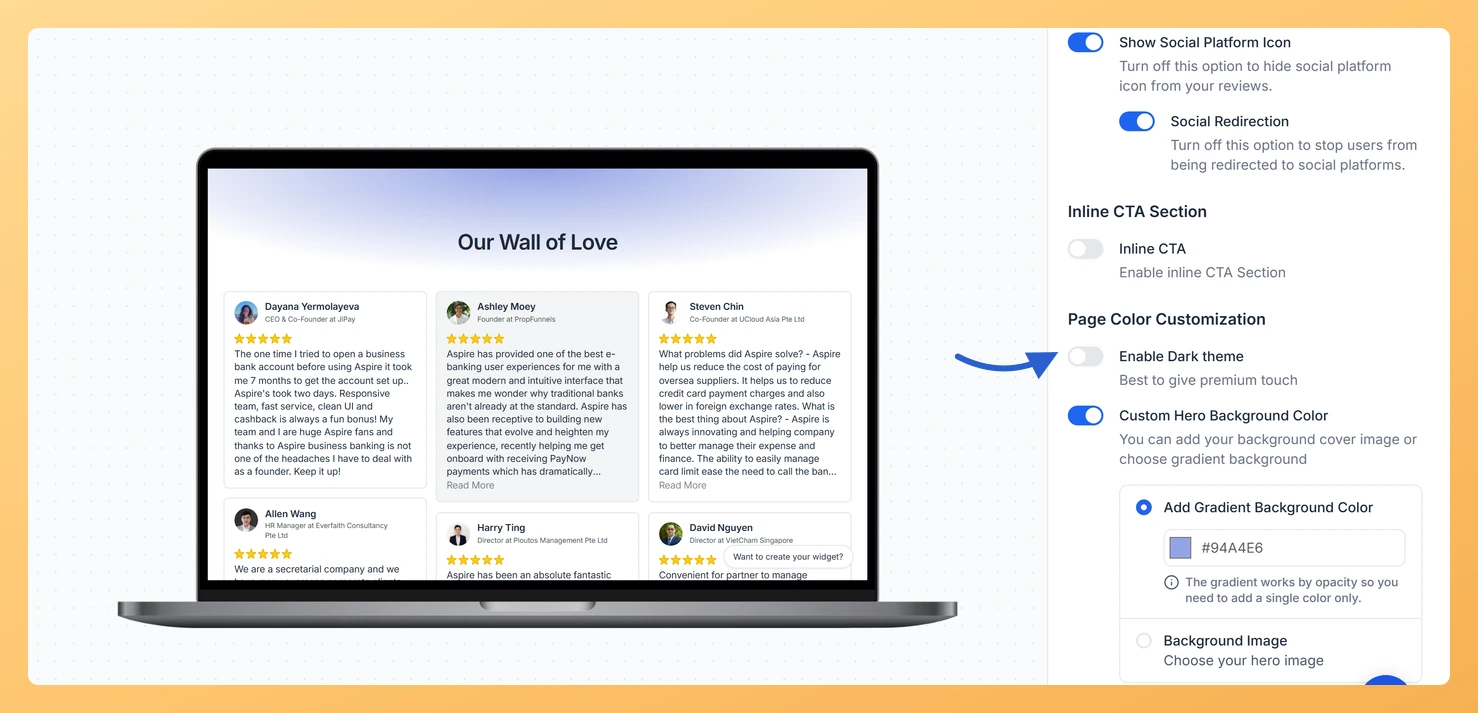
Step 4: Enable Dark Mode

Toggle Dark Mode on to switch the entire page to a dark color scheme. Dark mode comes with its own set of color pickers so you can fine-tune every element specifically for the dark version of the page.

Step 5: Save Your Changes

Click Save & Next to apply your background settings. The live preview on the left updates in real time so you can see the result before saving.

What You Can Do with Background Customization

  • Match the page background to your brand colors for a seamless, on-brand experience.
  • Use a product or lifestyle photo as the background to add visual depth and context.
  • Offer a dark mode version that is easier to read in low-light environments.
  • Adjust card colors to make individual review cards stand out clearly against the page background.

You might also find helpful

How to Create a Wall of Love Page in Feedspace

Steps to Create a Page Log into Feedspace Sign in with your account credentials. Go to Pages From the left sidebar, click Pages. Create Page Click Create Page. This opens the creation screen with some reviews auto-selected in the space. Select Reviews Go to the Select Review page and choose...

How Do I Customize the Navigation on My Wall of Love Page?

Steps to Customize the Navigation Step 1: Open the Design Tab Step 2: Add Your Logo Step 3: Set a Logo Redirect URL Enable the Logo Redirect URL toggle and enter the URL you want the logo to link to, such as your homepage. When a visitor clicks the logo...

How to Use Custom CSS Option in Wall of Love

Overview Feedspace gives you the flexibility to customize the look and feel of your Wall of Love using Custom CSS.This feature allows you to personalize font styles, colors, spacing, and other design elements to match your brand identity. Step 1: Go to Page Design Step 2: Enable “Add Custom CSS”...