
Feedspace Home Dashboard

How Do I Customize the Navigation on My Wall of Love Page?

Last updated on June 11, 2026

Steps to Customize the Navigation

Step 1: Open the Design Tab

  1. Log in to your Feedspace account.
  2. Go to Pages and open the editor for your Wall of Love page.
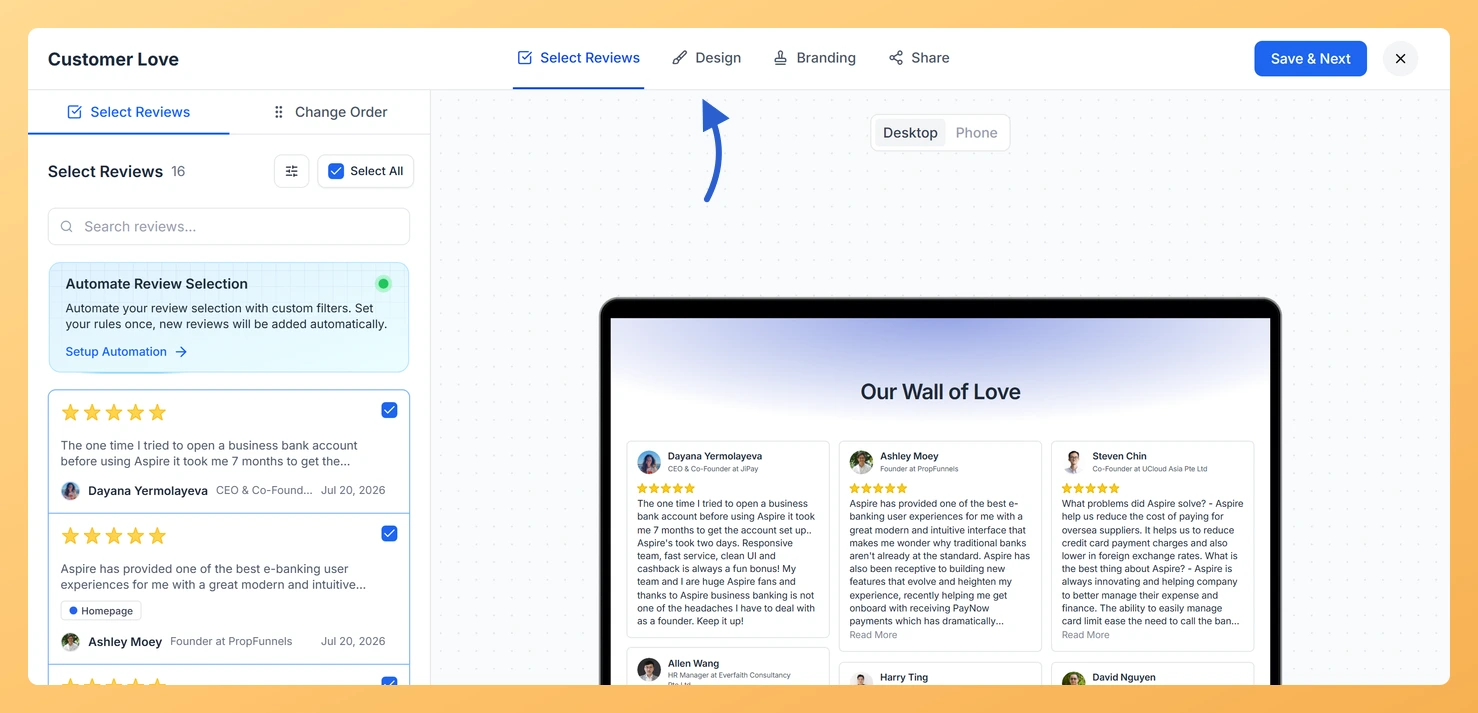
  3. Click the Design tab at the top of the editor.
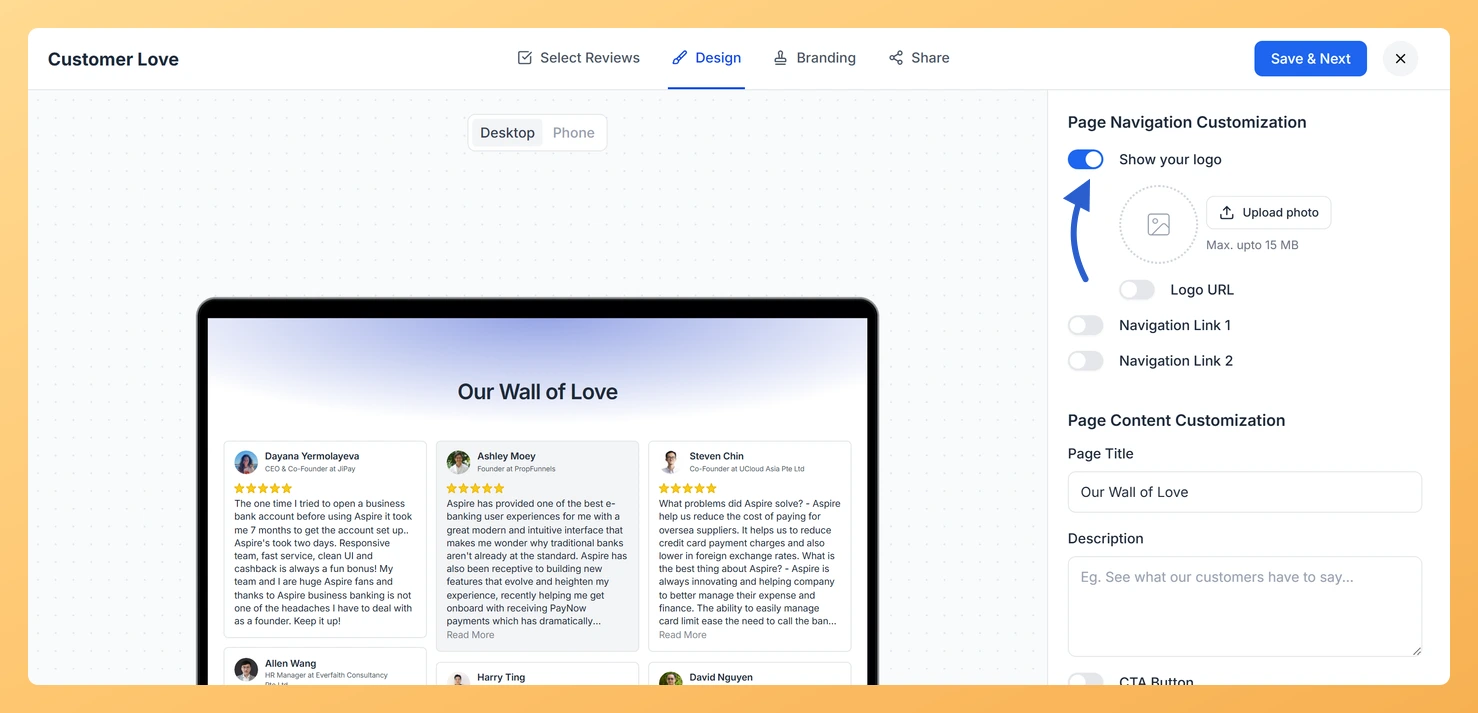
  4. The right panel shows Page Navigation Customization at the top.

Step 2: Add Your Logo

  1. Toggle Show Your Logo on.
  2. To upload an image file, click Upload Photo and select your logo. The maximum file size is 15 MB.
  3. Alternatively, enable Logo URL and paste the direct URL of your logo image hosted online.

Step 3: Set a Logo Redirect URL

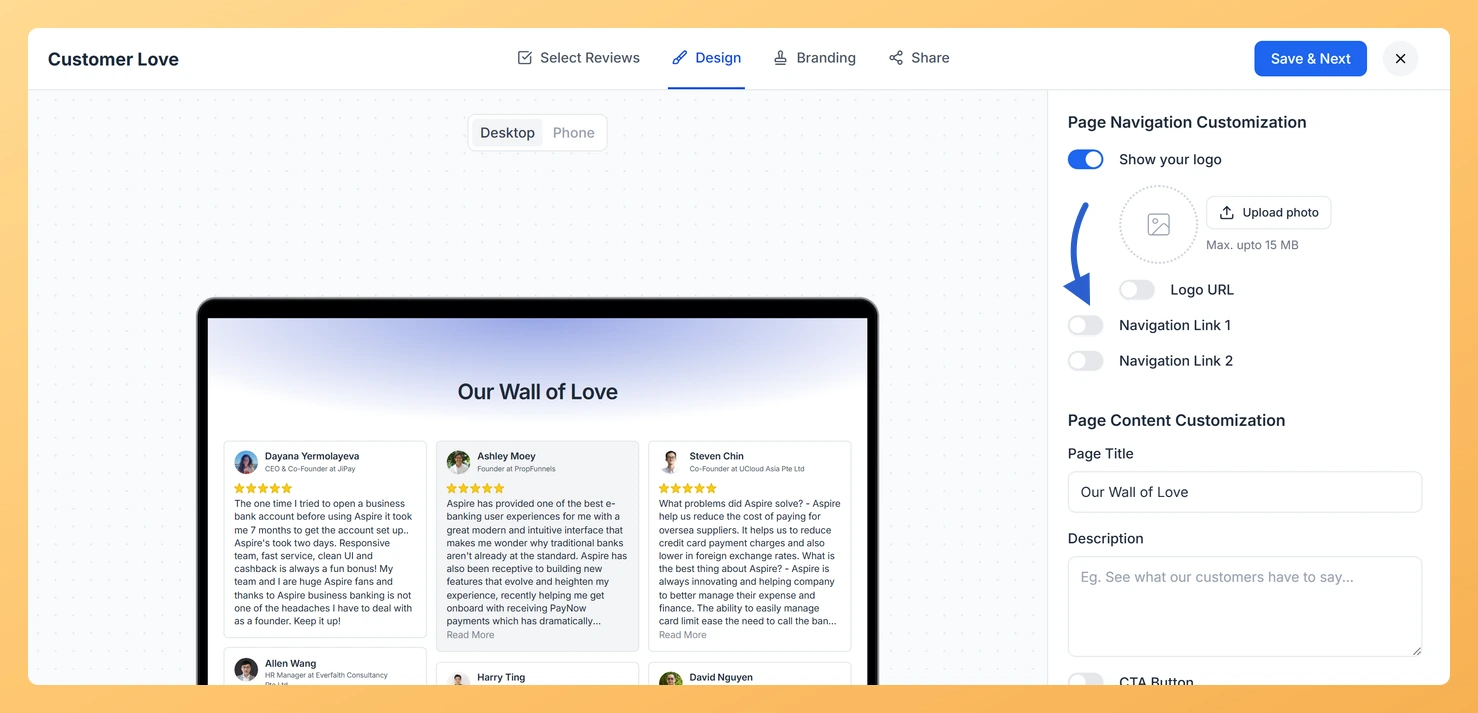
Enable the Logo Redirect URL toggle and enter the URL you want the logo to link to, such as your homepage. When a visitor clicks the logo on your Wall of Love page, they will be taken to that URL.

Step 4: Add Navigation Links

You can add up to two navigation links in the header bar:

  1. Enable Navigation Link 1 and enter the link text and the URL it should point to.
  2. Enable Navigation Link 2 and enter a second link text and URL if needed.

These links appear in the navigation bar at the top of your published page.

Step 5: Save Your Changes

Click Save & Next at the top right of the editor to apply your navigation settings. The live preview on the left updates so you can see how the header looks before publishing.

What You Can Do with Navigation Customization

  • Reinforce brand recognition by displaying your logo at the top of every Wall of Love page.
  • Link the logo back to your website so visitors can easily navigate to your main site.
  • Add a “Get Started” or “Contact Us” link to turn page visitors into leads directly from the navigation bar.
  • Create a consistent experience for visitors arriving from different marketing channels.

You might also find helpful

How to Create a Wall of Love Page in Feedspace

Steps to Create a Page Log into Feedspace Sign in with your account credentials. Go to Pages From the left sidebar, click Pages. Create Page Click Create Page. This opens the creation screen with some reviews auto-selected in the space. Select Reviews Go to the Select Review page and choose...

How Do I Customize the Content Section of My Wall of Love Page?

Steps to Customize the Content Section Step 1: Open the Design Tab Step 2: Set the Page Title The Page Title field is required. This text appears as the main heading at the top of your Wall of Love page, usually the first thing visitors read. Keep it concise and...

How Do I Customize the Background of My Wall of Love Page?

Steps to Customize the Background Step 1: Open the Design Tab Step 2: Choose a Background Type Select how the background behind your reviews will look: Step 3: Customize Card and Text Colors Scroll down to find individual color pickers for each part of the page. Click any swatch to...