
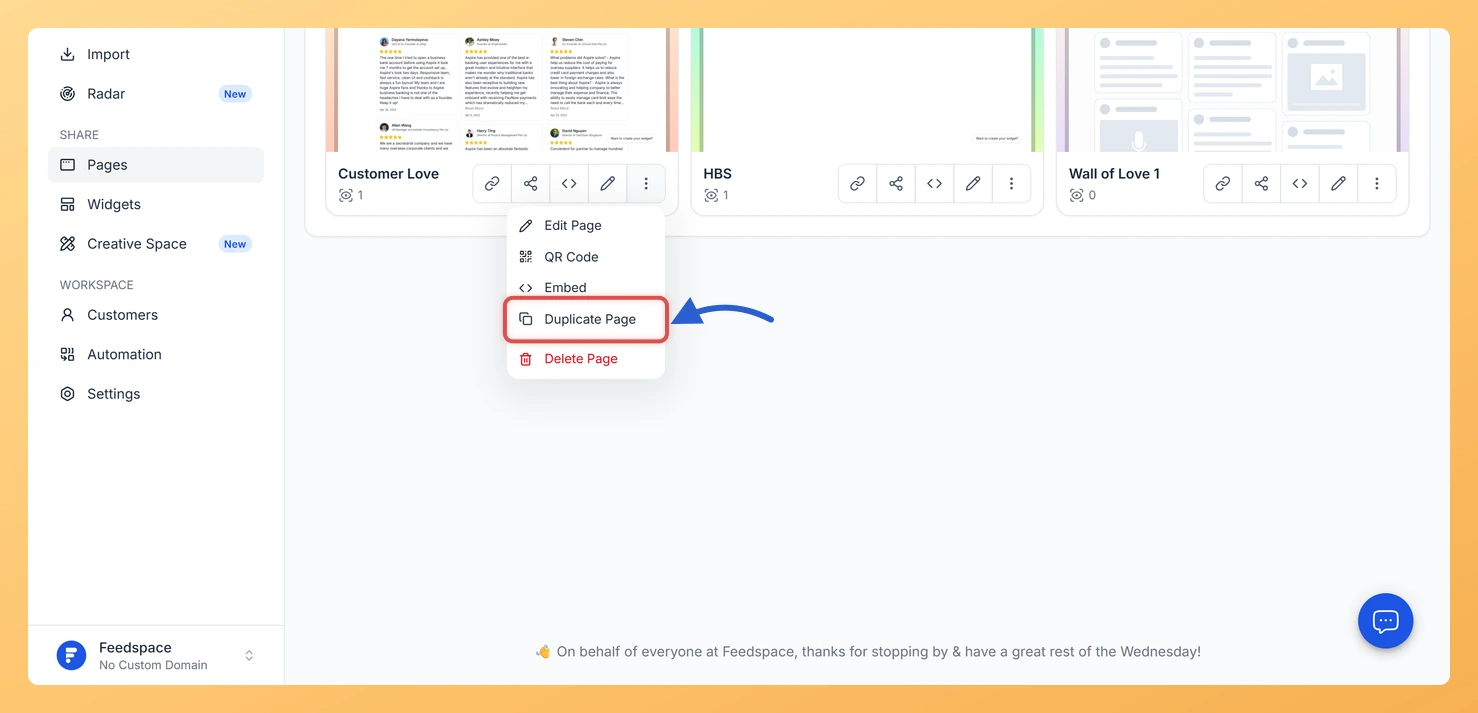
Feedspace Home Dashboard

How Do I Duplicate a Wall of Love Page in Feedspace?

Last updated on June 11, 2026

Steps to Duplicate a Page

Step 1: Go to Pages

  1. Log in to your Feedspace account.
  2. From the left sidebar, click Pages.
  3. Your existing Wall of Love pages appear as cards on this screen.

Step 2: Open the Three-Dot Menu

  1. Hover over the page card you want to duplicate.
  2. Click the three-dot menu () that appears at the bottom of the card.

Step 3: Select Duplicate Page

Click Duplicate Page from the dropdown. Feedspace instantly creates a copy of the page. The new page appears in your list with (Copy) appended to its name and contains the same selected reviews, design settings, and branding configuration as the original.

Step 4: Customize the Copy

Click on the duplicated page to open the editor. From here you can:

  • Rename the page by clicking the pencil icon next to the title in the editor header.
  • Swap or add reviews in the Select Reviews tab.
  • Change colors, fonts, or layout in the Design tab.
  • Update the URL slug in the Share tab so the copy has its own unique link.

Click Save & Next to apply your changes.

What You Can Do with Duplicate

  • Save time by reusing a design you already perfected instead of building a new page from scratch.
  • Create targeted pages for different products, audiences, or campaigns while keeping the original live.
  • Experiment with layout changes safely on the copy without affecting your main page.
  • Build themed pages that share the same visual style but show different sets of reviews.

You might also find helpful

How to Create a Wall of Love Page in Feedspace

Steps to Create a Page Log into Feedspace Sign in with your account credentials. Go to Pages From the left sidebar, click Pages. Create Page Click Create Page. This opens the creation screen with some reviews auto-selected in the space. Select Reviews Go to the Select Review page and choose...

How Do I Delete a Wall of Love Page in Feedspace?

Before You Delete Steps to Delete a Page Step 1: Go to Pages Step 2: Open the Three-Dot Menu Step 3: Confirm Deletion A confirmation modal opens showing the page statistics: total views, button clicks, and any websites where the page is currently embedded. If the page has been viewed,...

How to Duplicate a Widget in Feedspace

Overview Duplicating a widget in Feedspace allows you to quickly create a copy of an existing widget without starting from scratch. This is useful if you want to: Step 1 – Go to the Widgets Section Step 2 – Choose the Widget to Duplicate Step 3 – Edit the Duplicated...