The Avatar Blocks widget displays your testimonials in a structured block grid, showing each reviewer’s avatar alongside their review text in a clean, side-by-side layout. By default, visitors see all blocks at once and must scroll or interact to explore more reviews. The Allow Auto-Slide option in Layout Design changes this by rotating reviews on their own, cycling through your testimonials without the visitor doing anything.
When Allow Auto-Slide is on, a Slider Speed slider appears beneath it. This gives you precise control over how quickly the Avatar Blocks grid transitions between reviews, so you can match the pace to your page context. A slower speed works well on landing pages where visitors spend more time reading, while a faster speed suits high-traffic pages where you want to surface more reviews quickly. Enabling Autoplay ensures your full set of testimonials gets seen, even by visitors who never scroll or click.
How to enable autoplay on your Avatar Blocks widget
Step 1: Open the Widgets section
Log in to your Feedspace account. In the left-hand navigation, click Widgets to open the widgets listing page, where all your created widgets are displayed.
Step 2: Edit your Avatar Blocks widget
Find the Avatar Blocks widget you want to set rotating and click the Edit (pencil) icon on its card to open the editor.
Step 3: Go to the Design tab
Inside the widget editor, locate the tab bar near the top of the panel. Click the Design tab to open the design settings for your Avatar Blocks widget.
Step 4: Find the Allow Auto-Slide toggle
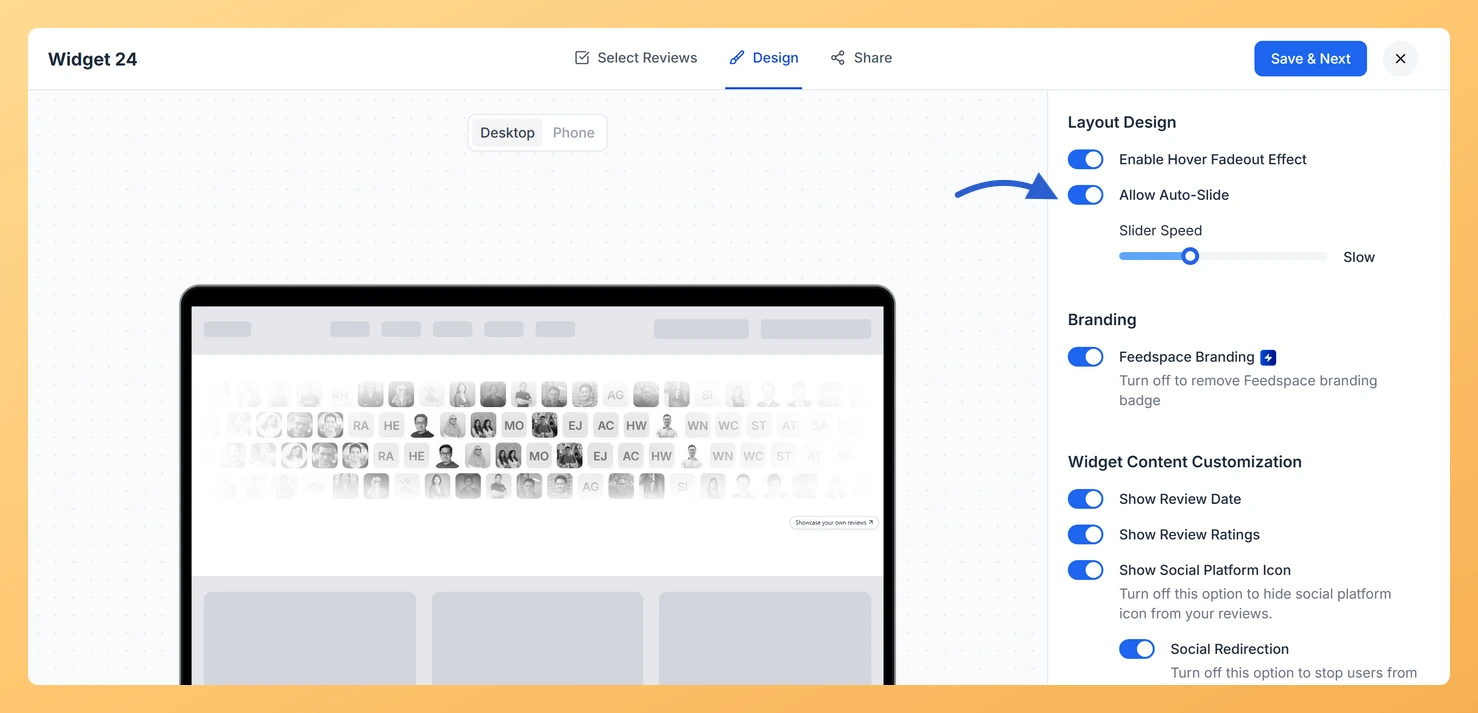
Scroll to the Layout Design section at the top of the panel, where the Allow Auto-Slide toggle sits. This setting controls whether the Avatar Blocks grid rotates through testimonials automatically.
Step 5: Turn on Allow Auto-Slide and set the speed
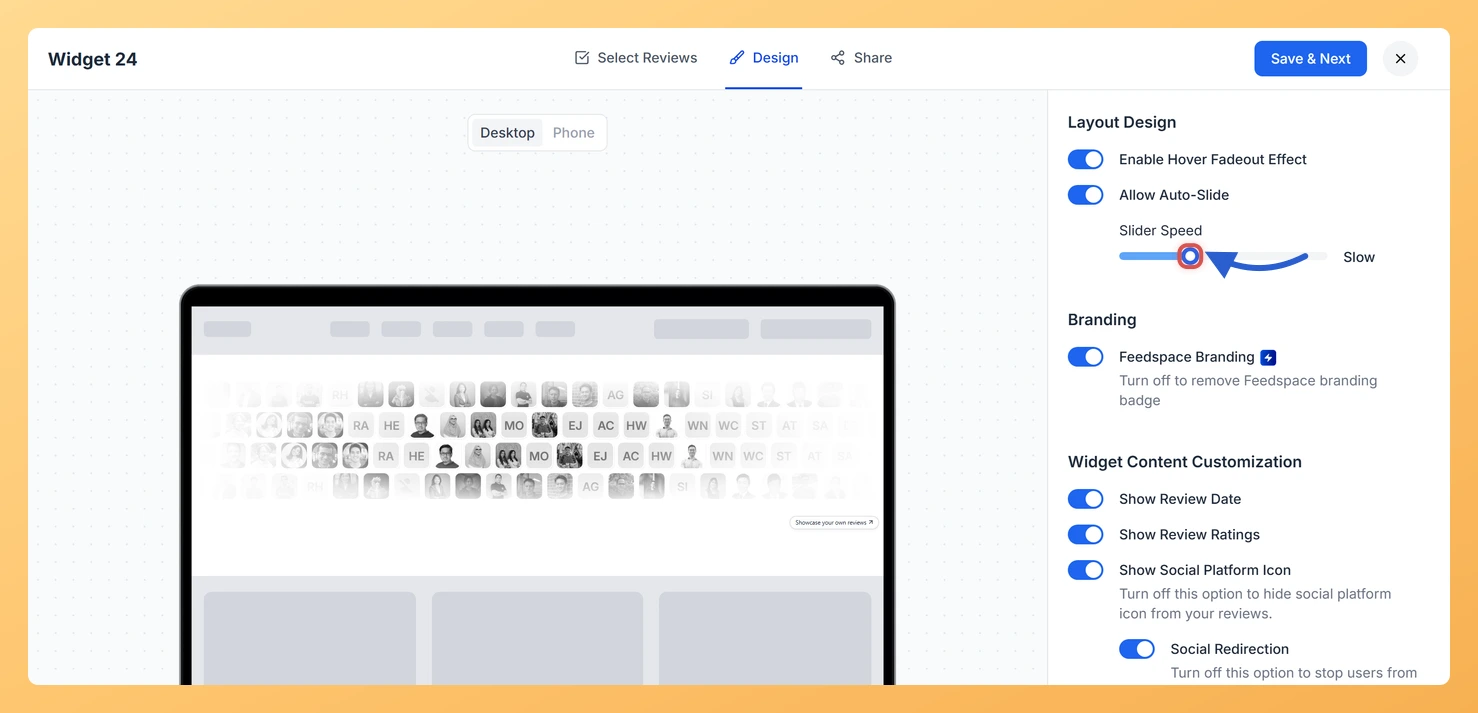
Click the Allow Auto-Slide toggle to turn it on. A Slider Speed slider appears directly below it. Drag the slider to set the pace. The setting you land on is named beside the slider, so you can see at a glance what you chose, and a slower pace suits pages where visitors linger over each block.
Step 6: Save your changes
After selecting your autoplay speed, click Save & Next to apply the changes to your Avatar Blocks widget. The widget embedded on your site will now rotate through reviews automatically at the speed you selected.
What’s next
Pair the rotation with Enable Hover Fadeout Effect, the other setting in Layout Design, so blocks soften as a visitor moves across the grid.
Adjust the number of testimonial blocks displayed per row in the Design tab to make each auto-rotated frame visually balanced.
Curate which reviews appear in your Avatar Blocks widget by filtering testimonials by rating or tag, ensuring only your best reviews rotate automatically.
Leave your site alone. An embedded Avatar Blocks widget reads its settings from Feedspace on each page load, so the change is live as soon as it is saved.
Common questions
There is no setting called Autoplay. What am I looking for?
On Avatar Blocks it is called Allow Auto-Slide, and it sits in Layout Design at the top of the Design tab rather than further down. Switch it on and a Slider Speed slider appears underneath it.
You might also find helpful
How Do I Enable the Hover Fadeout Effect on My Avatar Blocks Widget in Feedspace?
Overview The Avatar Blocks widget displays your testimonials in a structured block grid, placing each reviewer’s avatar alongside their review text in a clean, side-by-side card layout. Because all cards are visible at once in this grid, visitors can feel visually overwhelmed when scanning multiple testimonials simultaneously. The Hover Fadeout...
How to Create an Avatar Blocks Widget in Feedspace
Overview Feedspace’s Avatar Blocks widget displays your reviews in bold, grid-based cards where the reviewer’s profile picture takes centre stage. It’s a strong, visually balanced layout that works well on testimonial pages, pricing pages, and anywhere you want reviews to feel authentic and human. Step 1: Log in to Feedspace...
How Do I Customize the Design of My Widget in Feedspace?
Overview Feedspace widgets come with a powerful Design tab that lets you tailor every visual aspect of your widget. From card colors and fonts to dark mode and call-to-action buttons, you can fully customize the look to match your website’s brand without writing any code. How to Customize the Widget...