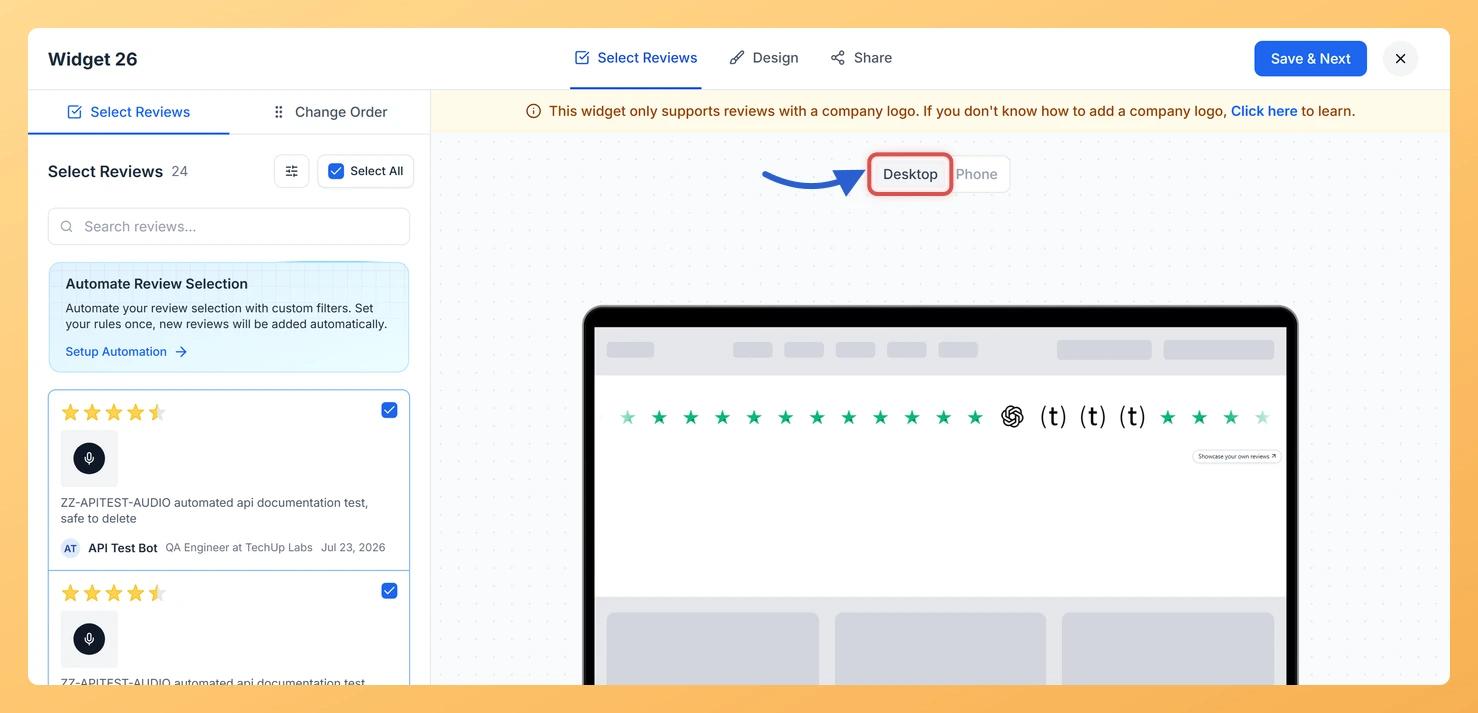
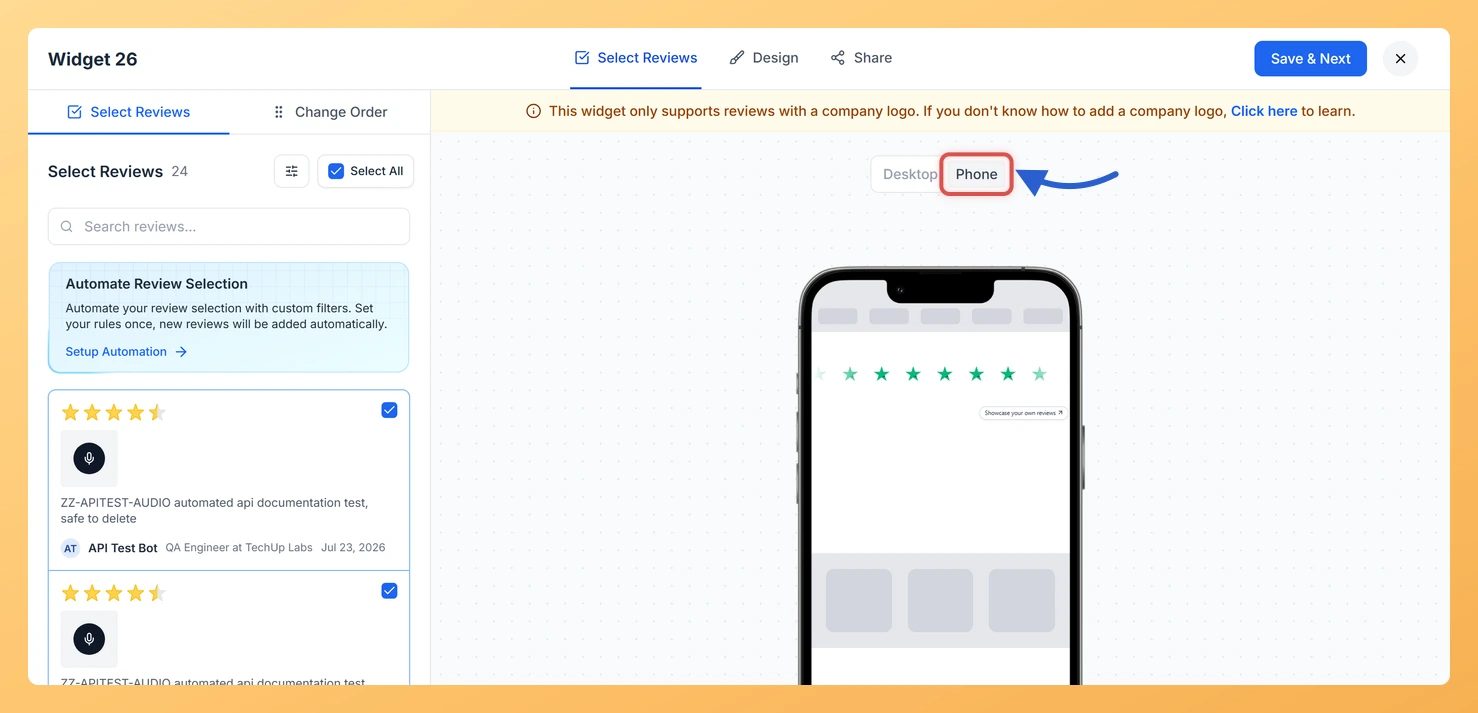
The Company Logo Slider editor in Feedspace has a live preview with a Desktop and Phone switch above it, so you can see the logo strip in a laptop frame and in a phone frame before it goes on your site.
Far fewer logos fit across a phone screen, so a strip that looks full and confident on a laptop can look sparse or crowded on mobile. Checking both lets you settle the logo size and speed while you are still in the editor.
Steps to preview on desktop and mobile
Step 1: Open the slider in the editor
Pick Widgets in the sidebar and press the Edit (pencil) icon on your Company Logo Slider. The preview shows on both the Select Reviews and Design tabs.
Step 2: View it on Desktop
Click Desktop above the preview. Check that the logos are easy to recognise and that the strip moves at a comfortable pace.
Step 3: Switch to Phone
Click Phone. The strip now shows inside a phone frame. Check that the logos are still recognisable at this size.
Step 4: Adjust and save
If anything needs changing, adjust Slider Speed or Logo Size in Layout Design on the Design tab, compare both views again, then click Save & Next.
After embedding, open the page on your own phone for a final check.
Common questions
Can I set different settings for desktop and mobile?
No. Desktop and Phone only change the preview frame. The same design is used on every device, so pick settings that work on both.
You might also find helpful
How to Create a Company Logo Slider Widget in Feedspace
Overview Feedspace’s Company Logo Slider widget displays your clients’ or partners’ logos in a smooth, continuously scrolling strip. It’s the ideal “as seen on” or “trusted by” social proof bar for your homepage or landing page: no review text needed, just recognizable brand logos. Step 1: Log in to Feedspace...
How Do I Preview a Widget in Feedspace?
Overview Before embedding a widget on your website, it is a good idea to preview how it looks to visitors. Feedspace lets you open a live public preview of any widget directly from the widget editor, so you can verify the design, review layout, and overall appearance before going live....
How Do I Customize the Design of My Widget in Feedspace?
Overview Feedspace widgets come with a powerful Design tab that lets you tailor every visual aspect of your widget. From card colors and fonts to dark mode and call-to-action buttons, you can fully customize the look to match your website’s brand without writing any code. How to Customize the Widget...