Overview
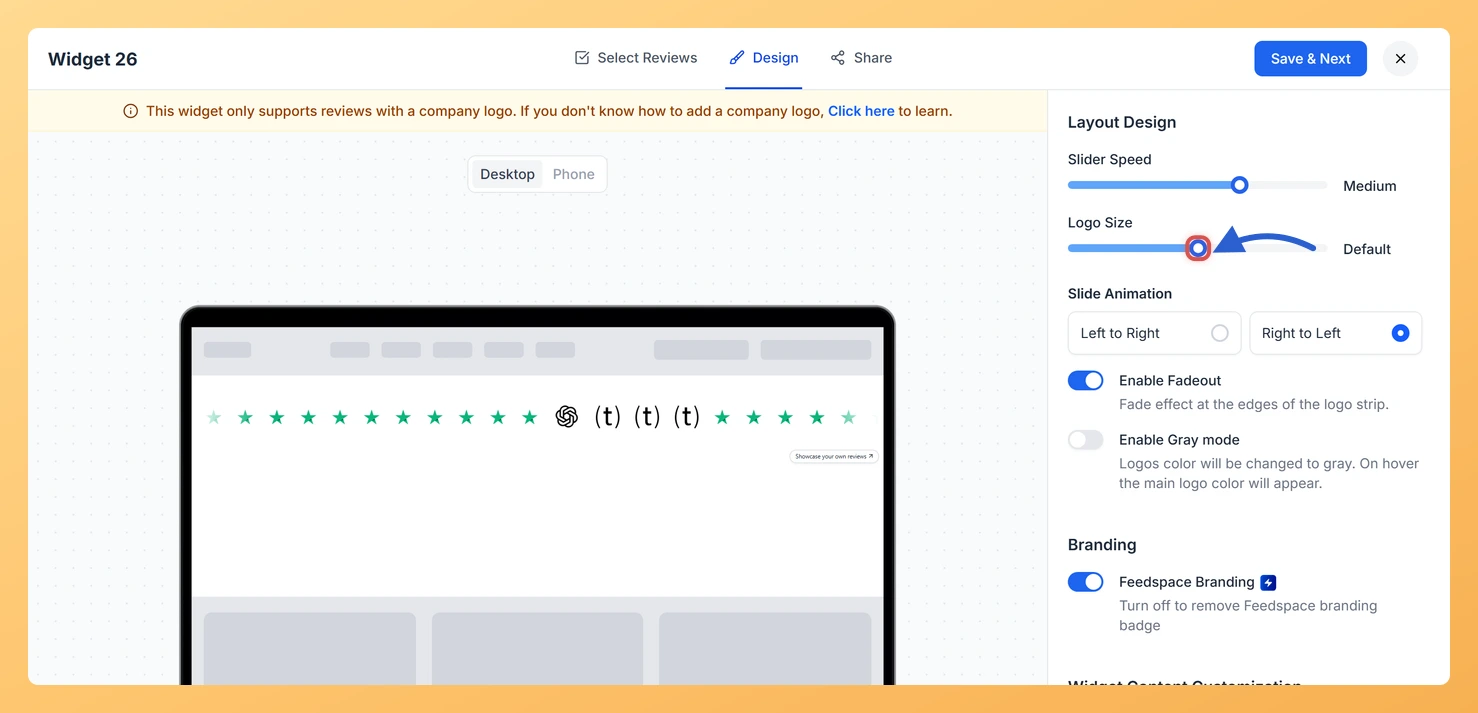
The Company Logo Slider widget displays a continuously scrolling row of company logos pulled from your reviewer profiles, giving visitors instant visual proof of the brands that trust your product. The Logo Size option in the Layout Design section controls how large each logo appears inside that sliding row. Because the slider is purely visual, the right logo size directly shapes how polished and readable the widget looks on any given page. A size that is too small makes logos hard to recognise at a glance, while a size that is too large can crowd the slider and disrupt your page layout. Feedspace provides three choices, Small, Default, and Large, so you can match the slider to the visual weight of the surrounding content. The preview updates immediately when you select a size, letting you compare options before saving.
How to Adjust the Logo Size for Your Company Logo Slider Widget
Step 1: Open the Widgets Section
Log in to your Feedspace account and navigate to the Widgets section from the main sidebar. You will see a list of all the widgets you have created across your workspace.
Step 2: Edit Your Company Logo Slider Widget
Find the Company Logo Slider widget you want to update and click the Edit button (or click the widget name) to open its settings.
Step 3: Go to the Design Tab
Inside the widget editor, click the Design tab at the top of the settings panel. This tab contains all visual and layout options for the widget.
Step 4: Locate the Layout Design Section
Scroll down within the Design tab until you reach the Layout Design section. This section groups the options that control how the slider is structured, including logo size.
Step 5: Select Your Preferred Logo Size
Find the Logo Size option within the Layout Design section. Click one of the three available sizes:
- Small: Displays logos at a compact size, ideal for dense layouts or pages where the slider should blend into the background rather than dominate.
- Default: The standard size, which works well for most page layouts and provides a clear view of each logo without overpowering surrounding content.
- Large: Enlarges each logo for maximum visibility, best suited for dedicated social-proof sections or pages with generous whitespace.
The widget preview updates immediately after you click a size, so you can compare all three options before committing to one.
Step 6: Save Your Changes
Once you are satisfied with the logo size in the preview, click Save to apply the change. The updated size will be reflected everywhere the Company Logo Slider widget is embedded on your site.
What You Can Do Next
- Enable grayscale mode on your Company Logo Slider widget to give all logos a uniform, professional appearance that matches a neutral colour palette.
- Adjust the slider speed and direction settings in the Layout Design section to control how quickly logos scroll across the widget.
- Copy the embed code for your Company Logo Slider widget and place it in a dedicated social-proof section on your homepage or landing page.
- Explore other design options in the Design tab, such as background colour and spacing, to make the Company Logo Slider blend seamlessly with your site’s style.
You might also find helpful
How Do I Enable Grayscale Mode on My Company Logo Slider Widget in Feedspace?
Overview The Company Logo Slider widget displays a continuously scrolling row of company logos pulled from your reviewers’ profiles, giving visitors an instant visual signal of the recognisable brands that trust your product. Because the slider is a purely visual element, how those logos look at rest matters as much...
How to Create a Company Logo Slider Widget in Feedspace
Overview Feedspace’s Company Logo Slider widget displays your clients’ or partners’ logos in a smooth, continuously scrolling strip. It’s the ideal “as seen on” or “trusted by” social proof bar for your homepage or landing page: no review text needed, just recognizable brand logos. Step 1: Log in to Feedspace...
How Do I Customize the Design of My Widget in Feedspace?
Overview Feedspace widgets come with a powerful Design tab that lets you tailor every visual aspect of your widget. From card colors and fonts to dark mode and call-to-action buttons, you can fully customize the look to match your website’s brand without writing any code. How to Customize the Widget...