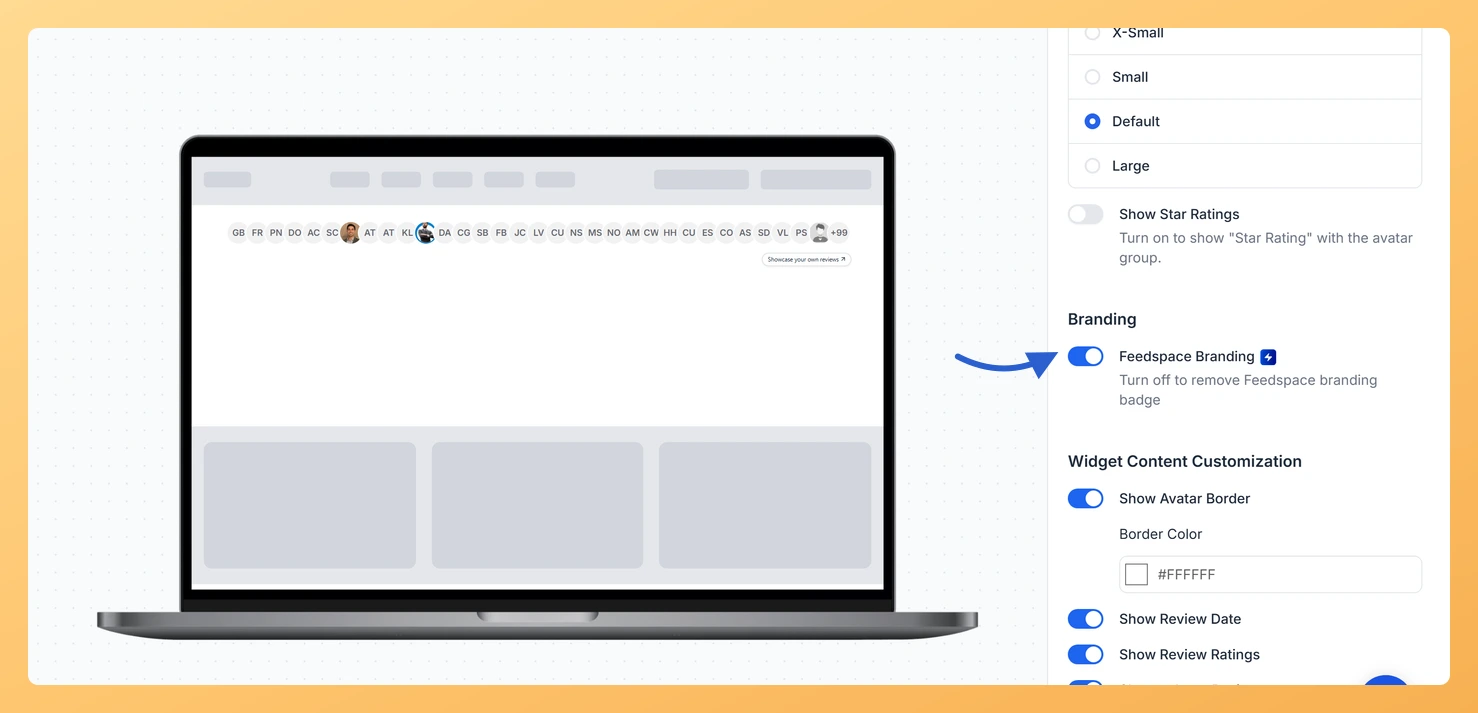
An Avatar Group widget from Feedspace shows a small Showcase your own reviews link below the avatars. The Feedspace Branding toggle controls it: it is on to start with, and you turn it off to remove the link.
An Avatar Group often sits in the busiest spot on a page, next to a headline or a sign-up button, so teams usually want nothing there that sends visitors elsewhere. Removing branding is part of Feedspace’s paid plans.
Steps to remove Feedspace branding
Step 1: Visit Widgets
Click Widgets in the SHARE group of the sidebar.
Step 2: Edit the widget and open Design
Click the Edit (pencil) icon on your Avatar Group’s card, then the Design tab. Branding follows Widget Design Settings.
Step 3: Turn off Feedspace Branding
Click the Feedspace Branding toggle to turn it off. The link disappears from the preview. If your plan does not include this, an Upgrade Plan window opens instead.
Step 4: Save
Click Save & Next to keep the widget branding-free.
No. The widget loads from Feedspace on every page view, so once you save, a refresh of your page shows it without the link.
You might also find helpful
How to Create an Avatar Group Widget in Feedspace
Overview The Avatar Group widget in Feedspace displays the profile pictures (avatars) of your reviewers in a sleek and minimal circular layout. It’s ideal for showing social proof in a subtle, space-saving format on your homepage, footer, or testimonial sections. How to Access Step 1 – Log in to Feedspace...
How Do I Customize the Design of My Widget in Feedspace?
Overview Feedspace widgets come with a powerful Design tab that lets you tailor every visual aspect of your widget. From card colors and fonts to dark mode and call-to-action buttons, you can fully customize the look to match your website’s brand without writing any code. How to Customize the Widget...
How Do I Change the Font on My Avatar Group Widget in Feedspace?
Overview The Font Family setting on an Avatar Group widget in Feedspace sets the typeface of the widget’s text, such as the review card that opens from an avatar. Pick a font from the list, or leave it empty to use your website’s font. The Avatar Group usually sits right...