
Overview
The Avatar Slider widget displays your testimonials in a sliding carousel that places each reviewer’s avatar front and center, paired directly with their review text. This layout draws the eye to the person behind each testimonial, making social proof feel personal and credible. By default, a small Feedspace badge appears inside the widget to indicate that your reviews are powered by Feedspace.
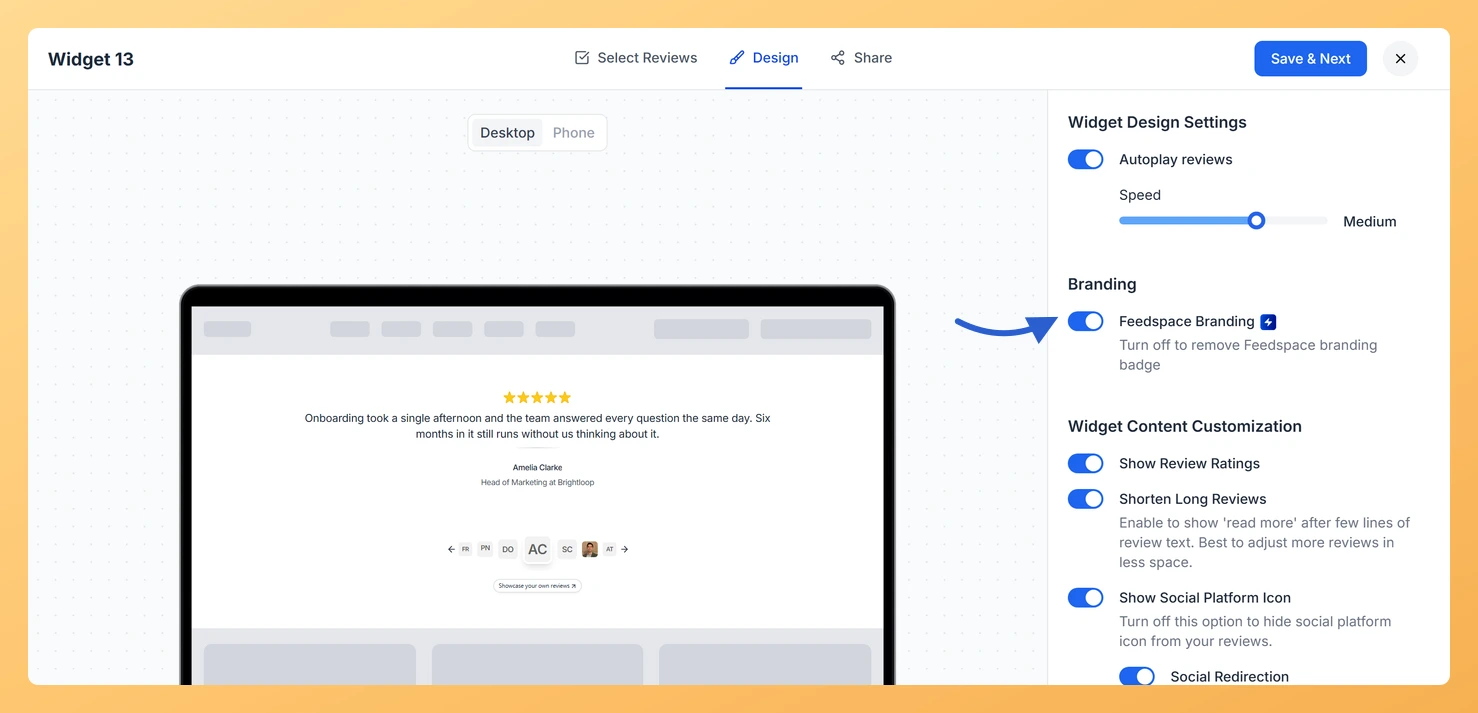
The Feedspace Branding toggle, found in the Branding section of the Design tab, lets you remove that badge entirely. Because the Avatar Slider is a visually prominent, full-width embed, removing the badge produces a cleaner look that keeps the focus on your reviewers’ avatars and words rather than on the platform behind them. This option is a premium feature (marked with a lightning bolt icon) and requires an eligible paid plan.
How to Remove Feedspace Branding from Your Avatar Slider Widget
Step 1: Open the Widgets Section
Log in to your Feedspace account and navigate to the Widgets section from the main sidebar. You will see a list of all widgets you have created across your workspace.
Step 2: Edit Your Avatar Slider Widget
Locate the Avatar Slider widget you want to update and click the Edit option for that widget. The widget editor will open, showing you all available configuration panels.
Step 3: Go to the Design Tab
Inside the widget editor, click the Design tab at the top of the settings panel. This tab contains all visual customization options for your Avatar Slider, including layout, colors, typography, and branding controls.
Step 4: Find the Branding Section
Scroll down within the Design tab until you reach the Branding section. You will see the Feedspace Branding toggle here, marked with a lightning bolt icon to indicate it is a premium feature. If your plan is not eligible, you will be prompted to upgrade before you can interact with the toggle.
Step 5: Turn Off the Feedspace Branding Toggle
Click the Feedspace Branding toggle to turn it off. Once disabled, the Feedspace badge will no longer appear in your Avatar Slider widget. Save your changes, and the update will be reflected immediately wherever the widget is embedded.
What You Can Do Next
- Adjust the avatar size and card spacing in the Design tab to give each reviewer’s photo more visual weight in the slider.
- Customize the background color and font styles of your Avatar Slider to match your website’s brand palette now that the Feedspace badge is removed.
- Copy the updated embed code for your Avatar Slider and replace the existing snippet on your website to publish the branding-free version.
- Preview your Avatar Slider on both desktop and mobile to confirm the layout looks polished and balanced without the Feedspace badge.
You might also find helpful
How Do I Customize the Design of My Widget in Feedspace?
Overview Feedspace widgets come with a powerful Design tab that lets you tailor every visual aspect of your widget. From card colors and fonts to dark mode and call-to-action buttons, you can fully customize the look to match your website’s brand without writing any code. How to Customize the Widget...
How to Create an Avatar Slider Widget in Feedspace
Overview The Avatar Slider widget in Feedspace displays one review at a time with a reviewer’s avatar, name, and feedback. It includes smooth sliding transitions and navigation arrows for switching between reviews. This layout is ideal for minimal testimonial sections that highlight one review prominently. How to Access Step 1...
How Do I Customize the Design of My Widget in Feedspace?
Overview Feedspace widgets come with a powerful Design tab that lets you tailor every visual aspect of your widget. From card colors and fonts to dark mode and call-to-action buttons, you can fully customize the look to match your website’s brand without writing any code. How to Customize the Widget...