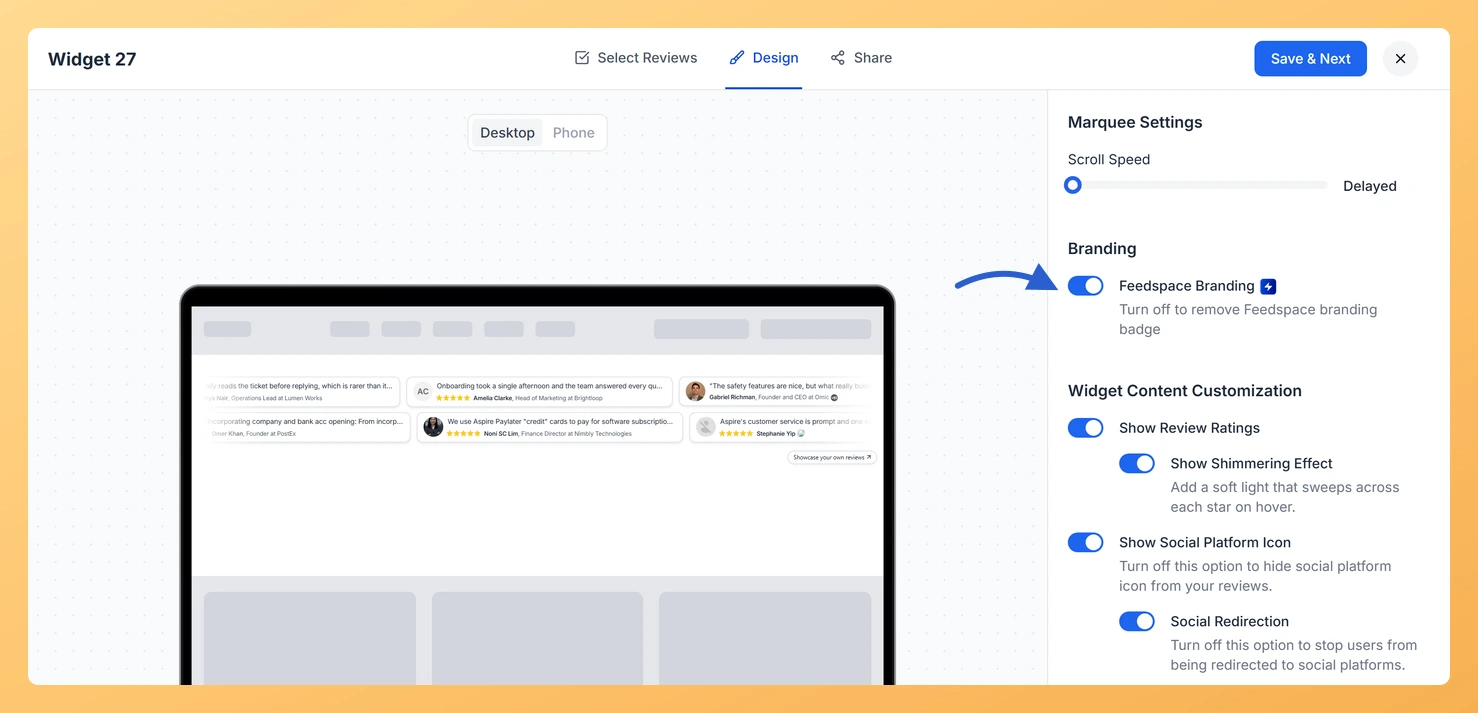
A Strip Slider widget from Feedspace shows a small Showcase your own reviews link under the strip that points back to Feedspace. The Feedspace Branding toggle controls that link. It is on to begin with, and you turn it off to remove the link.
Agencies building sites for clients, and brands that want the strip to look fully their own, usually remove it so nothing on the page points visitors somewhere else. Removing branding is part of Feedspace’s paid plans.
Steps to remove Feedspace branding
Step 1: Visit the Widgets page
Click Widgets in the SHARE group of the sidebar.
Step 2: Edit your Strip Slider and go to Design
Click the Edit (pencil) icon on the Strip Slider’s card, then the Design tab. Branding is the second section, right below Marquee Settings.
Step 3: Turn off Feedspace Branding
Click the Feedspace Branding toggle to turn it off. Its description reads “Turn off to remove Feedspace branding badge”. The link disappears from under the strip in the preview. If your plan does not include this, an Upgrade Plan window opens instead.
Step 4: Save the change
Click Save & Next to save the widget without branding.
What’s next
Change the font so the strip matches the rest of your site’s text.
The link is still on my website after I saved. What should I do?
Reload the page. The widget on your site is loaded from Feedspace each time the page opens, so there is no embed code to update; a fresh load picks up the change.
You might also find helpful
How to Create a Strip Slider Widget in Feedspace
Overview The Strip Slider widget in Feedspace allows you to showcase your reviews in a single, horizontally scrolling line: perfect for website headers, footers, or testimonial sections that need a minimalist design. You can adjust autoplay speed, borders, and colors to match your brand style. How to Access Step 1...
How Do I Customize the Design of My Widget in Feedspace?
Overview Feedspace widgets come with a powerful Design tab that lets you tailor every visual aspect of your widget. From card colors and fonts to dark mode and call-to-action buttons, you can fully customize the look to match your website’s brand without writing any code. How to Customize the Widget...
How Do I Change the Font on My Strip Slider Widget in Feedspace?
Overview The Font Family setting on a Strip Slider widget in Feedspace decides which typeface the review text and reviewer names use. You can pick a font from the list, or leave it empty and let the widget take on your website’s own font. A strip of reviews in a...