The Avatar Blocks widget displays your reviews in a structured block grid where each block shows a reviewer avatar alongside their testimonial. Because the layout pairs a profile photo and name directly with the review text, the quality of individual reviews matters more here than in other widget types. A block with a missing avatar or an anonymous name creates a visual gap in the grid and weakens trust.
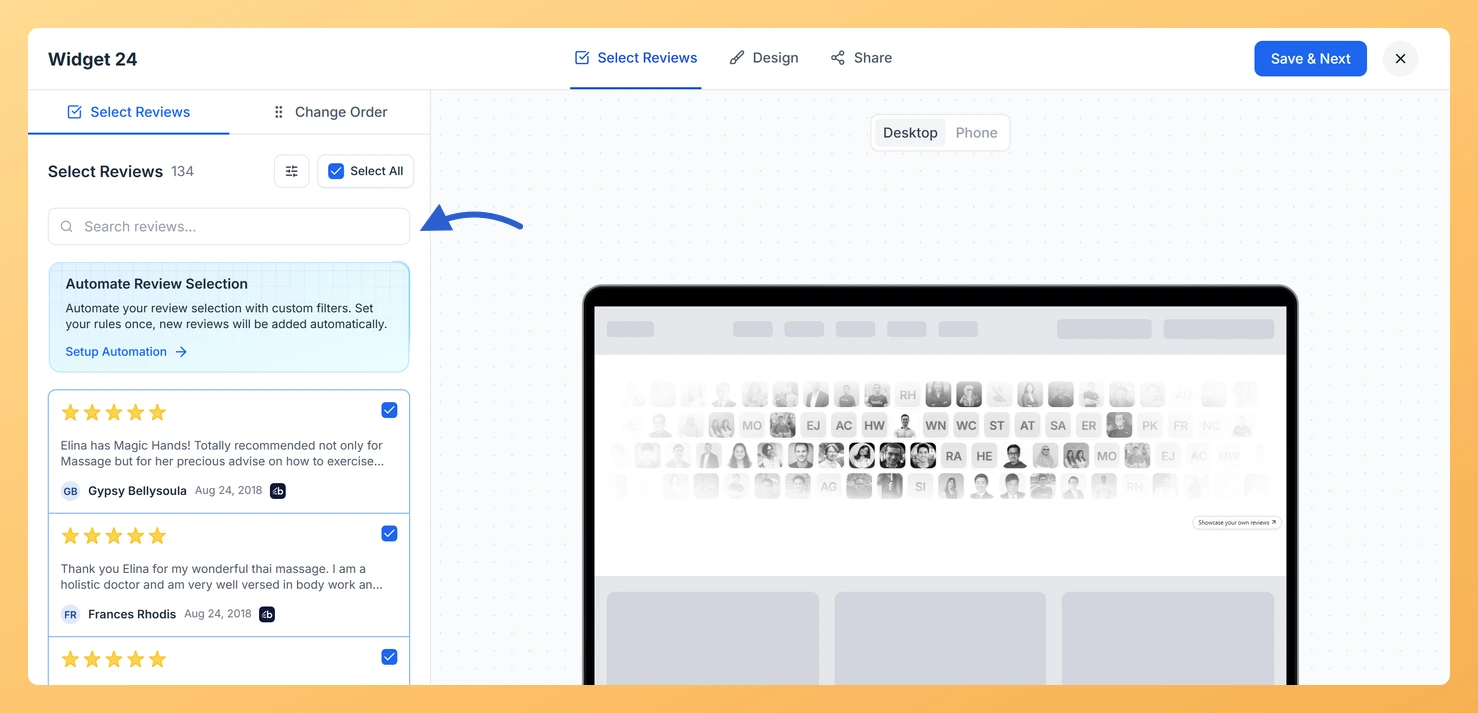
The Select Reviews tab inside the Avatar Blocks widget editor includes a search input and a filter panel to help you pinpoint exactly the right reviews before adding them to your widget. You can narrow results by review type, source platform, star rating, sentiment, and labels, so you spend less time scrolling and more time picking reviews that look great in the block layout. This guide walks you through each step of that process in Feedspace.
How to search and filter reviews for your Avatar Blocks widget
Step 1: Open your Avatar Blocks widget editor
Log in to your Feedspace account and navigate to the Widgets section from the left sidebar. Locate your existing Avatar Blocks widget in the list and click to open its editor. If you have not created one yet, click Create Widget, choose Avatar Blocks as the widget type, and proceed to the editor.
Step 2: Go to the Select Reviews tab
Inside the Avatar Blocks widget editor, click the Select Reviews tab. This tab displays the pool of reviews available for your widget. At the top of the tab you will see a search input field, and below or beside it you will find the filter panel with all available filter options.
Step 3: Use the search input to find reviews by keyword
Type a keyword into the search input field to instantly narrow the review list. You can search by reviewer name, company, or words within the review text itself. For the Avatar Blocks layout, searching by reviewer name is especially useful because it lets you confirm a specific person’s review includes both their name and photo before selecting it. Reviews that match your search term appear in real time as you type.
Step 4: Filter by Review Type
Open the filter panel and locate the Review Type option. Use this filter to show only the category of reviews you want, such as text reviews or video reviews. For the Avatar Blocks grid, text reviews with a strong written testimonial work best alongside a reviewer photo, so filtering to text reviews first helps you build a more consistent layout.
Step 5: Filter by Imported Reviews From
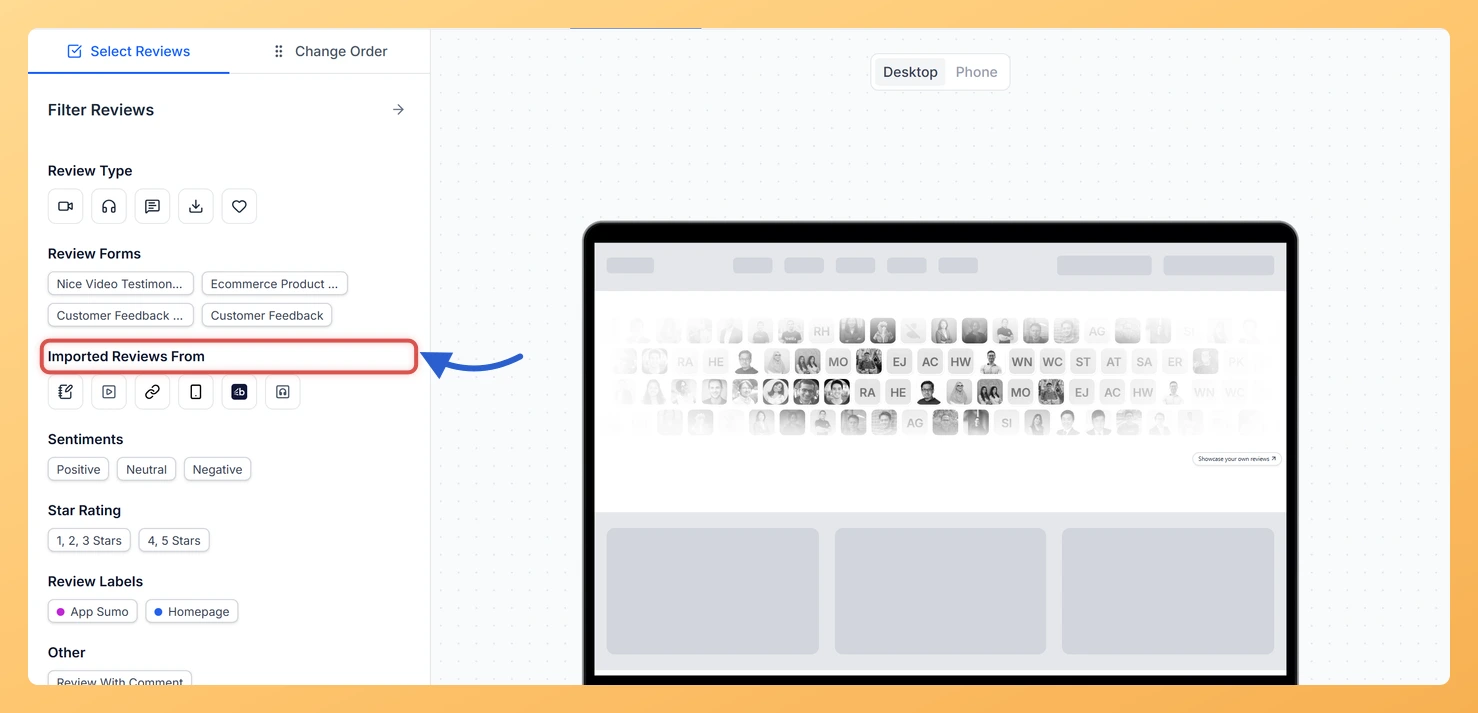
Use the Imported Reviews From filter to limit reviews to a specific channel, such as Google, Trustpilot, Facebook, or reviews collected directly through Feedspace forms. Filtering by platform is helpful when you want your Avatar Blocks widget to showcase reviews from one trusted source or when a particular platform tends to include complete reviewer profiles with names and photos.
Step 6: Filter by Star Rating
Star Rating is offered as two groupings rather than a number you type: one covering 1, 2 and 3 stars, the other covering 4 and 5. Pick the higher grouping for a public widget. In the Avatar Blocks layout, each block is prominently displayed, so a high star rating reinforces the credibility that the reviewer avatar already establishes visually.
Step 7: Filter by Sentiments
Use the Sentiments filter to show reviews that have been classified as positive, neutral, or negative by Feedspace’s sentiment analysis. For the Avatar Blocks widget, filtering to positive sentiment ensures that every block in the grid carries an encouraging testimonial, making the overall layout more persuasive to visitors.
Step 8: Filter by Review Labels
If you have applied labels to your reviews in Feedspace, use the Review Labels filter to surface reviews tagged with a specific label. Labels let you group reviews by theme, campaign, product, or any custom category you have created. Filtering by a label is useful when you want your Avatar Blocks widget to focus on a single topic or product line rather than showing a broad mix of reviews.
Step 9: Review and select the filtered results
After applying your search terms and filters, the review list updates to show only the matching results. Scroll through the filtered list and look for reviews that include a reviewer name and photo, as these give each Avatar Block a complete, trustworthy identity. Select the reviews you want to add to your widget by clicking the checkbox or select button next to each one. When you are satisfied with your selection, save your widget settings.
What’s next
Manually select individual reviews from your filtered results to control exactly which testimonials appear in each block of your Avatar Blocks grid.
Set up automation rules on your Avatar Blocks widget to have Feedspace automatically include new reviews that match your filter criteria without manual review each time.
Customise the Avatar Blocks widget design settings to adjust block size, avatar shape, and layout spacing so the grid looks polished with your selected reviews.
Embed your Avatar Blocks widget on your website or landing page after finalising your review selection, so visitors immediately see a well-curated, avatar-led testimonial grid.
Common questions
What can I actually filter by?
The panel offers Review Type, Review Forms, Imported Reviews From, Sentiments, Star Rating and Review Labels. Star Rating is offered as two groupings rather than a number you set.
You might also find helpful
How Do I Select Reviews for My Avatar Blocks Widget in Feedspace?
Overview The Avatar Blocks widget displays your reviews in a structured block grid, placing each reviewer’s avatar alongside their testimonial for a clean, organised presentation. Because reviews are arranged in a grid, the number and selection of reviews you include directly affects how polished the layout looks. An uneven or...
How Do I Use Automation to Auto-Select Reviews on My Avatar Blocks Widget in Feedspace?
Overview The Avatar Blocks widget in Feedspace arranges reviews in a structured block grid, placing each reviewer’s avatar alongside their testimonial for a clean, organised presentation. Because the layout relies on a full grid of consistently formatted blocks to look its best, any gaps caused by a thin or outdated...
What is a Widget in Feedspace?
Overview In Feedspace, a widget is a customizable display tool that allows you to showcase your collected reviews, testimonials, or feedback directly on your website. With widgets, you can turn customer voices into social proof, helping you build trust and credibility with visitors. Instead of just collecting reviews, widgets let...